AI Holiday Campaign From One Product Photo, Step by Step
No seasonal shoot, no problem. Turn one product photo into festive stills, short video ads and a soundtrack on each::labs, without the label drifting from frame to frame.
By Eftal Yurtseven · Nov 6, 2026 · 7 min read

Every November the same brief lands on someone's desk. One product, a dozen channels, a festive look, and a deadline that was set before anyone booked a studio. The old answer was a seasonal shoot. The new answer is an AI holiday campaign built from the one product photo you already have, and the hard part isn't making it look festive. It's keeping the product the same product in every frame.
Here's the workflow we'd run on each::labs, step by step. It starts with a single packshot, turns it into seasonal stills with an image editor like Nano Banana 2.1 Edit, animates the best ones into short clips, adds music and stitches it all into ads for each channel. Six models, one API, and a product label that survives the trip.
Start With One Photo You Trust
Everything downstream inherits the flaws of your source image, so spend ten minutes here before you spend an afternoon anywhere else. You want a sharp, evenly lit packshot where the label, logo and shape are clear. Phone photos work if the light is soft and the product fills the frame.
Clean it up first. Run the photo through GPT Image 2.6 Sunburst Edit with a narrow instruction (remove the dust, straighten the bottle, nothing else) and ask for a transparent background with PNG output. A clean cutout gives every later model one unambiguous reference. If the original is small, an image upscale pass now saves you from soft labels later.
Remove the dust and fingerprints from the bottle and straighten it so it stands perfectly upright. Keep the label, the text and the cap exactly as they are. Transparent background.
Write down what must never change: the label text, the cap color, the bottle shape. That list becomes a line you paste into every prompt that follows.
Build the Seasonal Scenes Around the Product
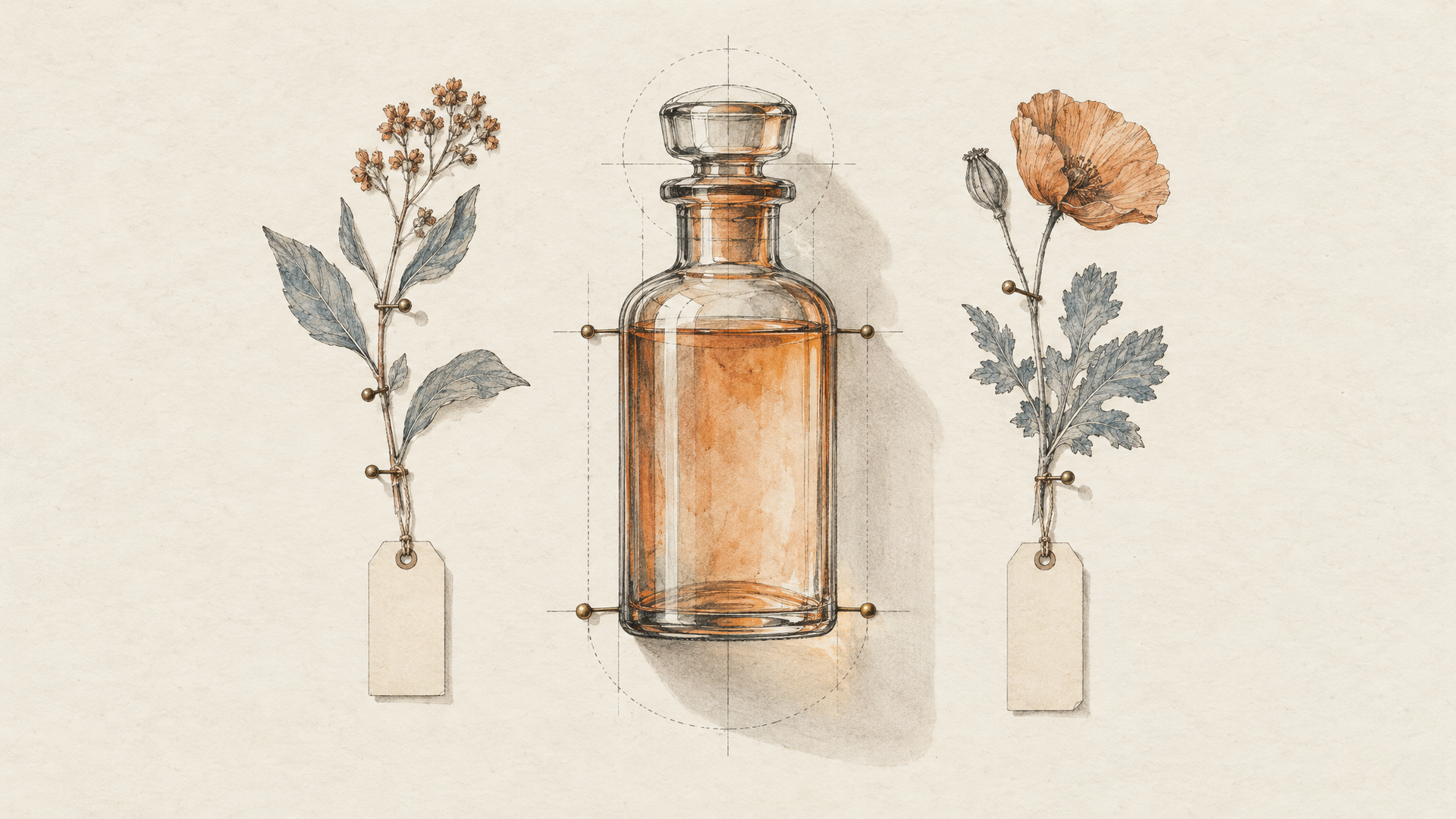
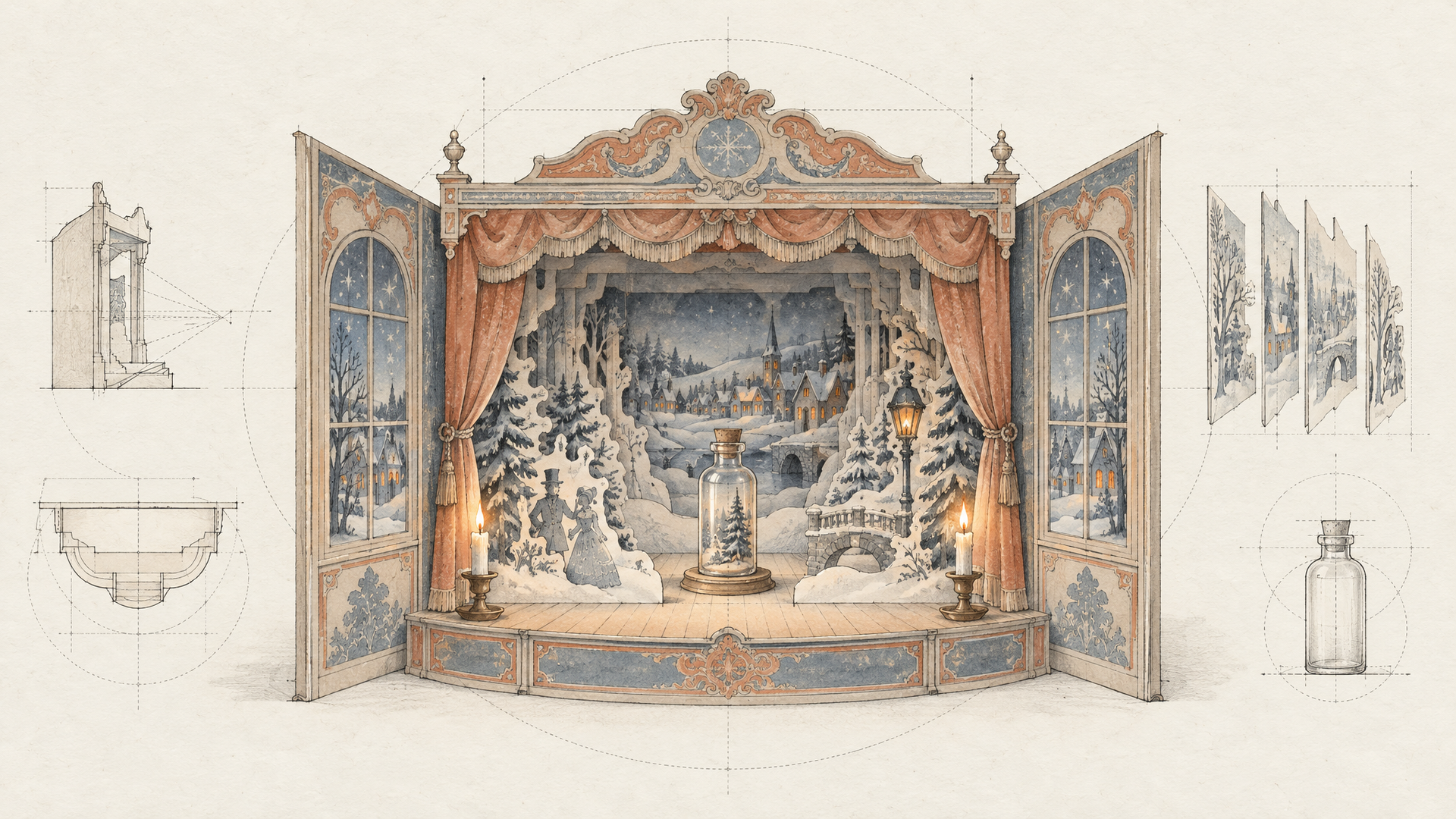
Now the fun part. Pick four or five settings that fit your brand rather than generic holiday clutter: a snowy windowsill at dusk, a wrapped gift table under warm string lights, a cabin breakfast, a minimal studio set with one sprig of pine. Generate each one with the product placed in it.
Nano Banana 2.1 Edit is a strong default here. It takes 1 to 14 images per request, so you can send the packshot plus a mood reference, and it renders at 1K, 2K or 4K in aspect ratios from 1:1 and 4:5 to 9:16 and 16:9. For scenes where the product must sit perfectly still while everything around it changes, Seedream 5.0 Pro Edit is built for exactly that: it edits specific regions while preserving the rest and accepts up to 10 reference images.
Place the bottle from image 1 on a rustic wooden windowsill at blue hour, soft snow falling outside, a single warm candle glowing to the left, shallow depth of field. Keep the bottle's label, text, cap and shape exactly as in image 1. Vertical 4:5 product photo.
Generate several options per scene and be ruthless. You're looking for the two or three frames where the product looks like it belongs, not like it was pasted on. Our roundup of the best AI image editing models compares the editors in more depth if you want a second opinion.
Protect the Label in Every Frame
Product drift is the silent campaign killer. One frame where the label text is slightly off and the whole set looks fake. Three habits keep it in check.
Repeat the lock line every time. "Keep the label, text, cap and shape exactly as in image 1" is boring, and it works. Point at the product by a detail that only it has, not by position, because "the bottle on the left" stops meaning anything once the scene changes. And when a frame is almost right, fix it with a small edit instead of a new generation. A focused change at low complexity on GPT Image 2.6 Flare Edit (swap the ribbon color, remove a stray ornament) leaves the rest of the frame alone.
If the scene needs text of its own, a gift tag or a short seasonal line, generate it as part of the image with a model that handles typography well. GPT Image 2.6 Sunburst is our pick for that: in our own test it spelled a short handwritten label correctly on every run.
Animate the Best Stills Into Holiday Product Ads
Stills carry the feed. Motion carries the ad. Take your strongest frames and turn them into short clips with an image-to-video model, describing the motion, not the scene you already have.
Kling 4.0 Image-to-Video accepts 1 to 10 first, middle or last frame images and outputs 3 to 30 seconds at 720p or 1080p. That keyframe support is gold for product work: give it your windowsill still as the first frame and a close-up of the label as the last, and the camera has to land on the product. Seedance 2.5 Image-to-Video animates first or first-and-last frames into clips of up to 30 seconds with synchronized audio, and its draft mode returns a quick 480p preview that you can finish in 1080p with Seedance 2.5 Draft Completion once you like the motion.
Slow push in toward the bottle as snowflakes drift past the window and the candle flame flickers. The bottle stays perfectly still and in focus. Gentle, warm, unhurried. Ends on a close-up of the label.
Keep the motion small. A slow push, drifting snow, a flicker of light. Big camera moves around a product invite warping, and a holiday ad wins on mood, not on stunts. Our guide to image-to-video prompts goes deeper on writing motion that behaves.
Give It a Sound That Feels Like the Season
Silent ads get scrolled past. If you animated with Seedance 2.5, you already have synced ambient sound. For a branded track, Lyria 3.5 generates full songs from a text prompt and accepts up to 10 images to guide the music, so you can hand it your campaign stills and let the palette shape the mood. MiniMax Music 3.0 is the other strong option when you want a specific genre and structure.
A warm, cozy instrumental for a winter product ad: soft piano, brushed drums, sleigh bells used sparingly, slow tempo, builds gently and resolves on a calm final chord. No vocals.
Ask for instrumental beds for ads, and save vocals for the one longer brand film. A track with lyrics fights your voiceover and your captions. For layering effects and music over generated clips, our walkthrough on how to add music and sound effects to AI video covers the rest.
Cut, Merge and Size for Every Channel
Now assemble. Merge Videos on each::labs takes a list of clip URLs and joins them into one file, with output presets from square to portrait and landscape and a target frame rate of up to 60 fps. A tight 15-second cut is usually three clips: the scene, the motion, the label close-up.
Plan the formats from the start rather than cropping at the end. Generate your stills in 4:5 for feeds and 9:16 for stories and short video, and keep one 16:9 set for the site banner and YouTube. If a final clip needs more sharpness for a big screen, run it through Topaz Upscale Video as the last step.
Turn It Into a Flow You Reuse
The first campaign takes an afternoon. The second one shouldn't. Once your prompts and lock lines work, save the chain as an each::labs flow: packshot in, cleanup, scene edits, image-to-video, music, merge. Swap the product photo and the scene prompts, and the same pipeline produces the next product's holiday set, or the same product's spring set in March.
That's the real win. A seasonal shoot gives you one look for one product. A flow gives you a repeatable way to make every product feel seasonal, as many times as the calendar asks. If you want the theory behind chaining models, our guide to orchestrating text-to-image-to-video workflows lays it out.
Frequently Asked Questions
Can I make an AI holiday campaign without a new product shoot?
Yes, as long as you have one clean, well-lit photo of the product. That single packshot becomes the reference for every seasonal still, which you then animate, score and merge on each::labs. The quality of that first photo sets the ceiling for everything after it.
How do I keep my product label from changing in AI images?
Lock it in words and in pixels. Paste the same line into every prompt (keep the label, text, cap and shape exactly as in image 1), send the clean packshot as the first image, and fix near-misses with small, focused edits instead of regenerating the whole scene.
Which models should I use for holiday product ads?
Split the job by stage. Nano Banana 2.1 Edit or Seedream 5.0 Pro Edit for the seasonal scenes, GPT Image 2.6 for cleanup and any in-image text, Kling 4.0 or Seedance 2.5 for image-to-video, Lyria 3.5 or MiniMax Music 3.0 for the soundtrack, and Merge Videos to put the cut together.
How long should a holiday product ad be?
Shorter than you think. Fifteen seconds covers most feed and story placements, built from three clips: the scene, the moment of motion and the label close-up. Kling 4.0 and Seedance 2.5 both go up to 30 seconds when you need a longer brand film.