Google TTS With Gemini 3.1 Flash: Direct Every Line
Gemini 3.1 Flash TTS lets you direct a voice the way you'd brief an actor. A step-by-step guide to voices, style notes, two-speaker scenes and languages on each::labs.
By Eftal Yurtseven · Nov 2, 2026 · 7 min read
Getting a machine to read your script is easy now. Getting it to read the script the way you hear it in your head is the hard part. The line that should land with a smile comes out flat. The pause before the reveal never happens. Two characters in a dialogue sound like the same person arguing with a mirror.
That gap is what Google went after with Gemini 3.1 Flash TTS, the Google TTS model it introduced on April 15, 2026 and calls "our most natural and expressive model to date." The pitch isn't more voices. It's direction: you tell the model how to say something in plain language, the way you'd brief a voice actor. This guide walks through how to do that on each::labs, step by step, from a single narrator to a two-person scene.
What Google TTS on Gemini 3.1 Flash Actually Does
Gemini 3.1 Flash TTS turns text into speech and lets you steer the delivery with natural language. Google's announcement lists the headline pieces: audio tags, which are natural-language commands embedded in the text to steer vocal style, pace and delivery; native multi-speaker dialogue; and support for more than 70 languages. Every clip it generates carries SynthID, Google's imperceptible watermark for AI audio.
Google also points to an outside signal: an Elo score of 1,211 on the Artificial Analysis TTS leaderboard, which is built from blind human preference votes. That's a listener's verdict, not a lab metric, and for speech that's the one that counts.
On each::labs the model is a single endpoint with a short, readable request: the text, an optional styling prompt, a voice, a language, a mode (single or multi-speaker) and a temperature. That's all you need to direct a performance.

Step 1: Start With the Script, Not the Settings
Write the text exactly as it should be spoken. Punctuation is direction too: a full stop is a breath, a comma is a beat, a question mark lifts the line. Spell out numbers the way you want them read, and break long sentences where a speaker would naturally pause.
Keep each request focused. On each::labs the text field and the prompt field can each hold up to 4,000 bytes, with 8,000 bytes combined, and output audio is capped at roughly 655 seconds. That's plenty for an ad read, a product walkthrough or a podcast segment. For a long audiobook chapter, split by scene and keep the same voice and direction across requests.
Step 2: Pick a Voice That Fits the Brand
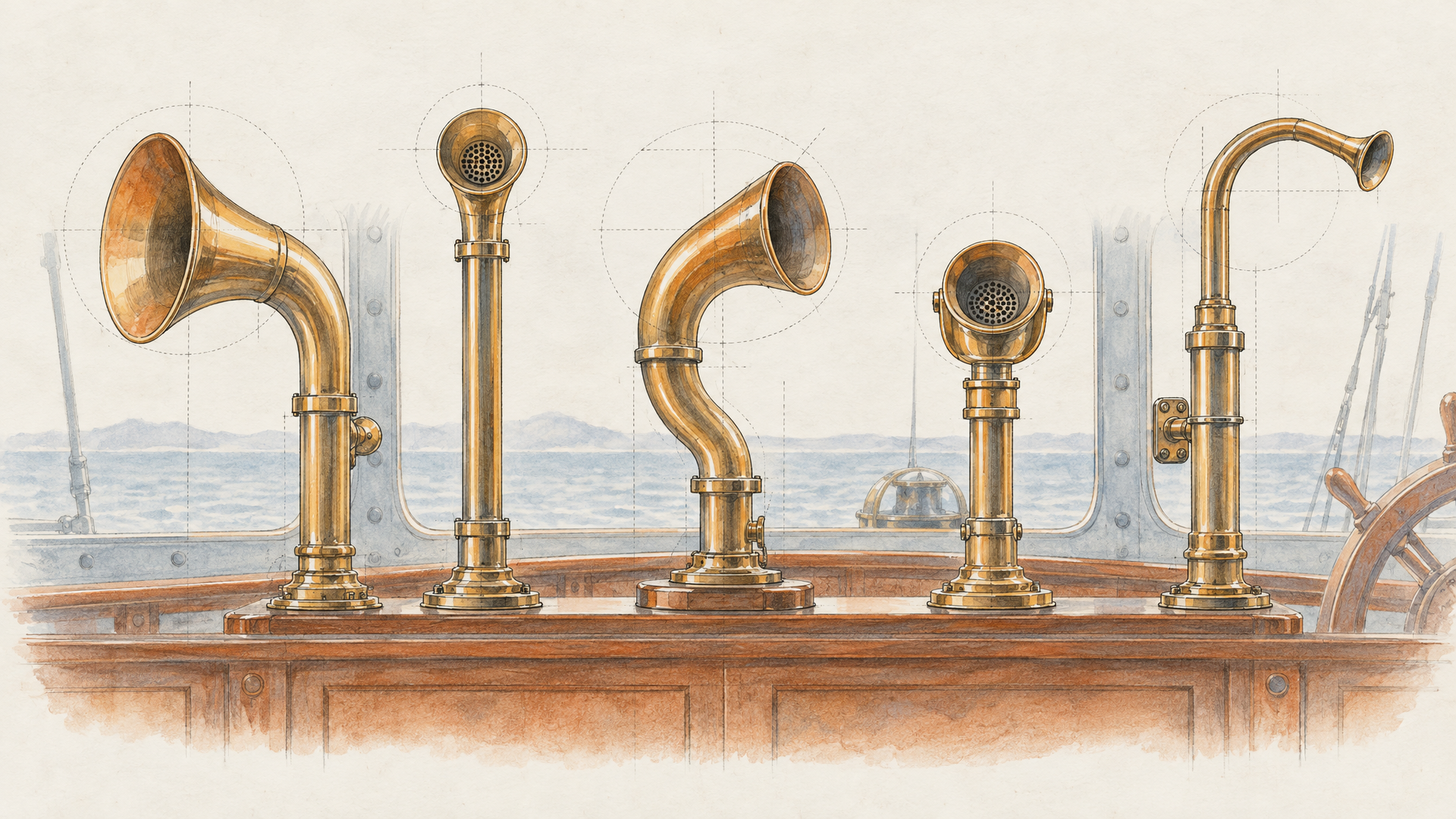
The endpoint ships with 30 prebuilt voices, from Achernar to Zubenelgenubi, and the default is Kore. Google's speech docs describe each voice with a single word: Kore is "Firm", Puck is "Upbeat". Those one-word labels are a better starting point than guessing from the names.
Don't audition voices with your real script. Audition them with one neutral sentence and one emotional sentence, then compare. A voice that sounds great reading a product spec can fall apart on a joke, and the opposite is just as common. Pick the one that handles both.
Then think about where the audio will play. A voice for a phone notification needs to be clear in two seconds on a tiny speaker. A voice for a meditation app needs to stay pleasant for twenty minutes in headphones. The same voice is rarely right for both, and the context should decide, not your favorite name on the list.
Step 3: Direct the Delivery in Plain Language
This is the step that makes Gemini 3.1 Flash different from older Google TTS voices. The optional prompt field takes a natural-language styling instruction, and the each::labs schema gives the simplest possible example: "Say in a curious way". You aren't tweaking pitch sliders. You're giving a note.
Good notes are specific about intent, not just emotion. "Happy" is vague. "Warm and a little amused, like you're letting a friend in on a secret" gives the model something to perform.
Prompt: Read this like a late-night radio host: low, unhurried, warm, with a small smile on the last sentence.
Text: It's past midnight, the city's finally quiet, and you're still up. Good. This next one's for you.
Google describes audio tags as commands you can embed directly in the text too, so you can shift the delivery mid-script instead of setting one mood for the whole read. Use the prompt for the overall performance and keep inline direction for the moments that need to change.
Two habits ruin good direction. The first is stacking contradictory notes: "energetic but calm, serious but playful" leaves the model splitting the difference, and you get neither. The second is directing every line. If every sentence has its own instruction, nothing stands out, and the read starts to sound like a performance of a performance. Give one clear note for the whole piece, then save the shifts for the two or three lines that genuinely turn.
Prompt: Confident product launch energy, brisk pace, then slow down and drop slightly lower for the final line.
Text: Three cameras. One tap. Every angle of your day, in focus. Meet the phone that finally keeps up.

Step 4: Turn One Voice Into a Conversation
Set mode to multi and the endpoint will voice up to two named speakers in one pass. Each line in the text starts with the speaker's alias and a colon, and the aliases must match the ones you configure. Speaker 1 uses your main voice; Speaker 2 gets its own voice setting, Charon by default.
Speaker aliases: Maya, Leo
Text:
Maya: Okay, be honest. Did you actually read the brief?
Leo: I read the first line. It said "make it pop."
Maya: That's the whole brief, Leo.
Pick two voices that sound clearly different. Two similar voices make turns hard to follow, and the listener spends energy figuring out who's talking instead of hearing what's said. A firm voice against an upbeat one is a safe pairing to start from.
Step 5: Set the Language and the Temperature
The language_code field lists 24 officially supported locales on each::labs, including en-US, en-IN, es-ES, pt-BR, fr-FR, de-DE, ja-JP, ko-KR, hi-IN and tr-TR, and the schema notes that many more preview locales are accepted. Always set it explicitly when the script isn't in US English. It's the difference between a native-sounding read and a tourist one.
temperature runs above 0 up to 2, with 1 as the default. Higher values give more expressive, varied delivery; lower values are more predictable. For brand voice and product explainers that have to sound the same every time, pull it down. For character work, fiction and anything that should feel alive, push it up and generate a few takes.
Step 6: Iterate One Variable at a Time
When a read is close but not right, change one thing. Rewrite the note, or swap the voice, or move the temperature. Never all three. If you change everything at once you'll get a different result and learn nothing about why.
A useful loop: lock the voice and text, then write three different notes for the same line and compare. You'll quickly find which kinds of direction this model responds to and which it ignores. Save the winning notes as presets for your team so the brand voice doesn't drift between projects.
Step 7: Put the Voice to Work in a Pipeline
A voice track is rarely the final product. It's the input to something else: a narrated product video, a talking avatar, a localized ad. On each::labs you can feed the audio straight into a lipsync model such as Sync 3 or an avatar model, and chain the steps in AI Flows so a new script produces a finished clip without manual handoffs.
If you're still choosing a voice model, our ranking of the best AI text to speech models in 2026 compares Gemini 3.1 Flash with the rest of the field by job, and the full text to voice catalog sits one click away. For dubbing work, the AI dubbing and lipsync guide picks up where this one ends.
Frequently Asked Questions
Is Gemini 3.1 Flash the best Google TTS model to start with?
For expressive, directed speech, yes. Google positions it as its most natural and expressive model to date, and its natural-language direction and native multi-speaker mode make it the most flexible Google TTS option on each::labs.
How many speakers can Gemini 3.1 Flash TTS handle?
Two per request on each::labs. Switch the mode to multi, name both speakers, and prefix every line with the matching alias and a colon.
How do I make Google TTS sound less robotic?
Give it a note, not a setting. A styling prompt that describes intent ("unhurried, warm, a small smile on the last line"), careful punctuation in the script, and a slightly higher temperature do more than any voice swap.
Does Gemini 3.1 Flash TTS speak Turkish?
Turkish (tr-TR) is among the officially supported locales listed on each::labs, along with 23 others. Google says the model supports more than 70 languages overall.