Gemini Omni 1.2 Flash: Fifteen Seconds, Fewer Jump Cuts
Google's Gemini Omni 1.2 Flash stretches generation and editing to 15 seconds, keeps faces and labels steadier, and cuts down on jump cuts. It's live on each::labs now.
By Eftal Yurtseven · Nov 6, 2026 · 7 min read

Ten seconds is a strange length for a video model. Too long for a GIF, too short for an ad, and almost always one beat shy of the ending you had in mind. So you generated two clips, stitched them, and hoped the product looked the same on both sides of the cut. It usually didn't.
Google's answer arrived on November 5. Gemini Omni 1.2 Flash generates and edits clips natively up to 15 seconds, up from 10 in Omni 1.1, and Google says it holds faces, packaging and camera moves together far better along the way. It's generally available in the Gemini API, and it's already live on each::labs for text-to-video, image-to-video, reference-to-video and video editing.
What Gemini Omni 1.2 Flash Actually Is
Gemini Omni is Google's any-to-any video model: text, images, short clips and audio go in, video with synchronized sound comes out. If you missed the original launch, our explainer on Gemini Omni, Google's any-to-any video model covers the foundations. Version 1.2 Flash is a focused upgrade to the fast tier, not a new architecture, and Google's announcement is specific about what changed.
Five things, in Google's own framing: reference adherence, consistency, multi-turn editing, speech and camera work. Plus the headline number. Duration is now adjustable in one-second steps from 3 to 15 seconds, for generation and for editing. Every output carries an imperceptible SynthID watermark.
Fifteen Seconds Changes the Edit
Five extra seconds sounds like a spec bump. In practice it moves the cut. Fifteen seconds is the length of a standard short ad and most story placements, which means one generation can now be the whole deliverable instead of the first half of it. No seam, no second clip that drifts.
On each::labs, every Gemini Omni 1.2 Flash page takes a duration from 3 to 15 seconds, or you can leave it out and let the model pick a length from the prompt. Aspect ratio is 16:9 or 9:16. One detail matters for planning: on Image to Video, adding an end image for first-to-last frame interpolation caps the clip at 10 seconds, so save the full 15 for clips that start from a single frame or a prompt.
Draft at 360p, Finish in 4K
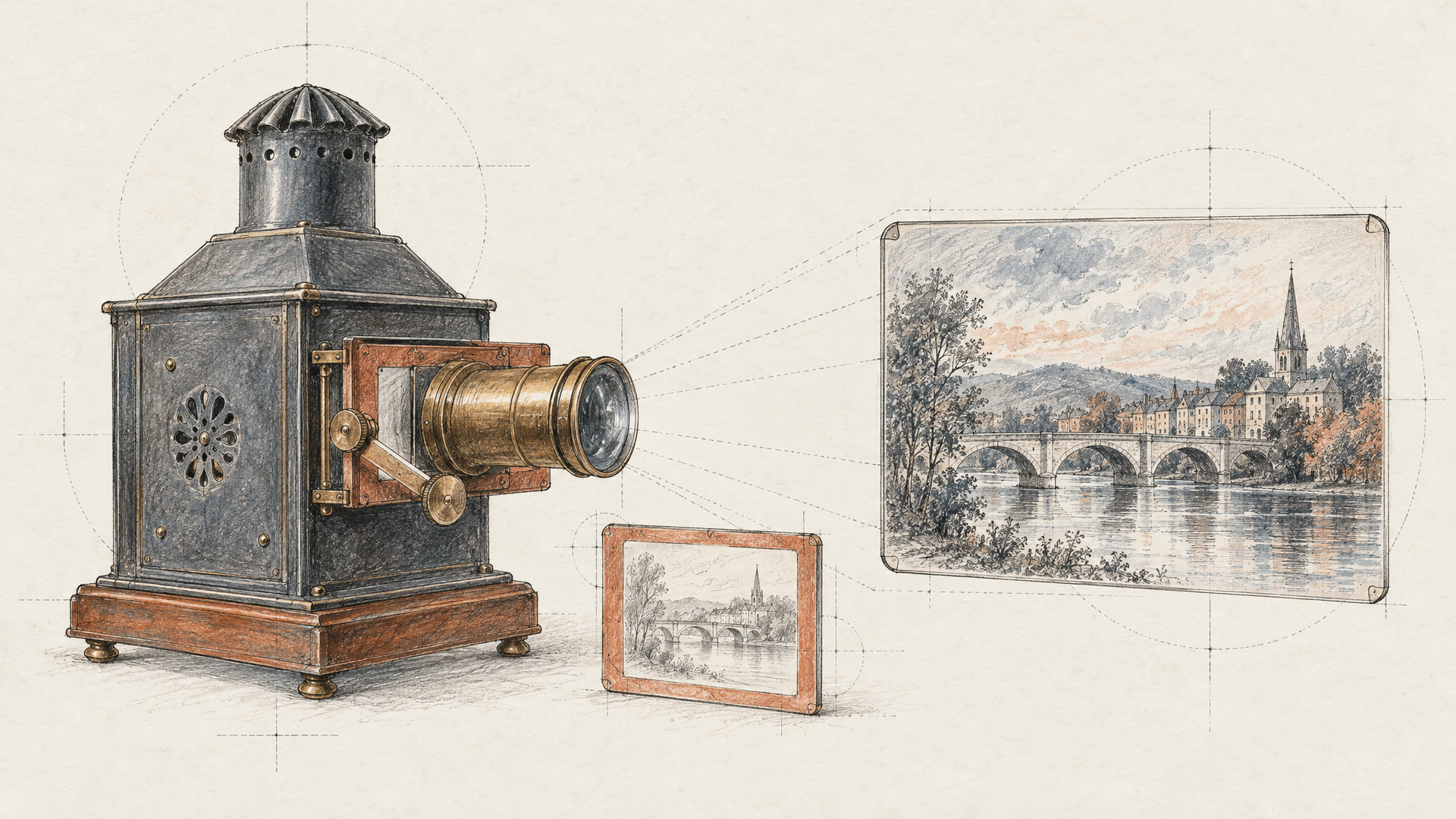
The workflow Google recommends is the most useful idea in the release. Draft quickly at 360p or 720p, fix details with a follow-up edit rather than regenerating, then upscale the best result to 1080p or 4K. It's how a director works with a storyboard artist before the real camera ever rolls.
The each::labs pages support all four tiers, 360p, 720p, 1080p and 4k, with 720p as the default when you leave the field empty. Our take: make 360p your default while you're still deciding what the shot is. You'll iterate faster, you'll throw away more bad ideas sooner, and you'll only spend 4K renders on shots that already earned them.
Brands That Stay On-Model
Reference adherence is the improvement product teams will feel first. Google says faces, garments, packaging typography and brand colors now stay consistent across camera angles, with less visual drift or morphing over the clip. That's the difference between a product video you can ship and one where the label quietly rewrites itself halfway through the orbit.
Gemini Omni 1.2 Flash Reference to Video takes reference images, reference videos or both, and needs at least one of them. Google lists character, product and style images, short motion clips and audio cues as supported references. The each::labs page adds the practical limits: up to 3 reference clips, each 3 seconds or shorter, and video references work best for likenesses (their audio is ignored).
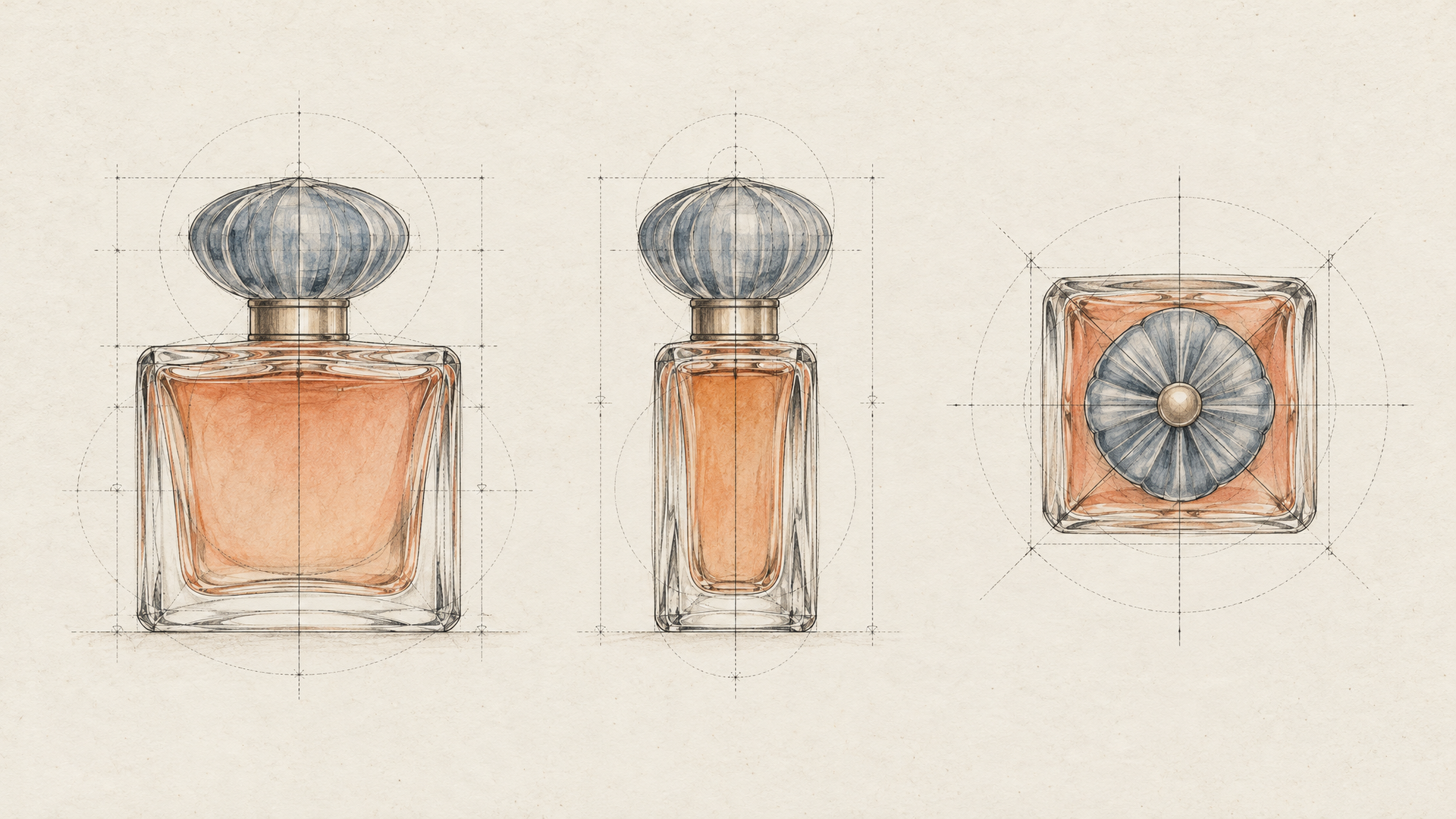
A 15-second product video. The perfume bottle from image 1 rotates slowly on a wet black marble surface while the camera arcs from the front to the side. Keep the bottle's label typography and gold cap exactly as in image 1. Soft rain sounds, a single low synth note, no dialogue.
Google's own demo set leans the same way: a 15-second virtual try-on built from one model photo and front-and-back outfit shots, with full 360-degree turns. If your catalog has flat lays and a model shot, that's a video you can make today.
Edit the Clip, Don't Reroll It
Multi-turn editing was already the reason to pick Gemini Omni. Version 1.2 stretches it across the full 15-second clip. Google's examples are the edits that usually force a regeneration: swapping a product or background, changing the lighting or weather, switching the aspect ratio. In one demo, an octopus is replaced by a dancer in a second turn, with the motion matched.
Gemini Omni 1.2 Flash Video Editing takes a source clip of 15 seconds or less and a plain-language instruction of up to 20,000 characters, and you can pick the output resolution. Keep each turn to one change. When an edit misses, you'll know exactly which instruction caused it.
Change the weather from bright afternoon to heavy snowfall at dusk. Keep the actor, the camera move and the dialogue exactly as they are. Add the muffled sound of snow and distant traffic.
For a step-by-step walkthrough of this editing style, our Gemini Omni 1.1 Flash video editing guide still applies to 1.2. The habits are identical; you just have more seconds to work with.
Better Dialogue, Steadier Cameras
Two quieter upgrades round out the release. On speech, Google promises "more fluid, natural-sounding dialogue," clearer lip-sync and distinct multi-speaker conditioning, so two characters in a scene sound like two people rather than one voice doing impressions. Its conservatory demo animates four characters, each with its own mouth and voice references, in one 15-second scene.
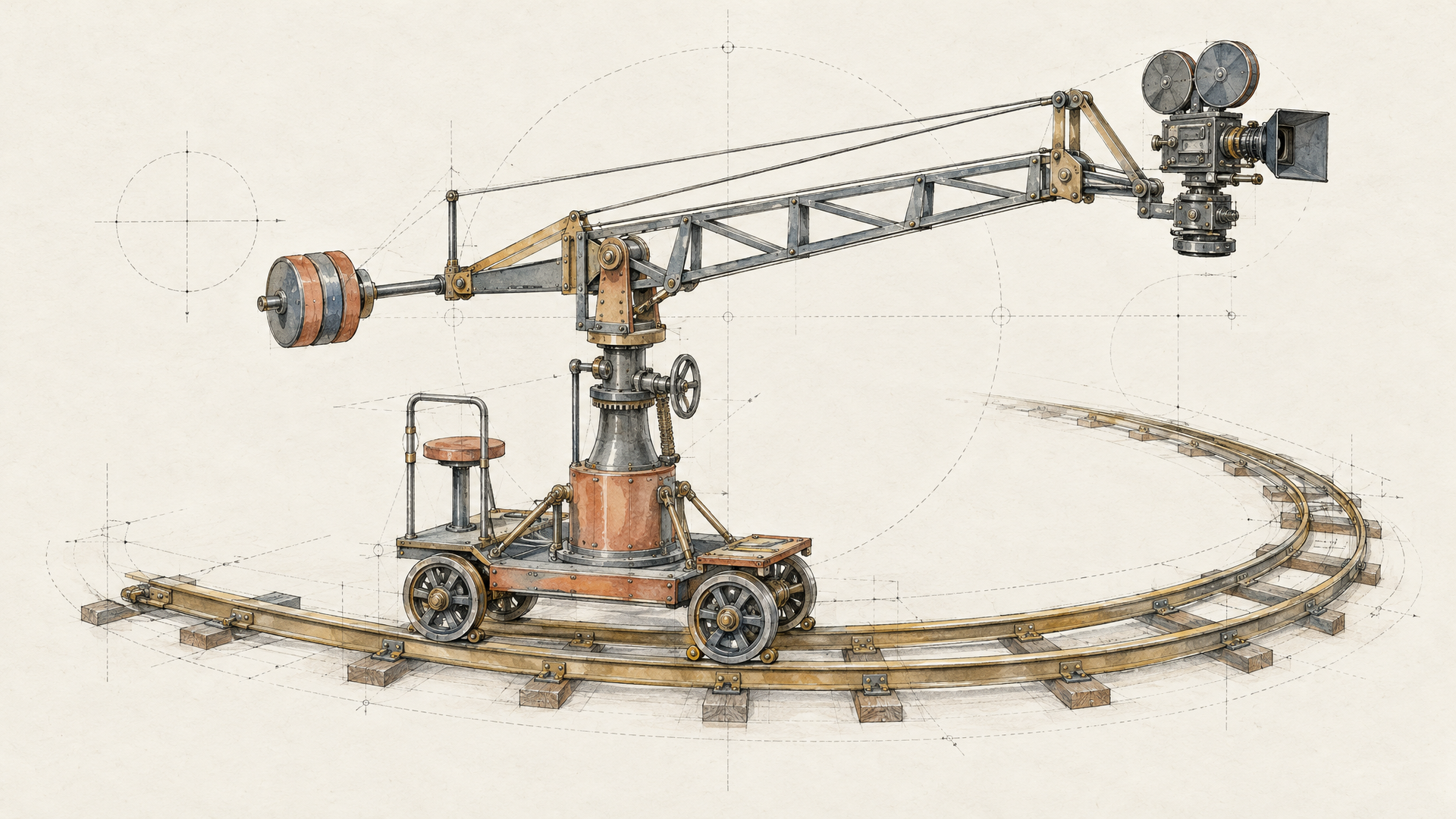
On camera, Google cites complex continuous moves with "significantly fewer unwanted jump cuts" and steadier scale. That matters more than it sounds. A model that randomly cuts mid-move ruins exactly the shots you write long prompts for: the unbroken FPV flight, the slow pull-out from a close-up. Google shows both, including a 10-second unbroken zoom-out from a shoreline close-up to an aerial view of an island.
One continuous FPV drone shot, no cuts: start low over a cobblestone square at sunrise, glide between two stone columns, rise along a weathered facade and finish high above the rooftops. Ambient city sounds, wind rising with the altitude.
Google is upfront that work continues on fast sports action, rapid script changes and complex physics. Plan those shots for a different model or a shorter clip. For the camera language that works best across models, our Gemini Omni prompting guide is the reference.
Who Gets the Most From Gemini Omni 1.2 Flash
Ecommerce and fashion teams first. Steadier packaging type and garments, plus a try-on demo straight from Google, make it a natural fit for product pages and social ads. Performance marketers come next: a native 15-second clip in 9:16 is a finished story ad, and the draft-then-upscale loop lets you test many concepts before you commit to a single 4K render.
Explainer and education creators should look at the speech upgrade and Google's 4-shot macro science demo with spelled, motion-tracked callouts. And anyone who already runs scripted dialogue scenes will notice the multi-speaker work. If your shots live on fast action or complex physics, test carefully and keep a second model in the flow.
Moving From Gemini Omni 1.1 to 1.2
If you already call Gemini Omni 1.1 Flash on each::labs, the move is a model id change. Prompts carry over, and the input fields will look familiar. Per Google's Gemini API changelog, requests to Omni 1.1 Flash will route to 1.2 from December 3, 2026, so testing your key prompts on 1.2 now is the calm way to meet that date rather than the rushed one.
Run your five most-used prompts side by side at 360p first. Check the things 1.2 claims to fix: label text over a camera move, a face across angles, a long move without a cut. Then lock the new version in your pipeline and, if you build with each::labs flows, swap the model in one node instead of every script. Browse the other text-to-video models if a shot needs something Omni doesn't do yet.
Frequently Asked Questions
Is Gemini Omni 1.2 Flash available on each::labs?
Yes. Four pages are live: Text to Video, Image to Video, Reference to Video and Video Editing. They run through the same each::labs API as the rest of the catalog, so you can test them next to Omni 1.1 or any other video model without a new integration.
How long can Gemini Omni 1.2 Flash videos be?
Up to 15 seconds, in one-second steps from 3. That limit applies to editing too, so source clips for Video Editing should be 15 seconds or shorter. The one exception on each::labs is first-to-last frame interpolation in Image to Video, which tops out at 10 seconds.
What's new in Gemini Omni 1.2 Flash compared with 1.1?
Length is the obvious change, 15 seconds instead of 10. Beyond that, Google lists tighter reference adherence (faces, garments, packaging type, brand colors), less drift, multi-turn editing across the full clip, more natural dialogue with clearer lip-sync, and continuous camera moves with far fewer jump cuts.
Which resolution should I use with Gemini Omni 1.2 Flash?
Use the lowest one that lets you judge the shot. Google's recommended flow is to draft at 360p or 720p, fix details with an edit, then upscale the keeper to 1080p or 4K. On each::labs, 720p is the default if you don't set it.