GPT Image 2.6: GIFs, SVGs and Edits You Can Draw On
OpenAI released GPT Image 2.6 Sunburst and Flare on November 4 with SVG and animated GIF output, adjustable complexity and edits you draw on a transparent layer. Here's what changed from 2.5 and how to prepare.
By Eftal Yurtseven · Nov 6, 2026 · 7 min read

Describing an edit in words has always been the weak spot of image models. "Move the lamp a little to the left, no, the other lamp" is a sentence nobody should have to write. You'd rather circle the lamp and draw an arrow. OpenAI just made that the official way to edit.
GPT Image 2.6 landed in OpenAI's API on November 4, 2026, as two models: Sunburst and Flare. It brings three new things to the GPT Image line: adjustable complexity, SVG output and animated GIF output, plus markup-guided editing, where you draw your instructions on a transparent layer instead of typing them. It isn't on each::labs yet, but it's coming to each::labs, and everything you build on GPT Image 2.5 today carries straight over.
What GPT Image 2.6 Actually Is
OpenAI's API changelog entry for November 4 is short and specific. It released GPT-Image-2.6 Sunburst and GPT-Image-2.6 Flare "for image generation and editing with adjustable complexity, SVG generation, and animated GIF generation," and added "markup-guided editing for supported GPT Image 2.5 and 2.6 models." Both run on the standard image generation and image edit endpoints, under the ids gpt-image-2.6-sunburst and gpt-image-2.6-flare.
The split mirrors the previous generation. OpenAI's image guide describes GPT Image 2.6 as "Sunburst for detailed visual work and Flare for fast iteration." OpenAI's system card for ChatGPT Images 2.6, published the same day, adds that the release improves "editing consistency, detail preservation, and responses to sketches and image annotations." That last phrase is the real headline. This is an editing release first.
From GPT Image 2.5 to GPT Image 2.6: What Changed
If you've used GPT Image 2.5 Sunburst or GPT Image 2.5 Flare on each::labs, the shape of GPT Image 2.6 will feel familiar. Same two-model structure, same generation and edit split, same names. What's new sits on top.
The first change is output format. GPT Image has always returned raster images. GPT Image 2.6 can also return SVG (API only, per the system card) and animated GIFs (in ChatGPT and the API). The second change is control: a complexity setting that lets you dial how much the model puts into an image. The third is the markup workflow for edits. Notably, OpenAI made markup editing available on supported GPT Image 2.5 models too, so this isn't purely a 2.6 feature. It's a new way of talking to the whole line.
Our GPT Image 2.5 spotlight covers what the previous generation already does well. Read 2.6 as that foundation with three new doors added, not as a rebuild.
Draw the Edit, Don't Describe It
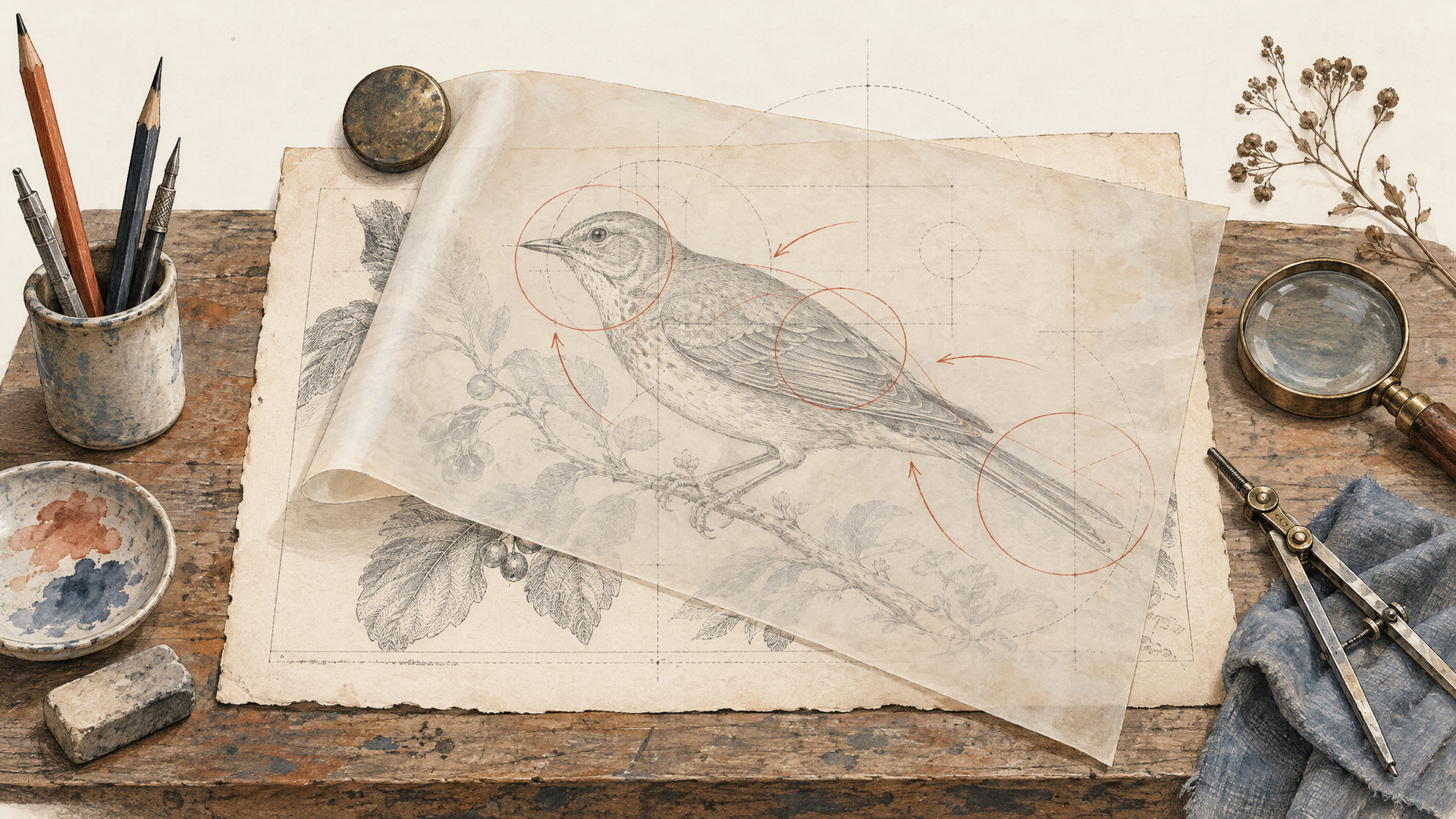
Markup-guided editing works like a designer's redline. According to OpenAI's image guide, you send the original image as the first input and a transparent PNG with your annotations in a separate markup field. The annotation layer has to match the first image's dimensions exactly, and it must stay separate rather than flattened onto the photo. Circle the thing, scribble the note, and the model reads both.
A few rules from the guide matter in practice. The first input image is the one that gets edited; any additional images act as references. The image and the annotation layer can each hold at most 16,777,216 pixels, and the annotation file is capped at 50 MB. Markup can't be combined with a mask or with the prompt rewriter, so pick one way of pointing at the edit.
Why does this matter so much? Because spatial instructions are where text prompts break down. "Replace the third bottle from the left" is fragile. A red circle around that bottle is not. For product teams, retouchers and anyone who has ever sent a screenshot covered in arrows to a designer, GPT Image 2.6 speaks their native language.
Turn Complexity Up or Down
The new complexity setting takes three values: low, medium and high. If you leave it out, both Sunburst and Flare default to high. OpenAI's system card frames the same idea in ChatGPT as an adjustable reasoning effort for generation and editing, chosen from the model picker.
Our read: this is a speed and density dial, and it'll change how teams iterate. Low complexity for fast rough passes, thumbnails and layout tests. High for final assets that need every detail resolved. Paired with Flare, which the system card describes as "optimized for faster generation," a low-complexity run becomes a genuine sketch mode inside the same model family. You'll be able to explore on the fast setting and finish on the full one, with the same prompt, once GPT Image 2.6 is on each::labs.
SVG and GIF Outputs Change the Deliverable
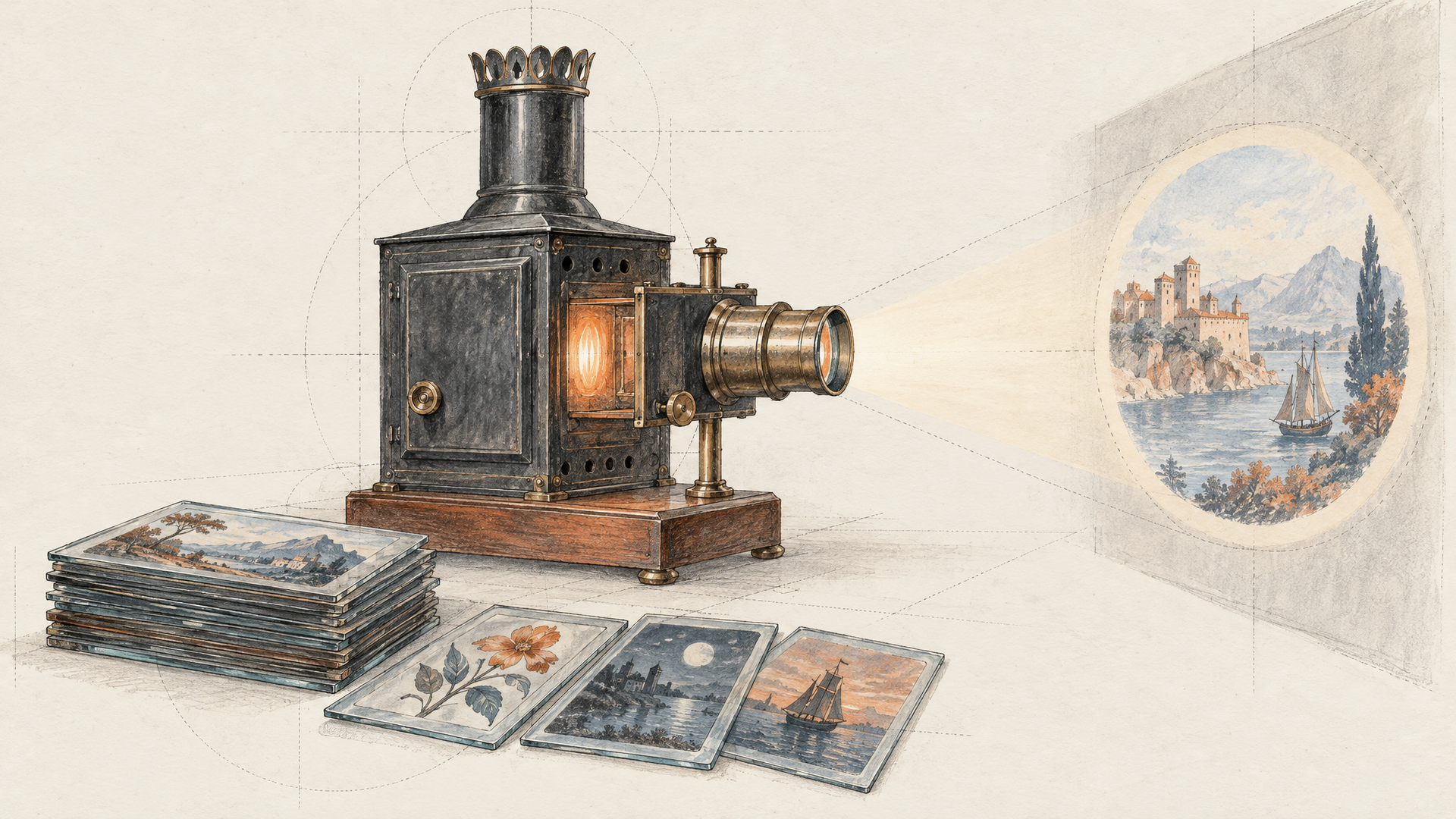
An image model that writes SVG is a different tool for a different team. Icons, simple illustrations, diagrams and logo concepts are usually needed as vectors, because they have to scale and stay editable. Until now that meant generating a raster image and tracing it. With GPT Image 2.6, the API can return SVG directly. OpenAI confirms SVG output in the API, not in ChatGPT.
Animated GIFs open the other direction: small, looping motion without reaching for a video model. Think reaction loops, animated stickers, product micro-animations and UI demos. OpenAI hasn't published frame counts or length limits in the sources we read, so treat the exact constraints as unknown until the docs fill in. For anything longer or with sound, a dedicated text-to-video model is still the right call.
Sunburst vs Flare: Which GPT Image 2.6 to Expect to Use
The naming makes the choice simple. Sunburst is the detailed model, the one for hero images, dense compositions and edits where small things have to survive. Flare is the fast one, built for iteration and volume. Both support complexity control, markup-guided edits, SVG output and animated GIF output through OpenAI's Image API, so the choice is about speed and detail, not features.
The most useful pattern from GPT Image 2.5 still applies: run your exploration on Flare, lock the composition, then do the final pass on Sunburst. Our GPT Image 2.5 prompting guide covers prompt structure that will carry over to GPT Image 2.6, and the GPT Image 2.5 use cases post shows where teams already put the line to work.
Who Should Care About GPT Image 2.6 First
Ecommerce and retouching teams get the most from markup on day one. A product shot with a scuffed corner, a wrong label color and a stray reflection is three circles and three short notes, not a paragraph that hopes the model finds the right spot. When the edit lands on the first try, the whole review loop shrinks.
Brand and UI designers are next, because of SVG. A model that hands back vectors fits straight into the files they already maintain, instead of producing a picture someone has to rebuild by hand. Icon sets, onboarding illustrations and diagram drafts all sit in that lane.
Social and community teams will reach for GIFs. A looping reaction, a product that spins once, a sticker that waves: small motion that used to need a video model and an export step. And developers building image features into their own products get the complexity dial, which is the cleanest way yet to offer users a quick preview and a slower, richer final from one model call.
If none of those sound like you, GPT Image 2.6 is still the newest member of a line you may already use, and the editing gains in the system card apply to everyone.
Provenance Is Built In
One detail worth knowing before you ship anything made with GPT Image 2.6. OpenAI's system card states a continued commitment to C2PA metadata and says outputs carry watermarking through Google DeepMind's SynthID across ChatGPT, Codex and the OpenAI API. If your workflow strips metadata or requires disclosure of AI-generated imagery, plan for both. For brand and editorial teams, this is a feature: provenance travels with the file.
Get Ready on each::labs Today
You don't have to wait to set up the workflow. GPT Image 2.5 Sunburst Edit and GPT Image 2.5 Flare Edit are live on each::labs right now, and the prompt habits you build there are the ones GPT Image 2.6 rewards. When the new models arrive, moving over will be a model change inside the same GPT Image family, not a new integration.
Three things to prepare now. First, collect a test set: five or six real images from your work, with the edits you'd normally explain in a message. Those become your markup tests. Second, write down which outputs you currently trace or convert, such as icons, diagrams and simple illustrations. Those are your SVG candidates. Third, if you build pipelines, sketch an each::labs flow that drafts fast and finishes in detail, so the complexity dial has somewhere to plug in. Browse the rest of the text-to-image models while you wait.
Frequently Asked Questions
When was GPT Image 2.6 released?
OpenAI's API changelog lists it on November 4, 2026, as gpt-image-2.6-sunburst and gpt-image-2.6-flare for image generation and editing. It's coming to each::labs; until then, GPT Image 2.5 is live there.
What is markup-guided editing in GPT Image 2.6?
Instead of describing an edit only in words, you send a transparent PNG with drawn annotations alongside the original image. The annotation layer must match the image's dimensions, and it can't be combined with a mask. OpenAI supports it on GPT Image 2.5 and 2.6 models.
Can GPT Image 2.6 make SVG files and GIFs?
Yes. OpenAI says SVG output is available in the API only, while animated GIF generation works in both ChatGPT and the API.
What does the complexity setting do?
It takes low, medium or high, and defaults to high on both Sunburst and Flare. Lower settings suit fast drafts and iteration; high suits finished, detailed images.