GPT Image 2.5 Use Cases: 7 Jobs for Flare and Sunburst
Seven jobs GPT Image 2.5 actually does well, from product listings to try-on and room edits, with a prompt for each and when to pick Flare or Sunburst.
Nobody needs another image model that makes a nice astronaut. What teams need is a model that makes the forty-first product shot look like the first, keeps the copy on the poster spelled right, and edits a living room without redecorating the whole house. That's a different test, and most launch coverage never runs it.
GPT Image 2.5 is worth judging on that test, because OpenAI's own documentation is organised around jobs, not showpieces. Its image prompting guide walks through product and merch shots, ads and billboards, logos, infographics, UI mockups, try-on, interior swaps and object removal, each with its own advice. Below are seven GPT Image 2.5 use cases that hold up in real production, which of OpenAI's two models (Flare or Sunburst) fits each one, and a prompt you can run on each::labs today.
Flare or Sunburst: Pick by the Job, Not the Hype
Quick refresher before the use cases. GPT Image 2.5 shipped on September 8, 2026 as two models, both live on each::labs with Text to Image and Edit endpoints. OpenAI describes Flare as "the small model, optimized for speed, with image quality comparable to GPT Image 2," and Sunburst as "the base model, optimized for quality, with higher image quality than GPT Image 2."
So the rule of thumb is simple. Volume goes to Flare. Anything a reviewer will zoom into goes to Sunburst. OpenAI's own migration advice says the same thing from the other side: if GPT Image 2 already meets your bar, start with Flare. Both models support transparent backgrounds (PNG or WebP), quality settings above high, and Edit endpoints on each::labs that take up to 16 source images plus an optional mask. Keep those four facts in mind, because every use case below leans on at least one of them.
Product Listings and Merch Mockups
This is the bread-and-butter job, and the one where consistency beats beauty. A marketplace seller doesn't need one stunning shot. They need two hundred shots that share the same light, the same margin and the same angle, so the grid looks like a store and not a yard sale.
OpenAI's advice for merchandise is to specify materials, packaging and print clarity using product photography cues. Turn that into a template: fixed background, fixed light direction, fixed framing, and a single slot that changes per product. Run the batch on Flare, then send the hero image of each collection through Sunburst.
A square product photo for an online store. A kraft paper coffee bag with a matte black label reading "NORTH RIDGE ROASTERS" in clean sans serif, standing upright and centered on a seamless warm grey background, whole bag in frame with generous margin. Soft daylight from the upper left, one gentle shadow to the right. Photorealistic studio photograph. No props, no other text.
Need the same product on a mug, a tote and a T-shirt? Pass the artwork as an input to Flare Edit and describe the object it should be printed on. For the full catalog side of this, our post on bulk product image generation covers the pipeline.
Campaign Ads and Billboard Mockups
Ads are where text rendering stops being a party trick. A key visual with a misspelled headline is not a draft. It's a liability.
OpenAI's guidance for campaign ads is to describe the composition, the aspect ratio and the important placement constraints; for billboards, quote the exact copy and ask for a clean composition, strong color direction and natural poses. That's a creative brief, and the model reads it like one. Lead with what the image is for and where the copy sits, then the scene.
A 16:9 outdoor billboard mockup on a city overpass at golden hour. The ad shows a cyclist in a mustard rain jacket riding through light rain, left two thirds of the frame. On the right third, on a clean navy panel, the headline "RAIN IS JUST WEATHER" appears once in bold white condensed capitals. No other text, no logos.
Use Sunburst for the version the client sees and set quality to high or above. OpenAI explicitly recommends medium or high for small text, dense information or several fonts, and a billboard with a legal line at the bottom is all three.
Logos, Stickers and Transparent Assets
Transparent backgrounds are the quiet feature that changes the most workflows. GPT Image 2 on each::labs didn't support them. GPT Image 2.5 does, on both models, as long as you output PNG or WebP. That removes an entire cutout step for anyone producing logos, stickers, icons or product images that drop onto a colored page.
OpenAI's logo advice is specific: ask for clean, vector-like shapes, a strong silhouette and balanced negative space. It works because it tells the model to design something that survives at 32 pixels, not something that looks good as a poster.
A logo mark for a small bakery called "Crumb". A simple rounded croissant shape built from three clean curved strokes, warm amber on a transparent background. Vector-like flat shapes, strong silhouette, balanced negative space, no gradients, no texture. The word "Crumb" sits below the mark in a friendly rounded lowercase typeface.
Generate options on Flare at medium quality, pick a direction, then render the finalist on Sunburst. Treat the result as a strong starting point for a designer, not a trademark-ready file.
Infographics, Diagrams and Localized Versions
Here's a use case that wasn't realistic a couple of model generations ago. OpenAI's guide treats infographics and diagrams as a first-class job: name the process, the audience and the information the image should communicate; for educational diagrams, add the lesson objective, the visual format, the required labels and any scientific constraints. For dense labels or anything headed into slides, it recommends high quality.
The practical win is localization. The guide shows edits that translate the text inside an existing infographic while keeping the design. One approved English diagram becomes a German, Spanish and Japanese version without anyone rebuilding the layout.
Translate all the text in this infographic into Spanish. Keep the layout, icons, colors, font styles and the position of every label exactly the same. Do not add or remove any elements.
Run that on Sunburst Edit and have a native speaker read the output before it ships. The model is good at type. It isn't your proofreader.
UI Mockups and App Screens
Product teams use image models for UI more than they admit: pitch decks, landing page hero shots, app store screenshots before the build exists. The failure mode is always the same. Ask for "a sleek fintech app" and you get concept art, glowing and unusable.
OpenAI's fix is pointed: focus on layout, hierarchy, spacing and real interface elements, and avoid concept art language. Describe the screen the way a designer would hand it off.
A mobile app screen mockup for a habit tracker, iPhone proportions, light mode. Top: a greeting "Good morning, Sam" in medium weight sans serif. Below: a row of seven small day circles, three filled in green. Main area: three habit cards stacked vertically, each with an icon on the left, a habit name, and a checkbox on the right. Bottom tab bar with four icons. Generous padding, 8 pixel grid, realistic interface, no device frame.
Flare is the right default here. You'll want many variants, and a mockup is a conversation starter, not a deliverable.
Fashion Try-On and Styling
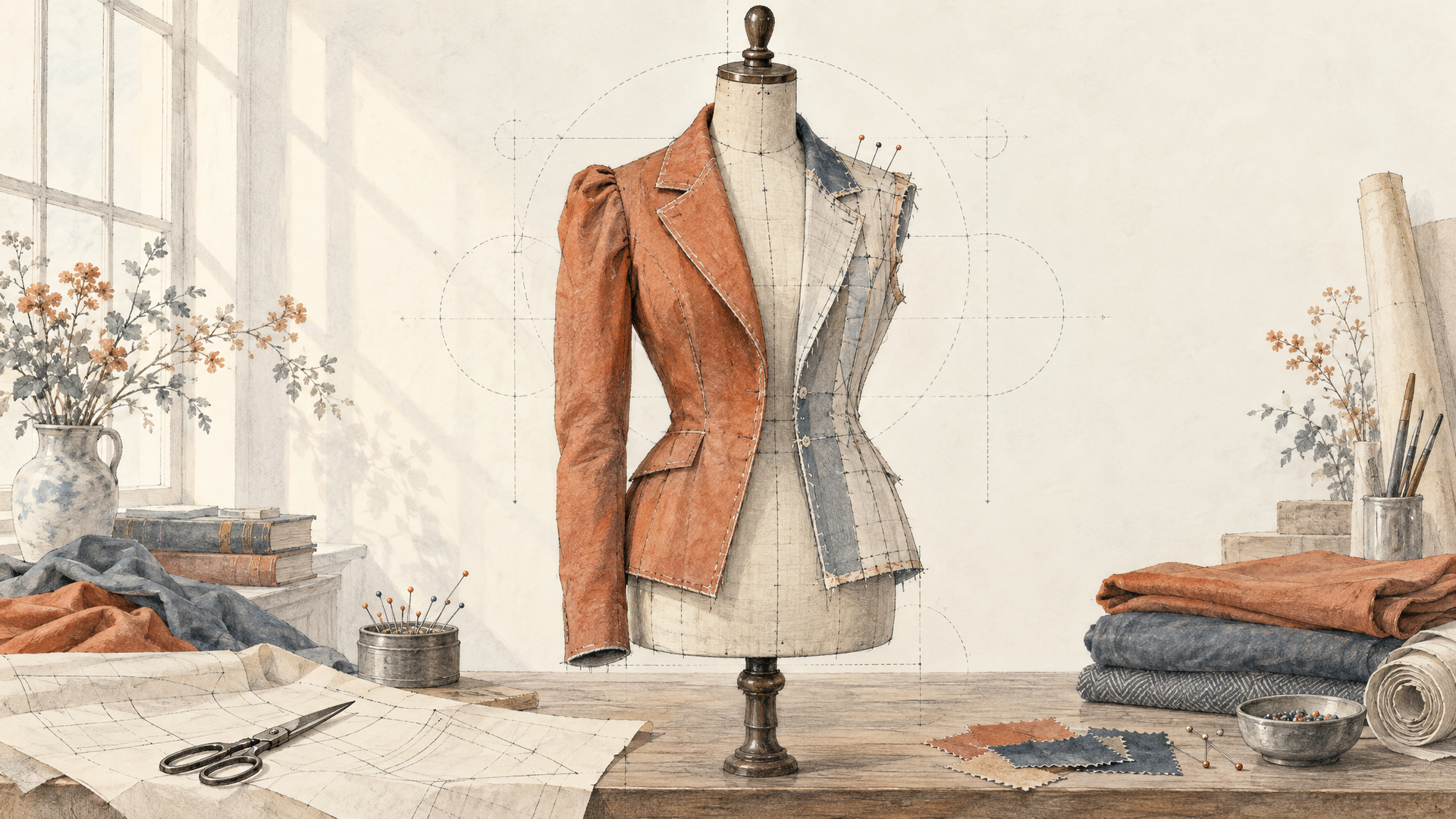
Try-on is where the Edit endpoints and their 16 input slots earn their keep. Pass the model photo, the garment and, if you want, a location, and give each image a job. OpenAI's guide is blunt about the part that matters most: state the identity constraints out loud. Its example wording is "Do not change her face, facial features, skin tone, body shape, pose, or identity."
Image 1 is the model: keep her face, facial features, skin tone, body shape, pose and identity exactly as they are. Image 2 is the jacket: dress her in it with the same color, stitching and zipper. Keep the background and lighting from Image 1. Change nothing else.
For a single look, Flare Edit is fast enough to try a whole rack. For the campaign image that has to survive three rounds of client notes, use Sunburst Edit, which OpenAI positions as the model for consistency across repeated edits. Our post on fashion product visuals on each::labs shows where try-on sits in a full fashion pipeline.
Interior Design and Object Removal
Real estate, furniture and interior teams have one demand of an image editor: change the sofa, not the room. OpenAI calls this "surgical realism," swapping a single object while preserving camera angle, lighting and shadows. For removal, its advice is to name the object explicitly and state that everything around it must be preserved.
Change only the sofa: replace it with a low, deep green velvet sofa with rounded arms, same position and scale. Keep the camera angle, the window, the floor, the rug, the lamp, the light direction and every shadow exactly the same. Match the sofa's shadow to the existing light.
When the swap has to land in a precise region, add a mask to the Edit request (a PNG with an alpha channel, transparent where the change goes). OpenAI is clear that GPT Image treats the mask as guidance rather than a stencil, so for areas that must stay pixel-identical, composite the approved edit back over the original. For a wider look at which models handle masked edits, see our image-to-image models on each::labs.
Turn Any of These Into a Repeatable Flow
Every use case above has the same shape: a fixed template, one variable slot, and a quality check at the end. That's a workflow, not a prompt, and it's where running GPT Image 2.5 on each::labs pays off. Generate on Flare, edit on Flare Edit, finish the keeper on Sunburst, then hand the result to an upscaler or a video model, all behind one API.
Wire it up in each::labs flows and the template becomes something your team runs, not something one person remembers. If you want the prompt-writing side in more depth, the order OpenAI recommends (result first, then details, then exact text, then what must not change) works for every job on this list. Browse the rest of the text-to-image models when a job calls for a different look.
Frequently Asked Questions
What is GPT Image 2.5 best used for?
Jobs where accuracy matters more than surprise: product and merch shots, ads with real copy, logos with transparent backgrounds, infographics and their translated versions, UI mockups, try-on and single-object edits. OpenAI's own prompting guide is built around exactly these use cases.
Should I use Flare or Sunburst for GPT Image 2.5 use cases?
Start with Flare for volume and iteration, since OpenAI says its quality is comparable to GPT Image 2 with a focus on speed. Move to Sunburst for final assets, dense text and multi-round edits where a face or product has to stay intact.
Can GPT Image 2.5 make transparent PNG logos?
Yes. Both models support a transparent background when the output format is PNG or WebP, which GPT Image 2 on each::labs did not. Ask for vector-like shapes, a strong silhouette and balanced negative space for the cleanest marks.
How many reference images can a GPT Image 2.5 edit take?
The Edit endpoints on each::labs accept up to 16 source images per request, plus an optional mask. Number each image and give it one role (subject, garment, background, style) so the model doesn't have to guess.