Veo 3.1 Lite: 9 Things to Know Before You Generate
Veo 3.1 Lite is the Veo you'll run most often. Nine things to know about its speed, durations, resolutions, sound and endpoints before you build it into your pipeline.
By Eftal Yurtseven · Nov 2, 2026 · 7 min read

Most video ideas die in the fourth draft, not the first. You know what you want, you write the prompt, and then you need twenty more takes to find the one where the hand doesn't melt and the camera lands where it should. The model you pick for that grind matters more than the model you pick for the hero shot.
That's the job Veo 3.1 Lite was built for. Google introduced it on March 31, 2026 as the model that "rounds out the Veo 3.1 model family", aimed squarely at developers building high-volume video applications. It isn't the flagship. It's the one you'll run most often. Here are nine things worth knowing before you put it to work on each::labs.
1. Veo 3.1 Lite Is the Workhorse, Not the Showpiece
Google's own framing is the useful part. The announcement pitches Lite at teams building apps that generate a lot of video, not at directors chasing one perfect frame. That changes how you should judge it. Don't ask whether it beats the full Veo 3.1 on a single prompt. Ask whether it keeps your pipeline moving when you need fifty clips by Friday.
That's a different question, and a more honest one. Most products that ship generated video, from social templates to ad variants to app onboarding loops, live on volume. A model tuned for that work earns its place even when a bigger sibling exists.
2. It Runs at Veo 3.1 Fast Speed
According to Google, Veo 3.1 Lite runs at the same speed as Veo 3.1 Fast. So the trade isn't "slower but lighter." You keep the turnaround of the Fast tier, which is what makes iterating on motion feel like a conversation rather than a queue.
Speed compounds. If a take comes back quickly, you'll actually try the version with the slower push-in, the one with the warmer light, the one where the dog enters from the left. Slow models make you settle. Fast ones let you explore.

3. Three Ways In: Text, Image, or First and Last Frame
Google's post lists text-to-video and image-to-video. On each::labs, Veo 3.1 Lite comes as three endpoints, and each one anchors a different part of the shot.
Text to Video anchors only the description. It's where you find out what an idea looks like before you commit any assets. Image to Video anchors the opening frame: you pass an image URL plus a prompt describing the motion, and the composition you approved stays the composition you get. First Last Frame to Video anchors both ends. You hand it a start image and an end image, and the model solves the path between them.
That last one is the quiet star for product work. An approved packshot in, the same product in a new position out, and the model handles the move. It's also the safest route when a client has signed off on both the opening and the closing composition: you don't describe those frames, you supply them.
A simple rule for choosing: no assets yet, use text. One approved image, use image to video. Two approved images, use first and last frame. The more you anchor, the less the model has to guess, and guessing is where your takes go to die.
4. Pick Your Shape: 16:9 or 9:16
Veo 3.1 Lite supports landscape 16:9 and portrait 9:16, and on each::labs the default is 16:9. There's no square option, so if you're feeding a 1:1 placement, generate vertical or horizontal and crop with intent rather than hoping the subject stays centered.
The better habit is to decide the placement before you write the prompt. A vertical clip needs a subject that fills the height of the frame: a person standing, a bottle upright, a tall doorway. Write the shot for the shape and you'll spend far fewer takes fighting the crop.

5. Clip Length Is 4, 6 or 8 Seconds, and 1080p Means 8
You choose 4, 6 or 8 seconds for text and image input. Resolution is 720p by default, with 1080p available, and here's the detail that trips people up: on each::labs, 1080p requires the 8-second duration. Ask for a 4-second clip at 1080p and the request won't go through.
Treat that as a workflow, not a wall. Explore at 720p with short clips, since four seconds is plenty to judge whether the motion works. When a take earns it, rerun the winning prompt at 8 seconds and 1080p for the deliverable.
6. Sound Is Part of the Request
Every Veo 3.1 Lite endpoint on each::labs has a generate_audio switch, and it's on by default. That matters more than it sounds. A product loop needs room tone, a social clip needs something under it that isn't silence, and doing that as a separate errand is how a quick job becomes a long afternoon.
So say the sound out loud in your prompt. If you want rain on glass, a café murmur or a single clean footstep, name it. If you plan to score the edit yourself, turn audio off and keep the clip clean for the timeline.
Slow push-in on a ceramic coffee cup on a sunlit wooden table, steam curling upward, soft morning light from a window on the left. Quiet café ambience, a spoon lightly tapping the rim once.
7. Write Prompts Like a Shot List
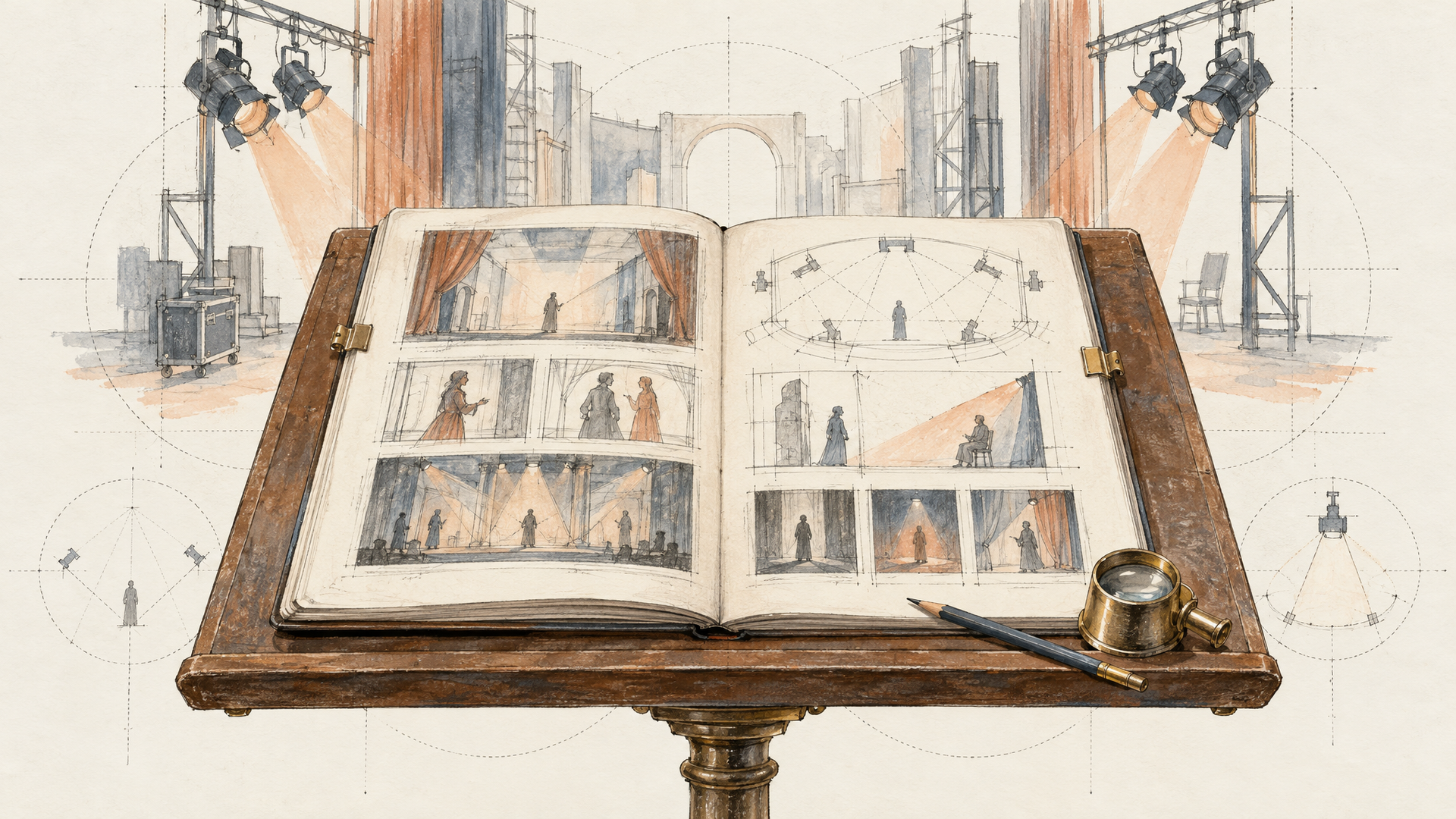
Lite rewards the same discipline as the bigger Veo models: one subject, one action, one camera move per clip. Stack three camera moves into eight seconds and you'll get none of them cleanly. Layer the prompt instead. Subject first, then what it does, then the camera, then the light, then the sound.
A runner in a red jacket jogs across a wet city bridge at dawn. Camera tracks alongside at waist height, steady. Low golden light, light fog over the river. Sound of footsteps and distant traffic.
The text endpoint also takes a negative_prompt for what you don't want (text overlays, extra people, a shaky handheld feel) and a seed, so you can lock a result and change one word at a time. That's how you learn what a model actually responds to. Our guide to structuring Veo prompts for motion goes deeper on the camera side.
8. Know When to Step Up to Fast or Full Veo 3.1
Lite is one rung on a ladder, and the rest of the ladder is right there. Full Veo 3.1 is the pick for a hero shot that has to carry a campaign. On each::labs the family also includes Reference to Video for keeping a character or product consistent, and Extend Video when eight seconds isn't enough. Neither is part of Lite's three endpoints, so when a brief needs them, move up.
A sensible split looks like this: explore and produce volume on Lite, finalize the one or two clips that headline a campaign on full Veo 3.1. Because both sit behind the same each::labs API, switching is a model id change, not a new integration. If you need endings nailed precisely, our Veo 3.1 first and last frame guide shows the technique on the bigger model, and it carries straight over to Lite.
9. Build It Into a Flow, Not a One-Off
The real payoff of a volume model shows up when it stops being a tab you open and starts being a step in a pipeline. Generate a still with an image model, animate it with Veo 3.1 Lite's image endpoint, then pass the result to an upscaler or an editor. On each::labs you can chain those steps in AI Flows and rerun the whole thing with a new product photo.
Lite's speed is what makes that practical. A flow that runs for minutes per pass gets run once and admired. A flow that comes back quickly gets run every time the product photo, the headline or the season changes, and that's when it starts paying for the hours you spent building it.
That's the difference between making a video and having a video system. The first gets you a clip. The second gets you the next hundred. Browse the full image to video lineup if you want to compare Lite with other partner models on the same input.
Frequently Asked Questions
What is Veo 3.1 Lite best used for?
High-volume generation. Google built it for developers whose apps produce a lot of video, so it shines on ad variants, social templates and iteration passes where you need many good takes quickly rather than one flawless frame.
How long can a Veo 3.1 Lite video be?
Four, six or eight seconds. For anything longer, cut several clips together or move to full Veo 3.1 on each::labs, which has an Extend Video endpoint.
Does Veo 3.1 Lite support 1080p?
Yes, alongside 720p. On each::labs, 1080p needs the 8-second duration, so a common pattern is to explore at 720p and render the keeper at 1080p.
Can Veo 3.1 Lite animate my own image?
That's what its Image to Video endpoint is for: send an image URL and a motion prompt. If you need the clip to end on a specific frame too, use First Last Frame to Video and pass both images.