Grok Imagine Video Edit: Change One Thing, Keep the Take
Can Grok edit videos? Grok Imagine Edit Video changes one thing in a clip you already like and keeps the rest. Here's the workflow, the specs and the prompts that work.
By Eftal Yurtseven · Nov 2, 2026 · 8 min read
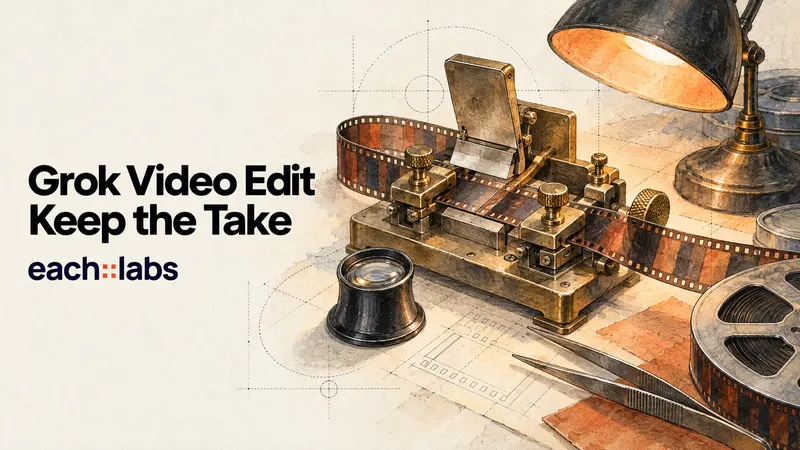
You have a clip you like. The light is right, the motion is right, the actor hits the mark. Then the client asks for a red jacket instead of a blue one, and suddenly you're back at the prompt box, rolling the dice on a brand new take that will get the jacket right and the light wrong. Regenerating is not editing. It's starting over with extra steps.
So, can Grok edit videos? Yes, and properly. Grok Imagine Edit Video from xAI takes a clip you already have plus one plain sentence, applies that change, and tries to leave everything else alone. This guide covers what the model actually accepts, how to write edit prompts that land, and how to chain it with extend and reference tools on each::labs so one good take turns into a finished sequence.
Can Grok Edit Videos? What the Model Really Does
Grok Imagine's editing mode is an instruction editor for video. You hand it a source clip and a text prompt describing the change. In xAI's own words from its video editing docs, the model "applies the change you describe and keeps everything else as close to the source as it can." That last clause is the whole product. You aren't asking for a new video that resembles your old one. You're asking for your video, with one thing different.
The examples xAI uses are telling in how small they are: give the woman a silver necklace, change the color of her outfit to red, give her a wide-brimmed black hat. Wardrobe, props, color. Local changes on top of a take that already works. That's the job this model is built for, and it's the job most teams actually have once a project is past the first draft.
If you came here from our earlier explainer, Does Grok xAI Have Video Editing Capabilities?, think of this post as the hands-on sequel: less "is it possible", more "here's the workflow".
The Specs That Shape Every Edit
Two numbers decide how you plan a Grok video edit, so learn them before you shoot anything.
First, the source clip can run up to 8.7 seconds. Both xAI's docs and the each::labs request schema state that cap. Anything longer has to be trimmed into pieces first, which is less of a problem than it sounds: most edits worth making live inside a single shot anyway.
Second, output is capped at 720p. xAI says the result matches the source's duration and aspect ratio, so a vertical 9:16 clip comes back vertical and a 6-second clip comes back at 6 seconds. On each::labs you can pick 480p or 720p for the edit. Use 480p while you're testing wording and 720p for the version you keep.
The input itself is simple. On Grok Imagine Edit Video the request takes a prompt, a video_url and an optional resolution. That's it. No masks, no keyframes, no strength slider. All of the control lives in your sentence, which is exactly why the sentence deserves care.
{
  "model": "xai-grok-imagine-edit-video",
  "input": {
    "prompt": "Change the color of the woman's jacket to deep red. Keep her face, the street, the lighting and the camera move exactly as they are.",
    "video_url": "https://your-bucket.example/take-03.mp4",
    "resolution": "720p"
  }
}
Name the Change, Then Name What Stays
The single best habit for Grok video edits is a two-part prompt. Sentence one says what changes. Sentence two says what must not. xAI's guidance points the same direction: describe what has to stay the same, because the model is trying to preserve the source and you're helping it decide where the line is.
Give the man a pair of round tortoiseshell glasses. Keep his expression, the background and the slow push-in unchanged.
Turn the coffee cup on the table into a tall glass of iced tea with a lemon slice. Everything else in the shot stays identical.
Notice what these prompts don't do. They don't redescribe the whole scene. They don't list lighting, lens and mood again. A full scene description invites the model to rebuild the scene, and rebuilding is the opposite of what you want. Point at the object, say the change, protect the rest.
Be concrete about the target too. "Make her outfit nicer" is a vibe. "Change her gray hoodie to a cream wool coat with large buttons" is an instruction. The model can only keep everything else steady if it knows exactly which pixels you meant.
One Edit Per Request, Many Requests at Once
Here's where people waste the most time: stacking five changes into one prompt. New hat, new jacket, different car, evening light, rain. When the result is off, you can't tell which instruction broke it, and the more you ask for, the less of the original survives.
Split them. xAI's docs suggest sending several edits to the same source concurrently when you want variations, and that pattern is gold for client work. Fire off three requests in parallel on the same take: red jacket, green jacket, black jacket. Same footage, three options, back at roughly the same time. The client picks, and you never touched the parts of the shot they already approved.
When the changes genuinely need to stack (new outfit and a new prop), chain them. Edit once, download the result, use that clip as the next source. Each pass stays small and readable, and you keep a clean trail of versions to fall back on.
Edits Grok Handles Well, and Edits to Avoid
Lean into local, visible changes. Wardrobe swaps, accessories, colors of objects, a prop replaced by another prop of similar size: these are the cases xAI demonstrates and the cases the model is clearly tuned for. They also happen to be the most common revision notes in commercial work. Wrong shirt, wrong product color, missing logo-free mug.
Be careful with changes that rewrite the whole frame. Turning a sunny street into a snowy night touches every pixel, and at that point you're closer to a fresh generation than an edit. If the entire look has to change, it's usually faster to regenerate the shot with Grok Imagine Image to Video from a restyled first frame, or to use a dedicated video to video model from the video to video catalog.
Motion changes are a gray zone. Asking a character to wave when they didn't wave in the source means inventing movement, which fights the "keep everything else" instinct. For new action, extend the clip instead, which brings us to the next tool.
Extend the Take When the Shot Needs More Time
Editing changes what's in a shot. Extending changes how long it lasts. Grok Imagine Extend Video continues a clip from its last frame and returns the original plus the new footage as one continuous video. Per xAI's extension docs, the source can run 2 to 15 seconds, and the duration setting (2 to 10 seconds, default 6) controls only the added part. A 10-second source with a 5-second extension comes back at 15 seconds.
Write extension prompts as "what happens next", not as a scene description. xAI's own examples read like stage directions:
The cat turns its head, notices a butterfly, and leaps off.
The shot pans to an over the shoulder perspective. Calm controlled scene.
The power move is pairing the two tools. Generate or shoot a short base clip, fix the details with an edit pass, then extend the corrected version. The extension starts from a frame that already has the right jacket, so the new seconds inherit the fix instead of drifting back to the old look. Keep the edited clip under 8.7 seconds, and it stays a valid source for both tools.
Keep Characters Consistent Across Shots
Edits and extensions solve one shot. A campaign needs ten. For that, start with references. Grok Imagine Reference to Video on each::labs takes 1 to 7 reference images plus a prompt of up to 4,096 characters, so you can lock a character, a product and a location before a single frame exists.
The workflow that holds up looks like this. Design the character and product stills first (our Grok Imagine 2.0 image post covers that side). Generate each shot from those references. Then use Edit Video for the per-shot fixes notes always produce, and Extend Video when a shot needs breathing room before the cut. Three models, one family, one consistent look.
Reference images: the presenter in the cream coat, the green ceramic mug, the kitchen at morning light. The presenter lifts the mug, smiles at the camera and takes a slow sip. Medium shot, gentle handheld, warm natural window light.
Run the Whole Grok Video Edit Workflow on each::labs
Every model in this guide sits on the Grok Imagine family page on each::labs, behind one API key and one request format. Switching from generating to editing to extending is a change of model id, not a new integration. That matters once you automate: a script can generate a base take with Grok Imagine Text to Video, push three edit variants in parallel, and extend the winner, all with the same client code.
If you'd rather not write that script, build it as a flow. each::labs AI Flows let you chain the generate, edit and extend steps visually and rerun the chain on new footage. For teams producing the same kind of shot every week (product demos, presenter clips, social cutdowns), a saved flow turns a revision round into a button.
And when a brief needs a different engine, the rest of the catalog is one switch away. Kling's editing model works on a similar idea of changing the shot while keeping the take, which we walk through in the Kling 4.0 video edit guide. Try the same note on both and keep whichever respects your footage more.
Frequently Asked Questions
Can Grok edit videos I didn't make with Grok?
The edit model takes any source video you can supply as a URL, so it doesn't care where the footage came from. xAI's docs ask for MP4 with a common codec such as H.264, H.265 or AV1, up to 8.7 seconds long. Phone footage, stock clips and clips from other generators all qualify as long as they fit that window.
How long can a Grok video edit be?
The source tops out at 8.7 seconds and the output keeps the same length. For longer pieces, cut the footage into shots, edit the ones that need it, and use Grok Imagine Extend Video (2 to 10 extra seconds) where a shot has to run longer.
What resolution does Grok Imagine Edit Video return?
Output is capped at 720p and keeps the source's aspect ratio. On each::labs you choose 480p for fast tests or 720p for the final pass.
How do I write a good Grok video edit prompt?
Two sentences usually beat ten. Say exactly what changes, then say what must stay the same: the face, the background, the camera move. Make one change per request, and run variations in parallel rather than cramming them into one prompt.