Gemini Omni 1.1 Flash Video Editing: Change One Thing
Google's Gemini Omni 1.1 Flash edits a clip from one plain sentence. The trick is saying less. Here's how to write edit prompts that change one thing and leave the rest of the shot alone.
Every video model can make a new clip. The harder request is the one clients actually send: keep the shot, change the jacket. Same take, same timing, same face, one thing different. Regenerating from scratch throws away everything you liked about the original, and traditional compositing turns a one-line note into an afternoon.
Gemini Omni 1.1 Flash is Google's answer to that note. You give it a clip and a plain sentence, and it changes what you asked for and tries to leave the rest of the video as it was. The surprising part is how you get good results: you say less, not more. This guide covers how to write edit prompts that work, how to chain edits, and when to reach for the model's other modes on each::labs.
Why Gemini Omni 1.1 Flash Matters Right Now
Google made Gemini Omni 1.1 Flash generally available in the Gemini API on August 27, 2026, describing it as the GA version of its "fast, conversational video generation and editing model." It's also the model Google now points developers to for video: the Gemini API deprecations page names gemini-omni-1.1-flash as the replacement for the Veo 3.1 preview models, with an earliest shutdown date of October 22, 2026, and Google's Gemini app page says Omni 1.1 Flash replaces Veo 3.1 in the app.
So if you've been building around generation alone, editing is where the model family is going. The good news is that the skill is small and learnable. It mostly comes down to restraint.

What the Video Editing Model Does
On each::labs, the editing model takes two things: a source video and a natural-language instruction describing the change. Input clips must be 10 seconds or shorter, in common formats like MP4, MOV and WebM, and you choose the output resolution: 360p, 720p (the default), 1080p or 4K. Google says the 1080p and 4K outputs are upscaled.
The edits Google demonstrates in its Gemini Omni API docs cover a wide range: restyling ("Make this video anime"), adding things to a person ("Put a fashionable hat on this person"), relighting ("Change the lighting to be more dramatic"), changing on-screen text, removing objects and adding characters. Google's Gemini app page adds background replacement, wardrobe changes, style transfer that keeps the subject, character swaps and stabilizing footage.
One thing it won't do is edit a voice. Google's docs say plainly that voice editing is not supported, so plan dialogue changes as a new generation or a separate lipsync pass.
Say Less: The Rule That Fixes Most Edits
Google's own prompt guide puts it in two sentences: "Simple prompts work best for video editing. Overly descriptive prompts can lead to unintended changes."
That runs against every instinct you built on generation models, where more detail usually helped. In an edit, every extra noun is a thing the model might decide to touch. Describe the man, the sofa and the room, and you've just invited it to reconsider the man, the sofa and the room. Google's examples show the difference:
Avoid: Please remove the cell phone that the person is holding in their hand
Better: Make the phone invisible. Keep everything else the same.
Avoid: In the video of the man sitting on the sofa, please add a small black cat that runs from the right side of the screen
Better: Add a cat that jumps onto his lap, he begins to pet it. Keep everything else the same.
The model can see the video. You don't need to tell it what's already there. Tell it what changes.
Always End With "Keep Everything Else the Same"
This is the most useful line in Google's guide, and it's worth making a habit: "When editing a specific aspect of the video, include 'Keep everything else the same' to maintain visual consistency."
It works because it states the second half of the instruction that most prompts leave implicit. "Change the jacket to red" says what to change. It doesn't say what to protect. Adding the line turns a vague request into a bounded one. Here are some edit prompts in the house pattern, one change plus the guard:
Change her jacket to a deep red wool coat. Keep everything else the same.
Make it golden hour, with warm low sunlight from the left. Keep everything else the same.
Change the text on the sign to say "Open Late". Keep everything else the same.
Replace the background with a rainy city street at night. Keep the person and their movement the same.
Notice the last one adapts the guard. When the edit is big, name exactly what has to survive it.
Chain Edits Instead of Stacking Them
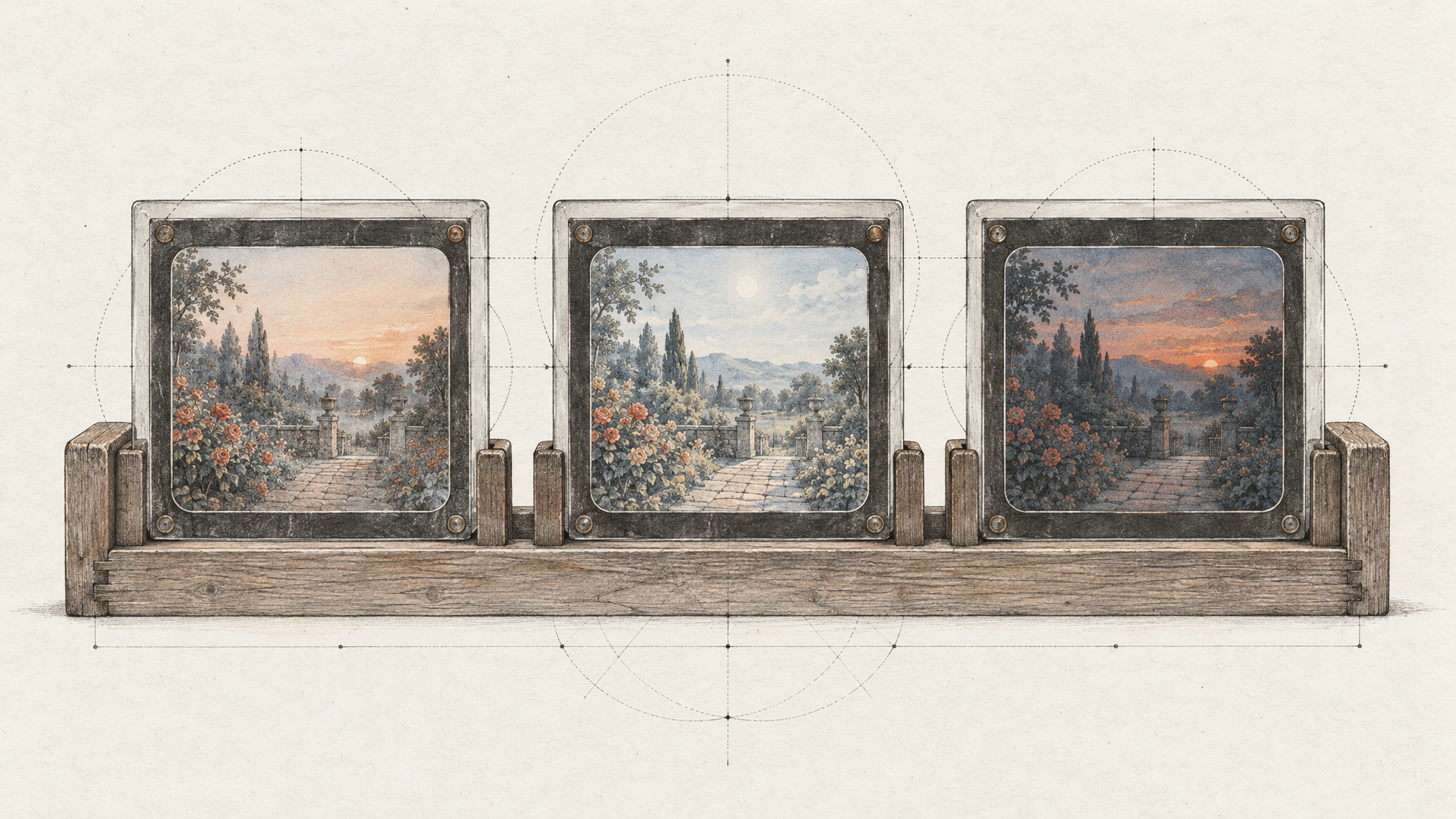
Five changes in one prompt is a gamble. If the result is off, you can't tell which instruction caused it, and you can't keep the four that worked. Make one change per pass instead, check it, and feed the result into the next edit.
Google designed Omni around exactly this rhythm: it calls the model conversational, and its docs show multi-turn editing where each turn builds on the last ("A woman playing violin outdoors," then "Make the violin invisible"). On each::labs, the practical version is a chain. Run the first edit, take the output video as the next input, apply the second edit, and so on. Since inputs are capped at 10 seconds, keep the shot within that length while you work on it.
A sensible order is structure first, surface last. Swap or remove objects, then change the setting, then relight, then restyle. Restyling early means every later edit has to work through a filter, which makes small changes harder to judge.
Build the chain once as an each::labs flow and a recurring job (the same product swap across ten approved clips, say) becomes a single run per clip.
Control Time and Sound Inside the Prompt
Omni takes direction about timing and audio in plain words, and Google's guide shows how. For timing, describe when something happens ("After 3 seconds, a woman enters the scene") or use timecodes ("[0-3s] A person is walking"). For sound, ask for it directly ("Include calm background music"). For anything you don't want, put the negative in the prompt itself, since the model has no separate negative-prompt field: "No dialogue," "No extra sound effects."
These work in edits, too. "Add a cat that jumps onto his lap at 4 seconds. Keep everything else the same." is a tighter instruction than the same line without the time, and it's easier to check.
When Editing Isn't the Right Mode
Gemini Omni 1.1 Flash comes as four models on each::labs, and the editing model isn't always the right one. Text to Video takes prompts up to 20,000 characters and generates 3 to 10 second clips with synchronized audio. Image to Video takes a start image and an optional end image, and Google says Omni 1.1 "generates continuous video between two keyframes," which it suggests for camera orbits and loops. Reference to Video takes up to 10 images and up to 3 video clips of 3 seconds or less, to hold a subject's look across new shots.
The rule of thumb: if you like the take and want one thing different, edit. If you don't have the take yet, generate it with frames or references, then edit. If you're coming from Veo 3.1 first and last frame workflows, Omni's image-to-video model with an end image is the closest match. For a wider look at what else edits video, browse the video-to-video models, or read our roundup of 40+ video editing models.
A Five-Minute Editing Workflow
Put it together and the workflow is short. Start from a clip of 10 seconds or less. Write one change in one sentence and end with the guard line. Render at 360p or 720p while you're judging the edit, because the point is to see whether the change landed, not to admire the pixels. When it's right, run the next change on that output. Render the final pass at 1080p or 4K.
If a pass goes wrong, simplify before you elaborate. Most failed edits are over-described edits. Cut the prompt to the one verb and one object that matter, keep the guard line, and run it again. For prompting the generation side of the same model, our Gemini Omni prompting guide covers framing, motion and style, and Gemini Omni Flash: The Nano Banana of AI Video explains where the model family came from.
Frequently Asked Questions
How long can a video be for Gemini Omni 1.1 Flash editing?
Ten seconds or less per input clip. For longer pieces, edit shot by shot and assemble the cut afterward, which also makes each edit easier to check.
Can Gemini Omni 1.1 Flash change the audio in an edit?
Partly. You can direct the soundtrack in the prompt, for example asking for calm background music or no extra sound effects, but Google says voice editing isn't supported. Treat dialogue changes as a separate step.
Why does my edit change things I didn't ask for?
Usually because the prompt says too much. Google's guide warns that overly descriptive prompts lead to unintended changes. Name only the change, then add "Keep everything else the same."
Is Gemini Omni 1.1 Flash replacing Veo 3.1?
In Google's own products, yes: the Gemini API names it as the replacement for the Veo 3.1 preview models, and the Gemini app now uses it in place of Veo 3.1. On each::labs you can run both side by side and pick per shot.