Seedream 5.5 Use Cases: 7 Jobs, 7 Copy-Ready Prompts
Seven jobs where Seedream 5.5 earns its place, from twelve-round catalog edits to transparent stickers and readable infographics. Each comes with a workflow and a prompt you can paste on each::labs today.
By Eftal Yurtseven · Nov 16, 2026 · 9 min read
Most image models get judged on a single render. Most image work doesn't happen in a single render. It happens in the fourth round of notes, the ninth size variant, the twelfth sticker that has to match the first eleven. That's the gap the Seedream 5.5 use cases below are built around, and it's the reason this model is worth a slot in your pipeline.
Seedream 5.5 is ByteDance's newest image model, and it's live on each::labs now as two models: Seedream 5.5 Text to Image and Seedream 5.5 Edit. Here are seven jobs it fits, who does them, the workflow for each, and a prompt you can paste today.
What You're Working With on each::labs
Quick grounding before the jobs. The ByteDance Seed team announced Seedream 5.5 on its blog on November 9, 2026, with three headline upgrades. Edits stay stable across up to 100 rounds on the same image, with untouched regions preserved at the pixel level and no color drift. The model outputs RGBA natively, with full and partial transparency. And realism and text got sharper: less gloss and overexposure, more natural skin and materials, and dense small text that holds together. ByteDance reports severe text corruption down to 0.4% and minor corruption at 1.7%.
On each::labs the two models share one simple request schema. You send a prompt (the schema recommends staying under 600 English words), pick a resolution of 1K, 1.5K or 2K (2K is the default), an aspect_ratio from auto, 1:1, 16:9, 9:16, 4:3, 3:4, 3:2, 2:3 or 21:9, and an output_format of jpeg or png. The Edit model adds an image field that takes one to ten reference image URLs. Each request returns one image.
Worth knowing where the use cases come from, too. ByteDance tested the model with experienced evaluators across six production areas: e-commerce, marketing, film and television, gaming, office productivity and fashion design. Quality and usability rose over Seedream 5.0 Pro in all six, and usability more than doubled in film and television and in office productivity. If you want the full launch story first, our Seedream 5.5 launch post covers it.
1. The Catalog Retoucher: One Product Shot, Twelve Rounds of Notes
Picture a retoucher at an apparel brand. The hero shot is approved. Then merchandising wants the jacket in olive, the brand team wants a different bag, legal wants the logo on the cap gone, and the creative director wants the earrings smaller. Each note is small. Together they used to mean a reshoot, because by round six the model's face had quietly changed.
This is the job Seedream 5.5 was announced for. ByteDance's own demo edits one portrait 100 times in a row, swapping clothing, accessories and tabletop objects down to a ring and a pair of glasses frames, with each output fed back in as the next input. The workflow on each::labs is a loop: send the approved shot to Seedream 5.5 Edit with one change, save the result, and send that result back with the next change. One change per round. Always say what has to stay.
Change the jacket color from navy to olive green, keeping the same fabric texture, stitching and fit. Keep her face, hair, skin tone, pose, the bag, the background and the lighting exactly as they are.
Log every instruction next to its output, so "what changed in round seven?" takes one line to answer.
2. The Performance Marketer: Same Ad, Every Placement
A performance marketer doesn't need one great poster. They need the same poster as a 9:16 story, a 1:1 feed post, a 16:9 banner and a 21:9 header, all with the headline spelled correctly and the offer line readable at the bottom. Text that breaks in one of four sizes is a dead variant.
Seedream 5.5 Text to Image covers all of those ratios from one schema, and the text upgrade is the part that matters here. Write the copy in quotes, say where each line sits, and generate the master at 2K. Then run the master through the Edit model with a new aspect_ratio and a short instruction to recompose for the new frame, instead of starting from a blank prompt each time. The layout stays recognizably the same campaign.
A summer running shoe ad. A single white running shoe with a coral sole floats above a sunlit asphalt track, crisp shadow underneath. At the top, the headline "Run Into Summer" in a bold condensed sans serif. At the bottom, a smaller line reading "New colors, every Friday". Clean background, warm afternoon light, high contrast.
3. The Film and TV Art Department: Set Dressing Before the Set Exists
ByteDance reports that usability more than doubled in film and television, and one of its demos shows why an art director would care. It turns an old study into a colorful, imaginative room and then moves a box. Perspective, occlusion and cast shadows adjust, and the floor the box used to cover gets filled in.
That's set dressing previs. A production designer can generate the room once, then work through the director's notes the way a set crew would: move the armchair, swap the lamp, age the wallpaper. Name objects by position, the way you'd write them on a call sheet, so the model can find them again three rounds later. Use 21:9 when you want the frame to read like the shot.
Move the leather armchair from the window to the left side of the fireplace, angled toward the room. Fill in the floorboards where the chair stood, matching the wood grain and the late afternoon light from the window. Keep every other object, the wallpaper and the camera angle unchanged.
Save each version under a scene number, and the dressing arguments happen on screen instead of on the stage.
4. The Game Artist: A Character Sheet That Stays on Model
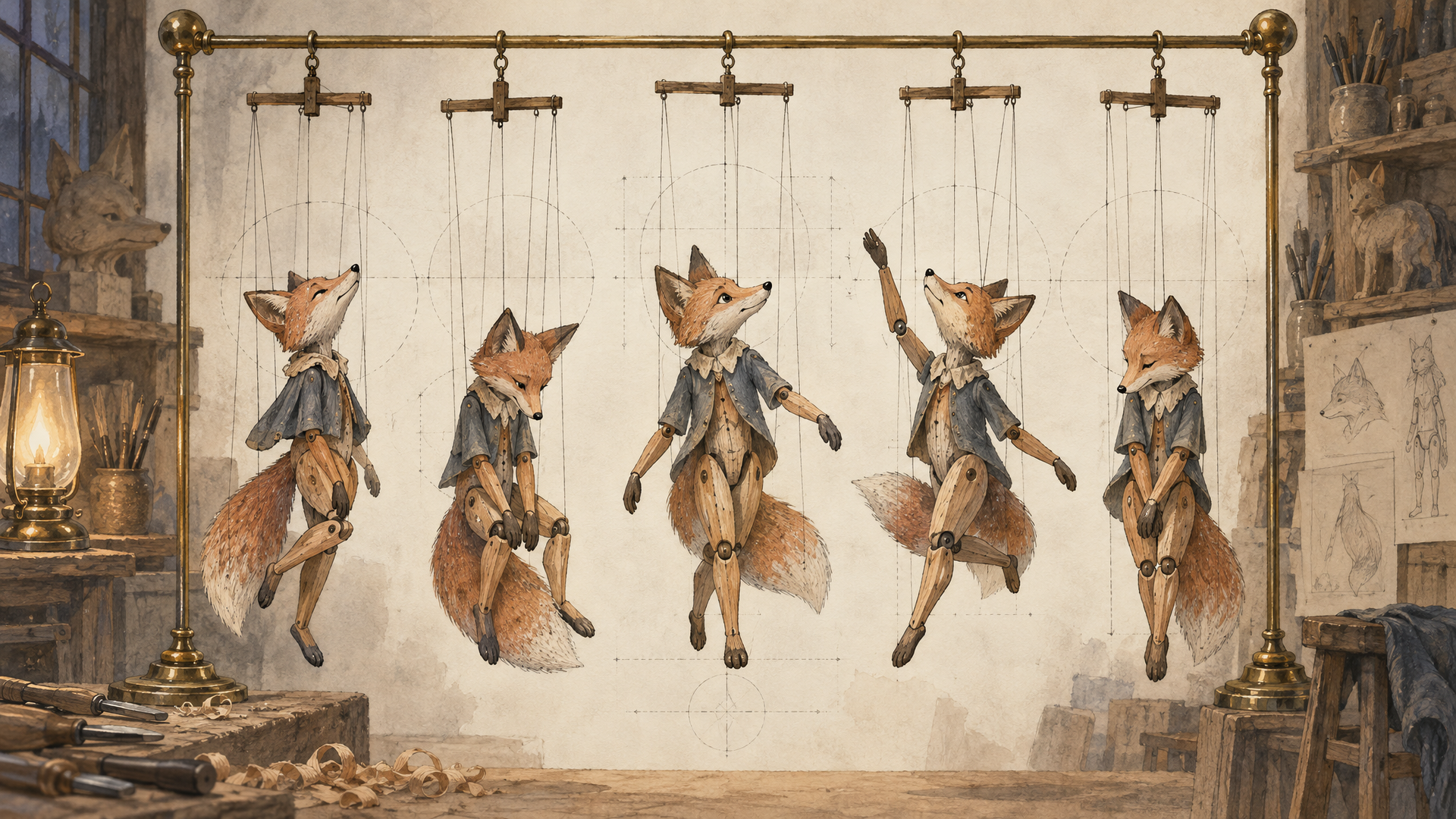
Every game artist knows the pain of the second pose. The first render of a mascot is lovely, and the next one has a different snout, a different scarf pattern and suspiciously new eyes. ByteDance's RGBA demo targets exactly this: a designer reuses the same character assets as references to build a series across new settings, and the poses change while the features and textures stay consistent.
On each::labs, send your approved character art to Seedream 5.5 Edit as references (up to ten images fit in the image field, so include a front view, a side view and a close-up of any detailed prop). Ask for one new pose per request and describe the background you want, or ask for none at all. Set output_format to png, since JPEG can't carry an alpha channel.
Using the fox character from the reference images, keep the same orange fur pattern, green knitted scarf and amber eyes. Show the fox mid-jump with both front paws raised, ears back, tail curled. Isolated on a transparent background, no shadow, no ground.
If a pose comes back with a background you didn't want, Seedream 5.0 Layer Decomposition can split it into separate transparent PNG layers, up to 16 plus a base, so you can lift the character out cleanly.
5. The Operations Lead: Infographics With Real Small Print
Office productivity sounds like the dullest category on ByteDance's list, and it's the one where usability more than doubled. Think of an operations lead who needs a one-page visual for an onboarding deck, a process diagram with labeled steps, or a bilingual poster for a warehouse floor. Everybody reads them, so one garbled label sinks the whole thing.
ByteDance's samples include a newspaper-style page with several passages of small English text and a blue morpho butterfly infographic with eight dense Chinese captions that stay readable. Lean on that. Quote every label, give each one a position, and keep the visual style simple so the text carries the image. A 3:4 or 4:3 frame drops cleanly into a slide.
A clean flat infographic titled "How a Return Gets Processed". Five numbered steps in a horizontal row, each with a simple line icon and a short label underneath: "1. Request", "2. Label sent", "3. Drop off", "4. Inspection", "5. Refund issued". Light gray background, navy text, one accent color in teal, generous spacing.
Read every word of the output before it ships. ByteDance's corruption rate is low, not zero, and a quick check is faster than a reprint.
6. The Fashion Designer: Swap the Material, Keep the Craft
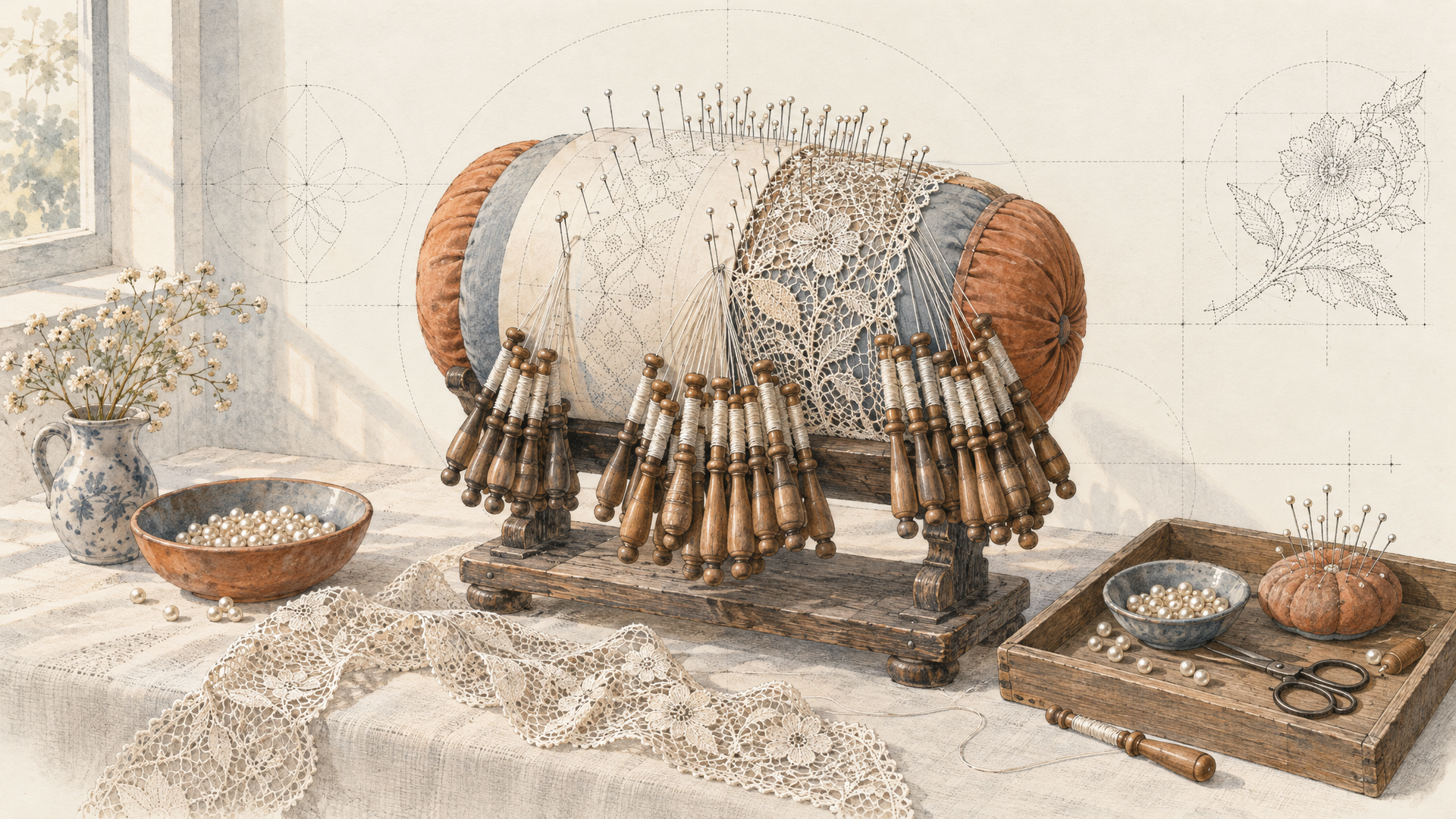
Fashion design is the sixth area in ByteDance's test, and the floral demo speaks to it directly. Four designs (realistic flowers, a still life, a journal collage and a traditional painting) get specific flowers reshaped or rematerialized, while openwork lace, bead sheen and stem textures survive the edit. For a designer, that's a fabric and trim exploration tool.
Start with a flat sketch or a photo of a sample. Ask Seedream 5.5 Edit for one material change per round: silk to linen, gold beading to pearl, a new print on the lining. Because unedited regions are meant to hold at the pixel level, you can line the rounds up side by side and compare like for like, which is the whole point of a material study.
Replace the embroidered red roses on the bodice with white pearl beading in the same floral shape and placement. Keep the openwork lace, the neckline, the skirt fabric, the mannequin and the studio lighting exactly as they are.
Run five or six of these in a row and you have a trim board for the next fitting without cutting a single swatch.
7. The Brand Designer: Seedream 5.5 Use Cases for Transparent Assets
The last job is the one most teams will copy first. A brand designer needs stickers, lettering and small illustrated assets that drop straight onto a website, a pitch deck or a packaging mockup. Background removal works on a coffee cup. It falls apart on feathers, hair, smoke and glass.
ByteDance's answer is native RGBA with partial transparency. Its showcase is a snowy owl with spread wings, distinct feather layers and visible gaps between the wingtip feathers. Another demo applies the brushwork, colors and material of a reference image to a word, kept legible on a transparent background. That second one is a lettering workflow: upload a texture or painting as a reference to the Edit model, ask for the word in that style, and request png.
The word "HARVEST" in thick oil paint brushstrokes matching the colors and texture of the reference painting, every letter fully legible, slight drips at the bottom edges. Isolated on a transparent background, no shadow, no frame.
For older flat artwork that has to become editable, the route runs the other way: our Seedream 5.0 Pro layers post shows how Layer Decomposition takes a finished poster apart. Generate new assets on 5.5, split old ones on 5.0.
Turn One Use Case Into a Repeatable Flow
Every job above is the same shape: a starting image, a list of single changes, a format at the end. That's a pipeline, and pipelines shouldn't live in someone's browser tabs. On each::labs, chain the steps in an AI flow: Text to Image for the master, Edit for each round of notes, Layer Decomposition when a flat image needs to come apart. The model swap, if you ever want one, happens in one place.
If you're still choosing between models, compare round ten, not round one. Our Seedream 5.5 vs GPT Image 2.6 breakdown sets up exactly that test. You can also browse the image-to-image models and text-to-image models to run the same chain against Seedream 5.0 Pro Edit and see the difference in endurance yourself.
Frequently Asked Questions
What are the best Seedream 5.5 use cases?
Anything that goes through many rounds of small changes. Catalog retouching, campaign variants, set dressing, character sheets and material studies all lean on the 100-round edit stability ByteDance announced, while stickers and lettering lean on native transparency. ByteDance's own tests covered e-commerce, marketing, film and television, gaming, office productivity and fashion design.
Should I use Seedream 5.5 Text to Image or Seedream 5.5 Edit?
Start from what you already have. With only a written idea, use Text to Image. With an approved shot, a character sheet or a style reference, use Edit, which accepts one to ten reference images per request. Most of the workflows above start in the first and spend the rest of their life in the second.
How do I get transparent PNGs from Seedream 5.5 on each::labs?
Say it in the prompt ("isolated on a transparent background") and set output_format to png, because a JPEG can't hold an alpha channel. ByteDance says the alpha comes from the model itself. If a render still comes back flat, Seedream 5.0 Layer Decomposition splits it into up to 16 transparent PNG layers plus a base.
What resolutions and aspect ratios does Seedream 5.5 support?
Three sizes and nine shapes. Resolution is 1K, 1.5K or 2K, with 2K as the default, and aspect ratio covers auto, 1:1, 16:9, 9:16, 4:3, 3:4, 3:2, 2:3 and 21:9. Each request returns one image.


