PixVerse Swap: Replace Anyone in a Video, Step by Step
PixVerse Swap keeps the motion and changes who's in it. A step-by-step guide to clips that swap cleanly, replacement images that match, and running it on each::labs.
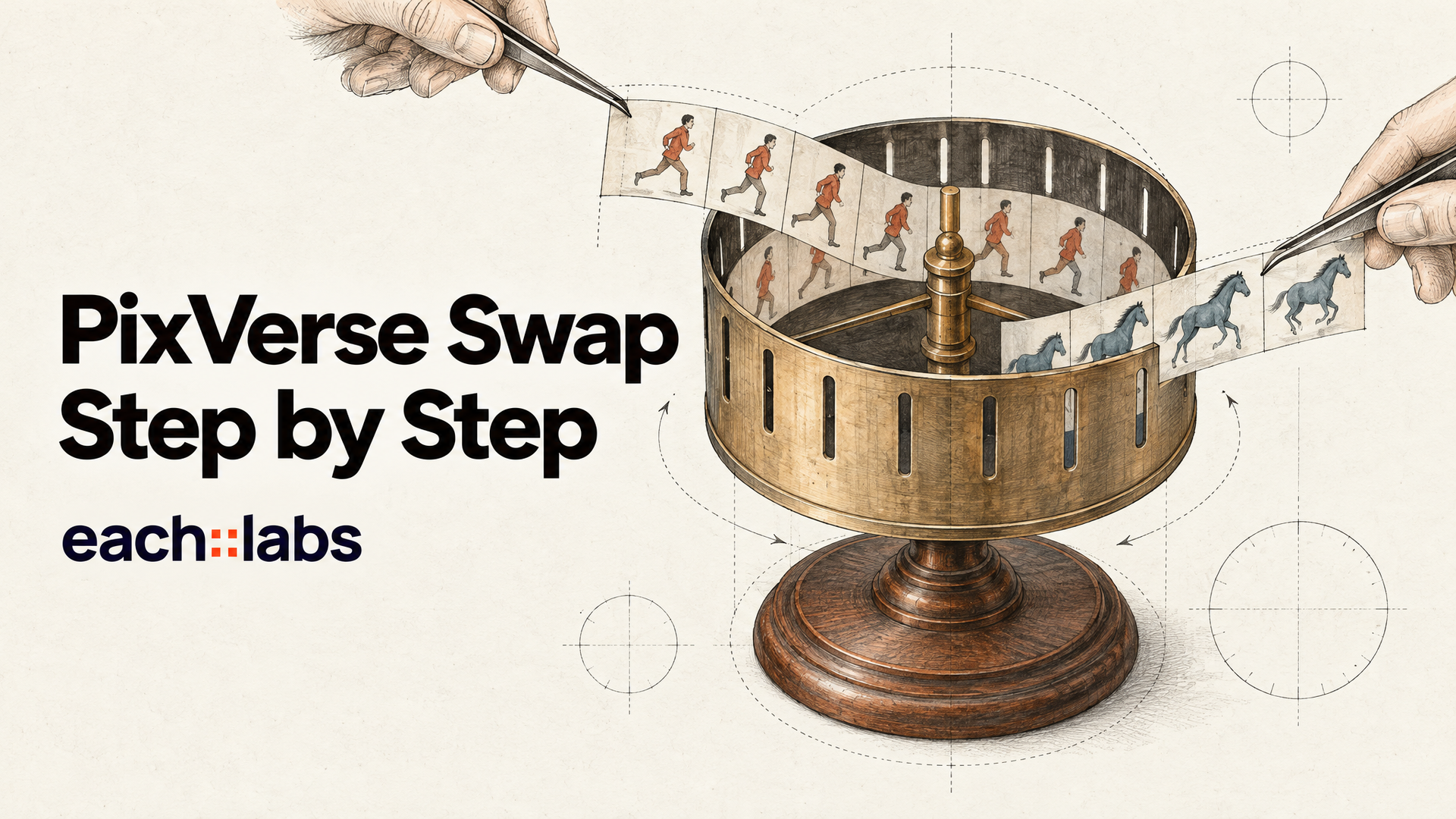
You already have the clip. The camera move is right, the timing is right, the actor nailed the gesture on take four. The only thing wrong is who's in it. Maybe the client changed the spokesperson. Maybe you need the same ad with a different product hero, or the same dance with a mascot instead of a person. Reshooting is the honest answer, and it's the one nobody has budget or time for.
PixVerse Swap is built for exactly that job. You give it a video and an image of the replacement, and it generates a new video where the replacement plays the part, with the original motion intact. It's live on each::labs as a single endpoint. This guide walks through how to get a clean swap on the first run instead of the fifth: which clips work, how to prepare the replacement image, what the keyframe setting really does, and how to review the result.
What PixVerse Swap Actually Does
PixVerse introduced Swap in November 2025 as a way to replace characters, objects or scenes in a video. In its official announcement, the company says Swap is built on its Fusion architecture and keeps the motion, expressions and lighting of the original while the subject changes. It pitches the feature for creative storytelling and branded content.
That last part is the important one. Swap is not a face swap, where a face gets pasted onto someone else's head. It replaces the subject. Body, clothing, silhouette, the whole figure. The performance underneath stays. The camera move, the walk, the turn of the head on the beat: all of that comes from your source video.
On each::labs the PixVerse Swap endpoint automatically targets the primary subject it detects in the frame, whether that's a person, a face or an object. You don't draw a mask. You choose the video, the replacement image, the output quality and, optionally, the frame the model should use to find the subject. Four inputs. The rest of this guide is about choosing them well.
Step 1: Pick a Clip That Swaps Cleanly
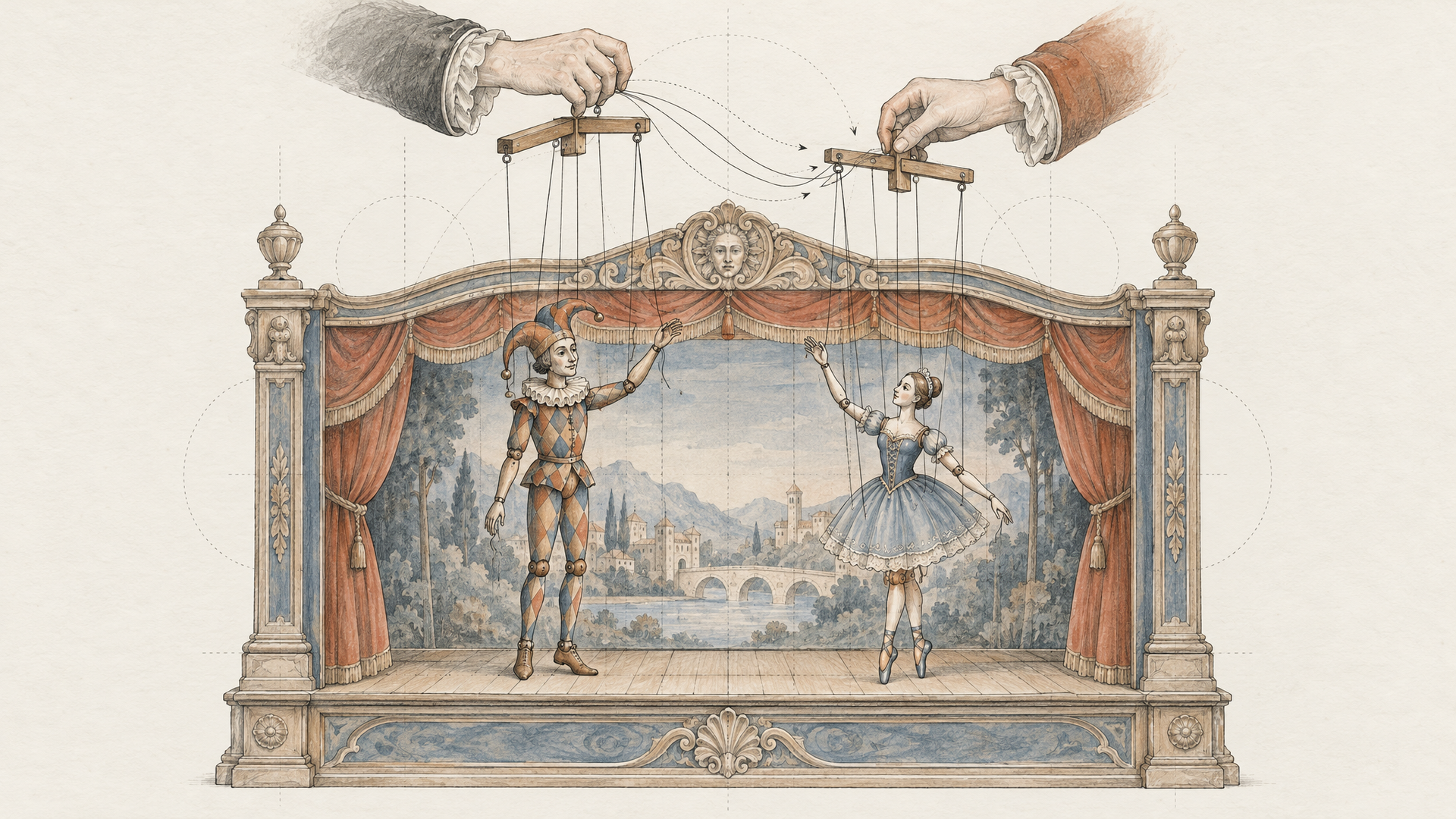
The single biggest factor in a good swap is the source clip, and the rule is simple: one obvious subject. Because the endpoint picks the primary subject it detects, a clip with a clear hero gives it nothing to get wrong. A crowded street with three people at the same size is a coin toss.
Good source clips share a few habits. The subject is large in frame and clearly separated from the background. The subject stays visible for most of the shot rather than walking out of frame and back in. Motion is readable: a turn, a walk, a gesture, a dance. And the lighting is consistent, because Swap keeps the original light and your replacement will inherit it.
Check the file before you send it. The each::labs endpoint needs the video encoded as H.264 or H.265, which covers almost everything exported from an editor or a phone, and the video has to be at a public HTTPS URL. If your clip came out of another model on each::labs, it's already hosted and ready to pass straight in.
Generating the source instead of shooting it? Make it swap-friendly on purpose. Write the prompt for a single, centred subject with clean motion, then swap the subject as many times as you like. One motion, many cast members. Any of the image-to-video models on each::labs will give you a base clip, including PixVerse's own PixVerse V6.
Step 2: Build a Replacement Image That Matches
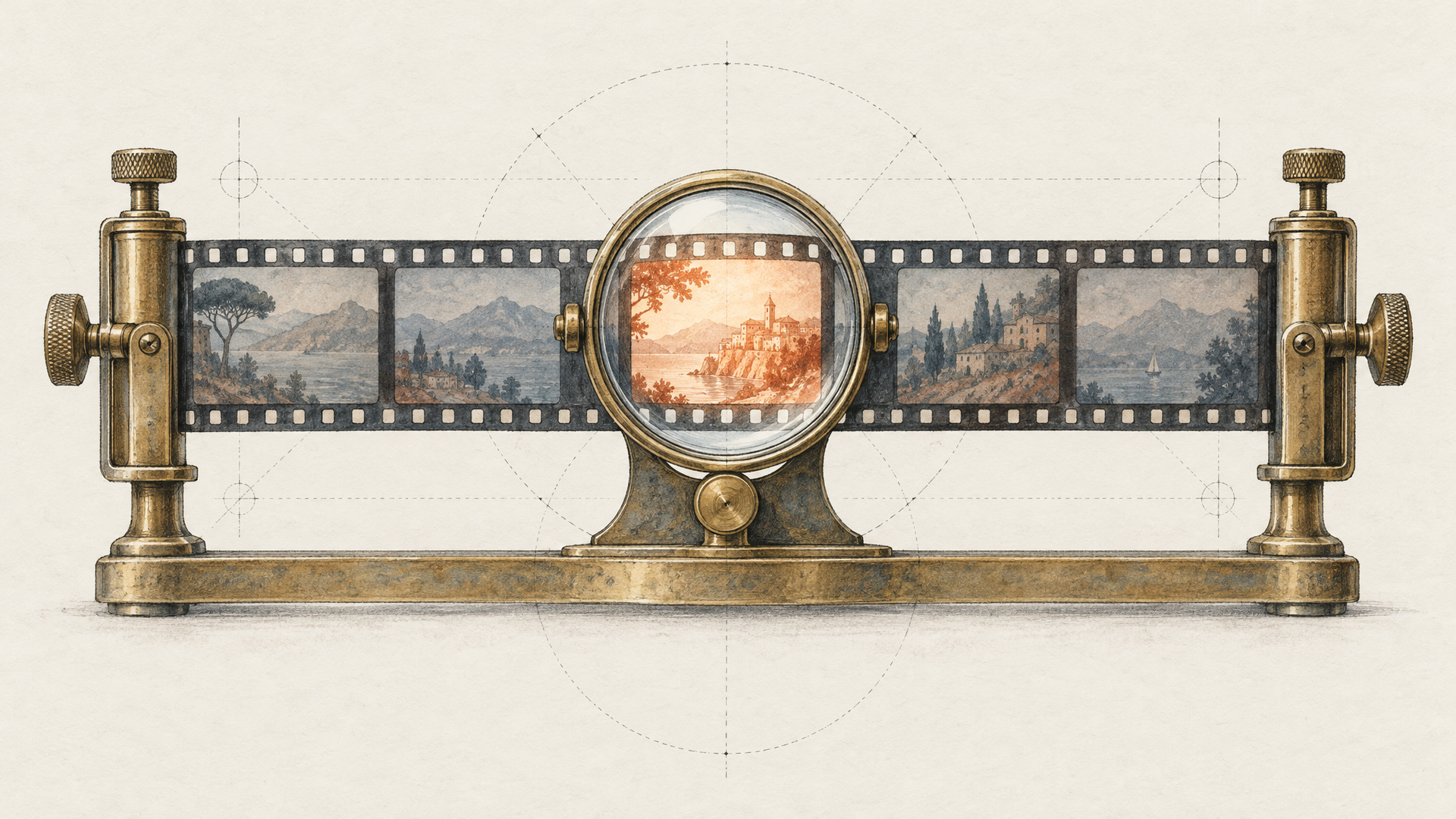
The replacement image is your casting call, and most bad swaps are bad casting. The model has to map your replacement onto a body that is already moving in a specific way, under specific light, from a specific angle. The closer your image is to those conditions, the less the model has to invent.
Match three things. First, the framing: if the source subject is shown full body, give a full-body replacement; if it's a waist-up shot, a waist-up image is enough. Second, the pose and angle: a replacement photographed from the front works best for a subject who mostly faces the camera. Third, the light: a replacement shot in soft daylight will look pasted in if the source is a hard spotlight at night.
Use a clean image with one subject on a simple background. Busy backgrounds in the replacement image only give the model more to ignore. If you don't have the right photo, make it. A strong editing model can turn a reference into a swap-ready image: same character, front-facing, neutral background, light matched to your clip. A prompt like this works with most of the partner editors on each::labs:
Full-body photo of the character from the reference image, standing and facing the camera, arms relaxed. Plain light grey studio background. Warm, low sunlight from the left, like late afternoon. Keep the face, hair, outfit and colours exactly as in the reference.
That last sentence matters. You're preparing an input, not making art, so tell the editor to change the setting and nothing about the character.
Step 3: Choose the Right Keyframe
The keyframe_id setting is the one most people leave alone, and it's the one that rescues awkward clips. It's the frame index the model uses to detect the subject. The default is 1, the first frame.
The first frame is fine when your subject is clearly visible at the start. It's a problem when the shot opens on something else: a subject walking in from the side, a camera move that reveals the person halfway through, a first frame blurred by motion. In those cases, the model is trying to find the subject in a frame where the subject is barely there.
So scrub your clip and pick the frame where the subject is largest, sharpest and most fully visible. Count the frame index from the start and pass it as keyframe_id. If there's a second person in the shot, choose a frame where your intended subject clearly dominates. You're telling the model "this one," without drawing a mask.
Step 4: Run the Swap on each::labs
With the clip, the replacement image and the keyframe chosen, the request is short. Quality can be 360p, 540p or 720p, with 720p as the default:
{
  "model": "pixverse-swap",
  "input": {
    "video_url": "https://your-cdn.com/source-dance-take-04.mp4",
    "replacement_image_url": "https://your-cdn.com/mascot-front-warm-light.png",
    "keyframe_id": 24,
    "quality": "720p"
  }
}
Send it to the each::labs prediction endpoint, then poll the prediction or pass a webhook_url to get called back when it finishes. The model page lists an average processing time of around 160 seconds, so a webhook is the cleaner choice once you run swaps in batches.
Iterate at 360p or 540p. When you're testing which replacement image or keyframe works best, the lower settings answer the question faster. Render the keeper at 720p once the casting is right.
Step 5: Review It Like a Forger Would
A swap can look perfect at thumbnail size and fall apart at full screen, so review it the way someone hunting for the trick would. Watch the edges first: hair against the background, hands crossing the body, the moment the subject turns side-on. Those are where a replacement shows its seams.
Then watch the light. Swap keeps the source lighting, which is a strength when your replacement image was shot in matching light and a giveaway when it wasn't. If the new subject looks a shade too bright or too flat, go back to step 2 and relight the replacement image rather than fighting it later.
Finally, check identity over time. The face and outfit should still be your replacement in the last second, not drifting back toward the original subject. If it drifts, a clearer replacement image almost always fixes it faster than a different clip.
Where PixVerse Swap Earns Its Place
The obvious job is recasting. A brand spot shot with one presenter becomes three versions for three markets, each with a local face and the same performance. A product demo filmed with last season's packaging gets this season's packaging. A creator's dance trend gets the brand mascot in place of the dancer.
It's just as useful for generated video. Teams that produce a lot of short-form content can build one strong motion base and swap the cast for every variant, which keeps the camera language and timing consistent across a campaign. If that consistency is the goal, our guide on keeping the same character across AI video shots pairs well with this workflow. And for more ideas on what teams build with the PixVerse family, see PixVerse AI use cases.
One rule doesn't bend: if the source or the replacement is a real person, get their consent for the use you have in mind. Our guide to the face swap API for consumer apps covers consent flows if you're putting this in front of users.
Swap, Modify or Lip Sync: Pick the Right Tool
PixVerse ships several video editing features, and they solve different problems. Use PixVerse Swap when the subject should change and the motion should stay. Use PixVerse Modify when you want a prompt-driven change to the scene rather than a new subject from an image. Use PixVerse Lip Sync v2 when the person stays and only the words change.
They chain well, too. Swap in a new presenter, then lip sync the presenter to a translated script, all inside one each::labs flow. The whole PixVerse feature set sits next to the other video-to-video models in the catalog, behind the same key and request shape.
Frequently Asked Questions
What is PixVerse Swap?
It's PixVerse's video feature for replacing the subject of a clip with someone or something else while keeping the original motion, expressions and lighting. On each::labs you send a source video and a replacement image, and you get back a new video with the replacement in the role.
Is PixVerse Swap the same as a face swap?
Not quite. A face swap changes a face and leaves the rest of the person. Swap replaces the primary subject the model detects, which can be a whole person or an object, so clothing and silhouette change too.
Why did PixVerse Swap replace the wrong subject?
The endpoint targets the primary subject it detects, so a clip with several similar figures can confuse it. Set keyframe_id to a frame where your intended subject is largest and clearest, or trim the clip so one subject dominates.
What resolution does PixVerse Swap output?
On each::labs you can choose 360p, 540p or 720p, with 720p as the default. Test at the lower settings and render the final at 720p.