Flux 3 Video Keyframes: Pin Any Frame to Any Second
Flux 3 Video lets you pin up to ten images to exact seconds of a clip and generates one continuous shot through them. Here's how to plan the frames, write the prompt and finish the render.
First and last frame control was a real step forward. You hand a video model the shot's opening image and its closing image, and it solves the middle. Then you try to make the middle do something specific, like the product turning to reveal its label at second four, and you're back to rerolling and hoping.
Flux 3 Video's timestamped keyframes fix exactly that. Instead of two frames, you pin up to ten images, each to an exact second of the clip, and Black Forest Labs' model generates one continuous shot that hits every one of them on time. You stop asking for a moment and start scheduling it. This guide walks through how to plan the frames, write the prompt between them and render the shot on each::labs.
What Flux 3 Video Keyframes Actually Do
FLUX 3 is Black Forest Labs' multimodal model family, and its video side launched on August 4, 2026. BFL describes the keyframe behavior plainly in its docs: "FLUX 3 interpolates one continuous shot that moves through each in turn." No cuts, no crossfades. One take that passes through every image you pinned.
On each::labs there are two ways in. The standard Flux 3 Image to Video model takes up to ten images in order: one image starts the video, two start and end it, and with more the first starts it, the last ends it and the rest fall evenly in between. Even spacing is fine for a lot of shots. It's the wrong tool when the beats aren't evenly spaced, which is most of the time.
The timestamped model is the precise version. Each keyframe is a pair: an image and the second at which it becomes the frame. Timestamps run from 0 to 20 seconds and must be in ascending order. Leave duration on auto and the clip runs to the last keyframe's timestamp, rounded up. That's the whole idea, and it changes how you plan a shot.
Step 1: Write the Shot as a Timeline
Before you make a single image, write the shot down as times and states. Not motion, states. What does the frame look like at 0 seconds? At 3.5? At 8? This is how an animator thinks, and it's the right habit here, because the keyframes are states and the prompt is the motion between them.
Take a 10-second product shot for a perfume bottle:
0.0s  Bottle seen from behind, dark set, rim light only
3.5s  Bottle turned three quarters, label just catching light
6.0s  Front-on, label fully lit, mist hanging in the air
10.0s Close-up on the cap, background soft and warm
Four states, uneven gaps. The reveal is slow and the final push is quick, which is exactly the rhythm you'd want in an ad and exactly what even spacing can't give you. If you can't write the timeline, the model can't either. Fix the plan before you touch the generator.
Step 2: Make Keyframes That Belong to One Shot
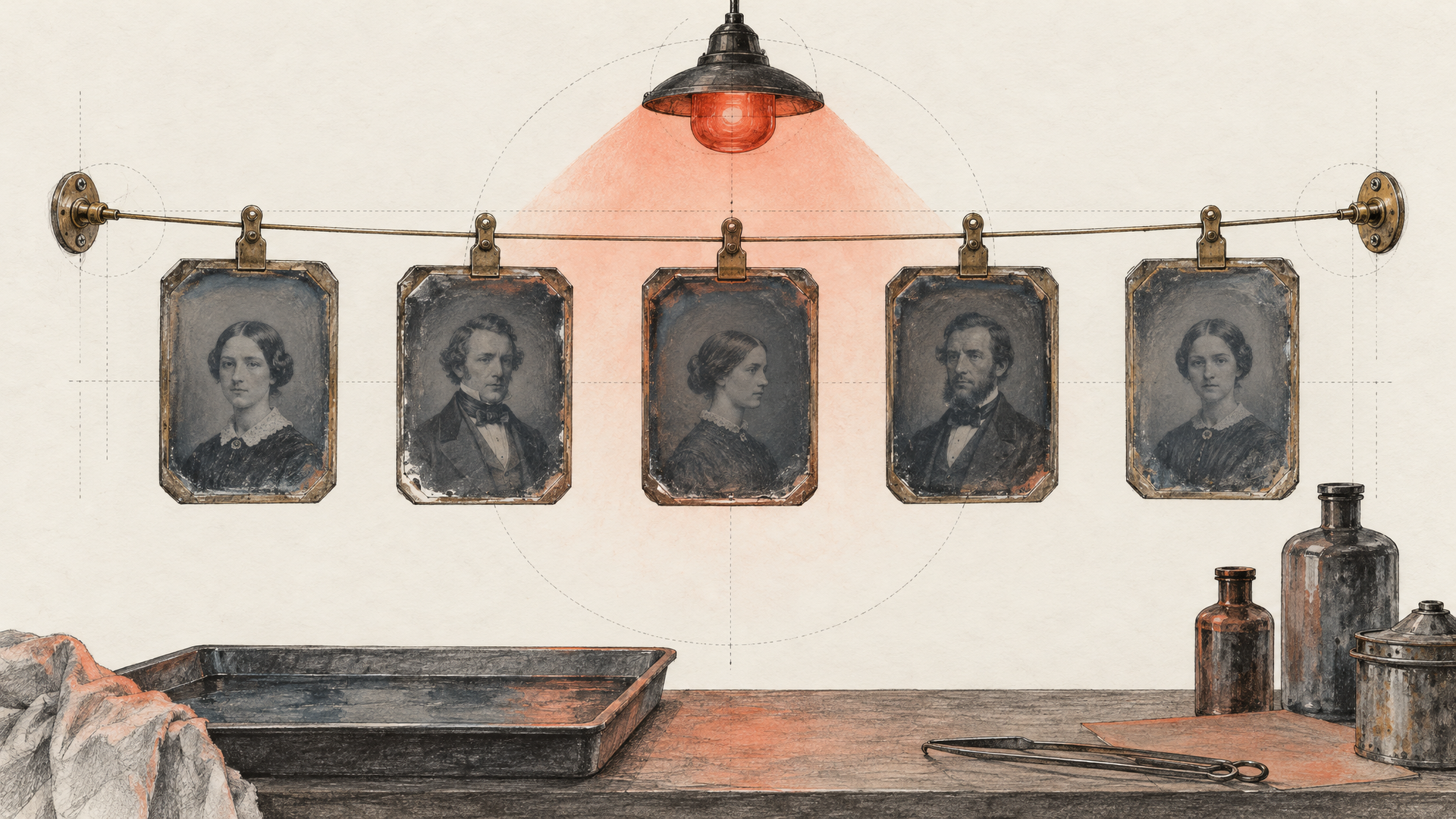
Keyframes have to agree with each other. Same subject, same set, same lighting logic, same lens feel. If frame two looks like it came from a different shoot than frame one, the model has to invent a bridge between two worlds, and that bridge is where the shot falls apart.
The cleanest way to get consistent keyframes is to make them with an image model that edits well. FLUX 3 Image is the natural match because it comes from the same family. Generate the first keyframe, then edit it into the others: rotate the product, change the light, move the camera closer. Editing from one source image keeps the details stable in a way four separate generations never will. Our Flux 3 prompting guide covers the image side, including reference images and layout control.
Two practical rules. Keep every keyframe at the aspect ratio you want the video in, so nothing gets reframed. And don't pin more frames than the shot needs. Every keyframe is a constraint. Three well-chosen ones usually beat eight that fight over the same two seconds.
Step 3: Prompt the Motion Between Frames
Here's where most people go wrong. They describe the keyframes in the prompt. The model can already see them. BFL's own guidance for image-driven generation is that the image sets the frame and the prompt drives the motion, so spend your words on what happens between the pins: how the camera moves, how fast things change, and what it all sounds like.
BFL's prompting docs give a useful checklist: who or what moves and what exactly happens, the camera ("static shot, slow push-in, handheld follow, overhead drift, or rapid pan"), the environment and mood, the quality of motion ("slow, abrupt, weightless, chaotic, precise, cinematic, documentary"), and what must stay stable across the clip. They also warn that "vague adjectives leave the result to chance" and that length alone isn't the goal.
The bottle rotates slowly on its axis while the camera holds still, then the camera glides forward in one smooth move for the final close-up. Light sweeps across the glass as it turns. The label stays sharp and readable throughout. A soft shimmer of sound as the mist appears, then a low warm hum under the close-up.
Notice what's missing: no description of the bottle, the set or the label design. The keyframes carry all of that. The prompt only says how to travel between them and what should stay locked while it does.
Step 4: Let the Sound Follow the Timeline
Flux 3 Video generates audio with the picture, and on each::labs generate_audio is on by default. That's an advantage with keyframes, because the moments you pinned are usually the moments that deserve a sound.
BFL's audio guidance is specific and worth following. Put exact dialogue in quotation marks and name the speaker; an off-screen voice needs a clear voiceover or narration cue. A quoted line with no speaker may turn into on-screen text, so add "no on-screen text or subtitles" when you mean speech. Don't ask for silence; name the actual sound source instead. And skip the sales voice: BFL suggests phrases like "no announcer delivery" when a read starts sounding like an ad.
Tie sounds to beats in plain language: "a soft click as the cap lands at the end," "the room tone swells as the label comes into light." You've already decided when those moments happen. Now tell the model what they sound like. If the clip is going under music you'll add later, turn audio off and keep the mix clean.
Step 5: Draft, Then Commit
Every Flux 3 Video model on each::labs has a draft switch. BFL describes draft mode as "a fast preview of your prompt," so you can iterate on ideas instead of waiting for a full render every time. Draft renders are always HD, and the result includes a draft cache reference so the shot can be re-rendered at full quality later. BFL says that re-render keeps the same subjects, composition and motion, while a fresh full render may interpret the prompt differently.
Use drafts to judge timing, not detail. Does the label land at 6 seconds? Is the push too fast? Do two keyframes sit so close together that the motion snaps? Move a timestamp, tighten the prompt, draft again. Only commit when the timeline feels right.
For the final, pick the resolution. hd is up to 1MP per frame (for example 1280x704) and fhd is up to 2MP (for example 1920x1088), finished by BFL's video upsampler. Aspect ratios include 21:9, 2:1, 16:9, 4:3, 1:1, 3:4 and 9:16, or auto.
Here's the Full Request
This is the perfume shot as an each::labs request:
{
  "model": "flux-3-image-to-video-timestamped",
  "input": {
    "prompt": "The bottle rotates slowly while the camera holds still, then glides forward for the final close-up. Light sweeps across the glass. The label stays sharp throughout. Soft shimmer as the mist appears, low warm hum under the close-up. No on-screen text.",
    "keyframes": [
      {"timestamp": 0,   "image_url": "https://example.com/bottle-back.png"},
      {"timestamp": 3.5, "image_url": "https://example.com/bottle-three-quarter.png"},
      {"timestamp": 6,   "image_url": "https://example.com/bottle-front.png"},
      {"timestamp": 10,  "image_url": "https://example.com/bottle-cap.png"}
    ],
    "duration": "auto",
    "aspect_ratio": "16:9",
    "resolution": "fhd",
    "draft": false
  }
}
Duration on auto means the clip ends at the 10-second keyframe. Set an explicit duration (5 to 20 seconds) if you want the shot to keep running after the last pin.
Keyframes, Continuation or Plain Image to Video?
The Flux 3 family on each::labs has four video models, and each has its job. Text to Video is for exploring an idea before you've made any images. Image to Video is for a start frame, a start and end, or evenly spaced beats. Timestamped keyframes are for when the beats have to land at specific moments. And Video Continuation carries on from the final frames of a clip you already have, so a 20-second keyframed shot can keep going into the next one without a cut.
That last pairing is the move for longer pieces: keyframe the shot that has to be exact, then continue it with a prompt for what happens next. Wire the steps together as an each::labs flow (keyframe images, keyframed video, continuation) and the whole sequence becomes one run. If you want the broader picture of the model, our launch post Flux 3: Scenes, Not Clips covers it, and for the simpler two-frame version on Google's model, see our Veo 3.1 first and last frame guide. Browse every image-to-video model when a shot calls for something else.
Frequently Asked Questions
How many keyframes can Flux 3 Video use?
Up to ten in a single generation, on both the standard and timestamped image-to-video models. Fewer is usually better: pin the moments that matter and let the model move between them.
What's the difference between Flux 3 Video keyframes and timestamped keyframes?
Spacing. Standard image-to-video spreads your middle frames evenly between the first and the last. Timestamped keyframes let you set the exact second each image appears, from 0 to 20, so uneven beats like a slow reveal and a quick push are possible.
How long can a keyframed clip be?
Up to 20 seconds. On auto, the clip runs to your last timestamp, rounded up. For longer sequences, extend the result with Flux 3 Video Continuation.
Does Flux 3 Video add sound to keyframed clips?
Yes, by default. Describe the sounds you want in the prompt and tie them to your beats, or switch audio off if the clip will sit under music you add later.
Should I describe my keyframes in the prompt?
Mostly no. The model sees the images. Use the prompt for motion, camera, pacing, sound and what must stay stable, which is the part the images can't say.