GFPGAN: Restore Faces in Old Photos, Step by Step
Sharpening a blurry face gives you a sharper blur. Here's how GFPGAN rebuilds faces in old photos, which version to pick, and how to restore the whole picture on each::labs.
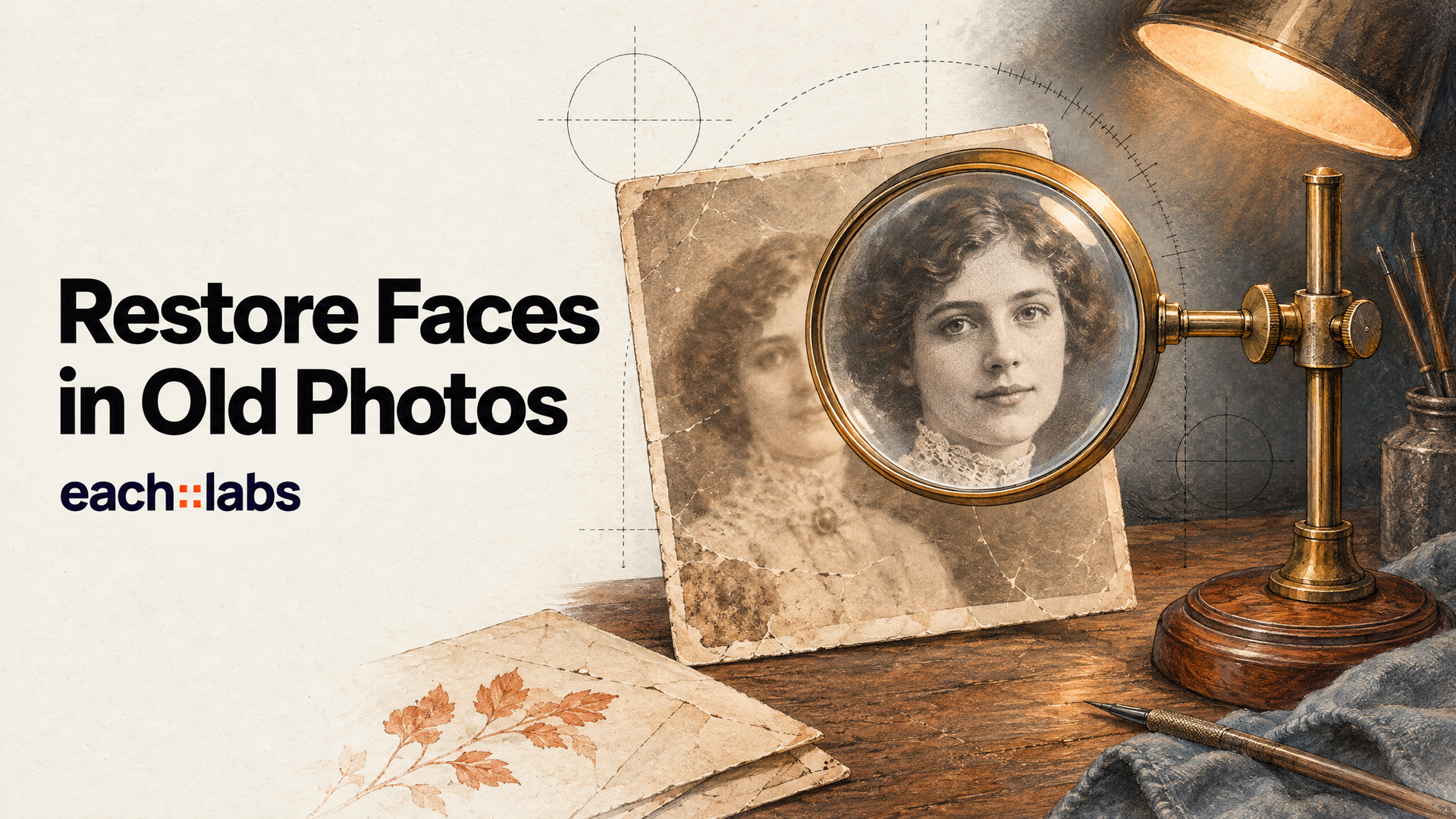
Every family has the box. Shoeboxes of prints, a scanned wedding album, a single photo of a great-grandmother that's more grain than face. Scanning them is easy now. Making the faces readable is where it gets hard, because sharpening a blurry face doesn't give you a face. It gives you a sharper blur.
GFPGAN was built for exactly that gap. Tencent ARC's face restoration model doesn't try to sharpen what's there. It uses what a generative model already knows about faces to rebuild the detail the photo lost: eyes, teeth, skin texture, the edge of a lip. It's been around since 2021, and it still shows up in searches every month for a simple reason. It does one job, fast, and it does it well. This guide shows you how to run it properly on each::labs, which version to choose, and how to build a full old-photo restoration workflow around it.
What GFPGAN Actually Does
The task has a name: blind face restoration. Tencent ARC's paper, presented at CVPR 2021, defines it as recovering high-quality faces from low-quality ones that suffer from unknown degradation, such as low resolution, noise, blur and compression artifacts. "Blind" is the important word. The model isn't told what went wrong with the photo. It has to work that out.
Its trick is the "generative facial prior" in its name, GFP. GFPGAN builds on a face GAN that has already been trained to generate realistic faces (StyleGAN2 in the paper). A first network cleans up the damaged input and extracts its features. Those features then steer the face generator through layers the authors call Channel-Split Spatial Feature Transform. Part of the generator's features get adjusted to match your photo, which keeps the face recognisably the same person. The rest pass straight through, which keeps the result looking like a real face. The paper describes this as a balance of realness and fidelity, and it all happens in a single forward pass rather than a slow per-image optimisation.
That balance is the whole story. A restoration model that only pursued realness would hand you a beautiful stranger. One that only pursued fidelity would hand you the blur back. GFPGAN aims between the two.
Choose Your Version Like a Restorer, Not a Collector
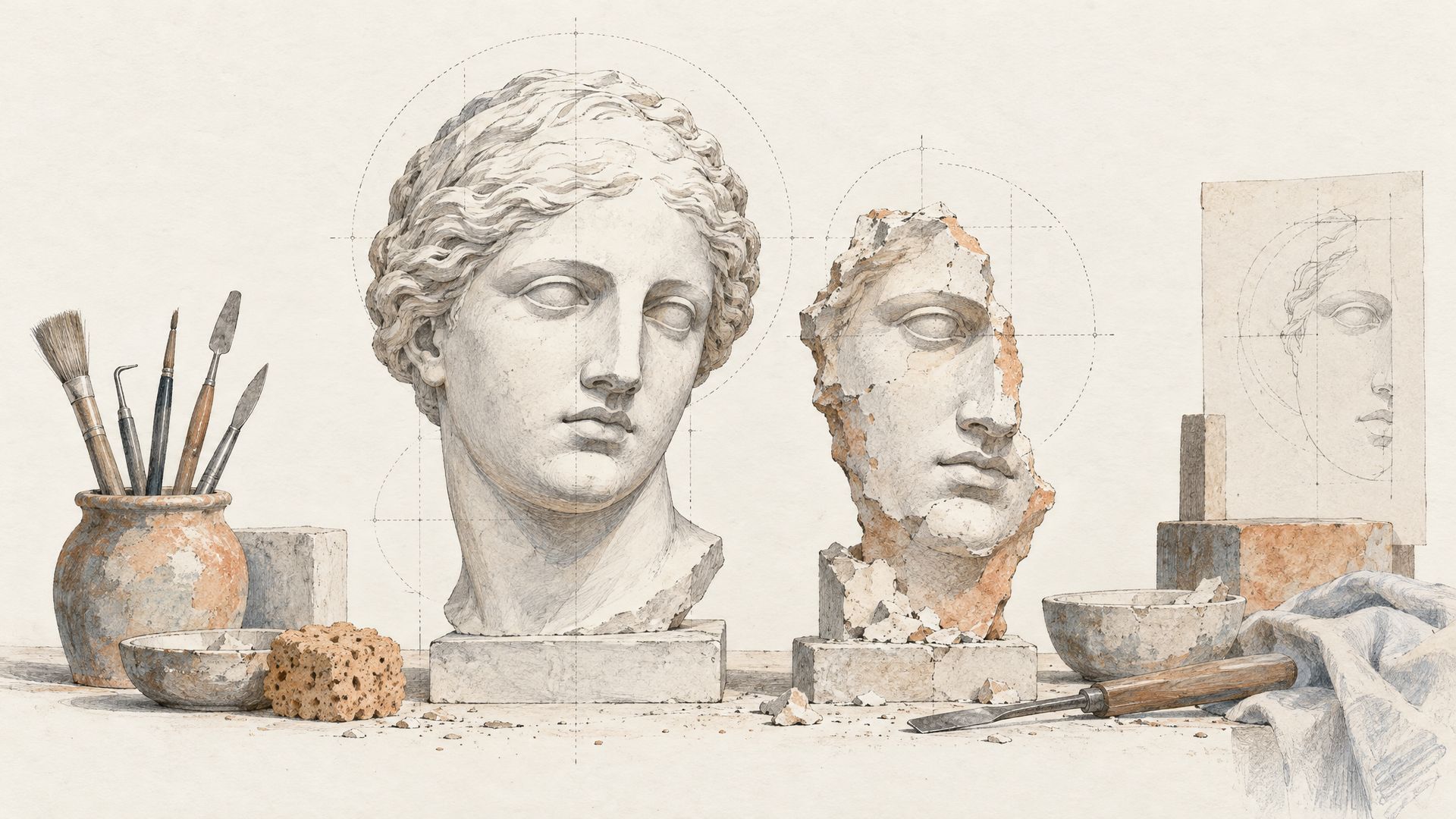
The each::labs GFPGAN endpoint gives you four choices in its version field: v1.2, v1.3, v1.4 and RestoreFormer. The default is v1.4, and that's the right starting point. The GFPGAN README describes v1.4 as producing slightly more detail and better identity than v1.3.
The others still earn their place. The README describes v1.3 as more natural looking and better on both very low and high quality inputs, at the expense of some sharpness and a slight identity shift. v1.2 is sharper and handles faces with beauty makeup, but some outputs look unnatural. RestoreFormer is a different face restoration method whose inference code the GFPGAN repository added.
Here's the opinion: start on v1.4, and switch only when you see a specific problem. If the result looks waxy or over-processed, try v1.3. If it looks right but soft, try v1.2. The README itself warns that newer isn't always better for every input, and with old family photos the honest test is simple. Show the result to someone who knew the person. Identity beats sharpness every time.
Prepare the Scan Before You Restore It
GFPGAN can only work with the pixels it gets, so give it the best scan you can. Scan prints at a high resolution rather than photographing them with a phone at an angle. Crop out the album page and the white border, but keep the whole person and some context around them; GFPGAN finds and restores the faces, and the background still matters for the final picture.
Don't pre-sharpen the scan in an editor, and don't run it through heavy JPEG compression on the way in. Both add exactly the kind of damage the model then has to undo. A flat, slightly soft, honest scan is a better input than one that's been "improved" first.
Run GFPGAN on each::labs
The request is short. You need the image URL. You can set the upscale factor with scale (default 2) and pick the version.
{
  "img": "https://your-bucket.example/scans/grandmother-1952.jpg",
  "scale": 2,
  "version": "v1.4"
}
Run the default first and look at the eyes. Eyes are where face restoration either convinces or fails, and they tell you within a second whether to keep going or switch versions. Then look at the mouth and the hairline, the other two places restoration models tend to invent too much.
A practical habit: when you're restoring a batch, run one representative photo through all four versions side by side before you commit. Photos from the same album usually share the same damage, so the version that wins on one tends to win on the rest.
Restore the Whole Picture, Not Just the Face
A restored face in an unrestored photo looks like a sticker. The face is crisp, the dress and the room around it are still mush, and the eye notices instantly. The GFPGAN project pairs face restoration with Real-ESRGAN for exactly this reason, using it to enhance the non-face regions of the image.
On each::labs you can handle the rest of the frame as its own step. Real-ESRGAN is in the catalog, and for higher-end results the Topaz models are too: Topaz Image Upscale and Gigapixel Standard 2 are built for upscaling the whole image. Our guide to enhancing image quality with Topaz goes deeper on that side. The order matters: restore faces first at a modest scale, then upscale the full image, so the upscaler works from a clean face instead of amplifying a damaged one.
Colour and Retouching Come Last
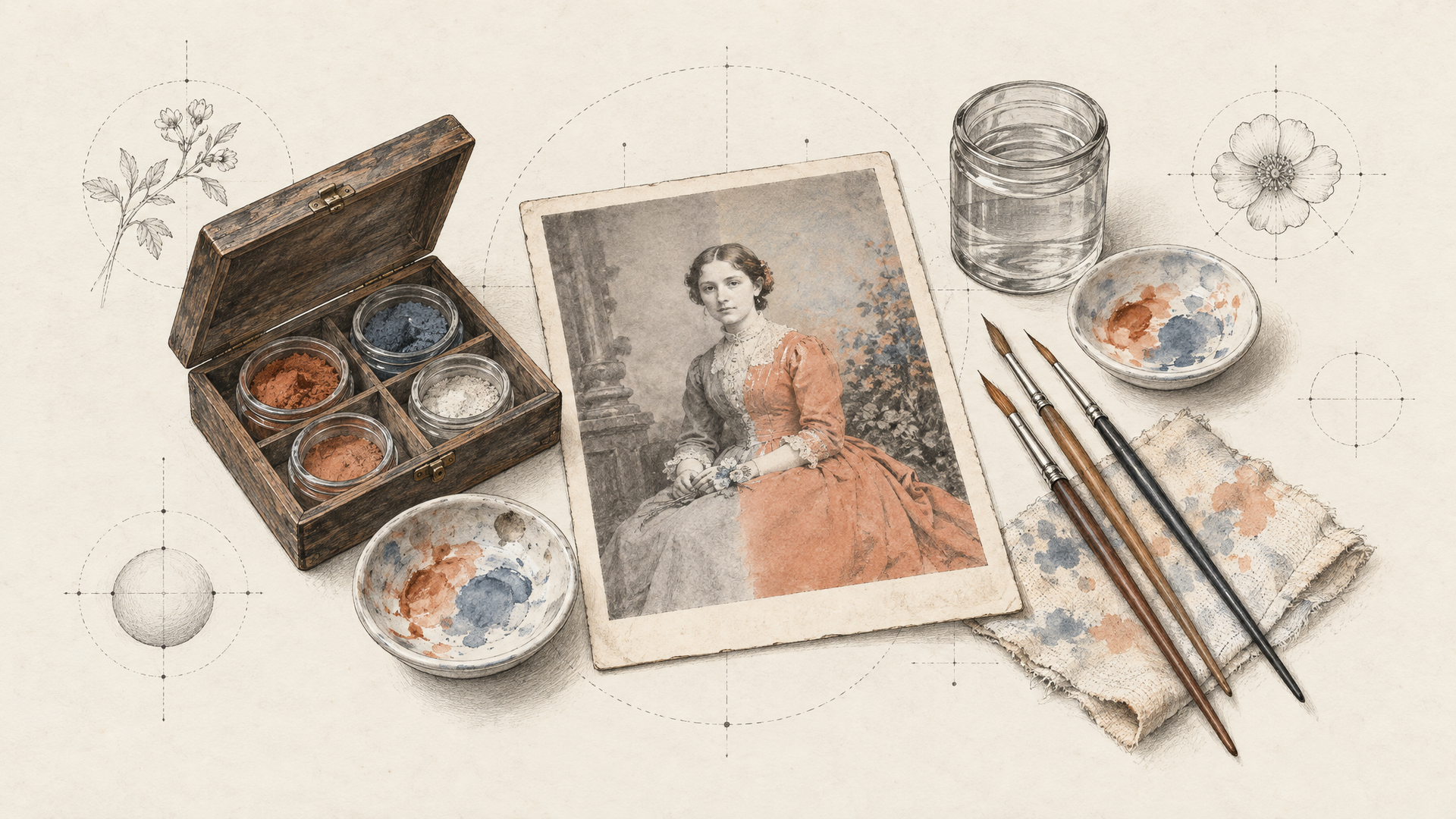
Many old photos are black and white, and the temptation is to colourise straight away. Resist it until the faces and detail are done. GFPGAN's paper itself notes that with grayscale inputs, face colour can come out biased because there isn't enough colour information to go on, so treat colour as a separate creative decision rather than something the restoration step should settle for you.
For colourising and for retouching (a crease across a cheek, a stain on a sleeve), an instruction-based image editor is the right tool. Nano Banana 2.1 Edit takes plain language, and you can be specific about what must not change:
Colourise this restored 1950s portrait with natural, period-appropriate colours. Keep the face, expression, hairstyle and clothing exactly as they are. Remove the crease running across the lower left corner. Do not change the composition or add anything new.
Our comparison of the best AI image editing models covers which editors hold a face steady best if you want alternatives.
Where GFPGAN Earns Its Keep
Family archives are the obvious use, but they aren't the only one. Photo restoration apps use GFPGAN as the first step in a "fix my old photo" button. Genealogy and memorial services restore portraits for prints and slideshows. Archivists and local historians make faded group photos readable enough to identify people. And creative teams use it as a clean-up pass on generated portraits whose faces came out a little soft.
Know where it struggles before you promise a client a miracle. The paper notes that severely degraded real photos can come out with twisted details and artifacts, and very large head poses can look unnatural. A face in profile at the edge of a blurry group photo is a hard case for any model. Set expectations from the photo, not from the best demo you've seen.
Build the Pipeline as One Flow
Put it all together and the steps line up cleanly: GFPGAN for faces, an upscaler for the frame, an editor for colour and retouching. That's a natural each::labs flow, and it means a restoration app or a batch of a thousand scans runs through one API with one key. If you're new to chaining steps, our walkthrough on chaining image, upscale and video in one API call shows the pattern. Want to go one step further? Send the restored portrait to an image-to-video model for a gentle, living-photo animation.
Start with one photo that matters to you. You'll know within a single run whether the face comes back as the person you remember. That's the only benchmark this job has.
Frequently Asked Questions
Which GFPGAN version should I use?
Start with v1.4, the default on each::labs, which the GFPGAN README describes as giving more detail and better identity than v1.3. Switch to v1.3 if results look over-processed, or v1.2 if they look soft. Comparing all four on one photo from a batch is the fastest way to decide.
Does GFPGAN restore the background too?
Its specialty is faces. The GFPGAN project pairs it with Real-ESRGAN for the rest of the image, and on each::labs you can run Real-ESRGAN or a Topaz upscaler as a second step to restore the full frame.
Can GFPGAN colourise black and white photos?
The versions on each::labs focus on restoring detail, not adding colour. For colourising, run the restored photo through an instruction-based editor such as Nano Banana 2.1 Edit and tell it to keep the face unchanged.
Is GFPGAN good for AI-generated portraits?
It's a useful clean-up pass when a generated face comes out slightly soft or smeared. Keep the scale modest and compare versions, since a face that's already clean can look over-processed after a strong restoration.