How to Enhance Image and Video Quality with Topaz Upscaler
High-quality visuals are no longer a luxury. In today’s digital landscape, sharp images and clean videos directly impact engagement, credibility, and perceived professionalism. Whether you’re working with AI-generated content, older footage, or low-resolution assets, upscaling has become a critical part of modern workflows. This is where topaz upscaler tools play an essential role. Topaz Upscaler is widely used to enhance image and video quality by increasing resolution while preserving importa
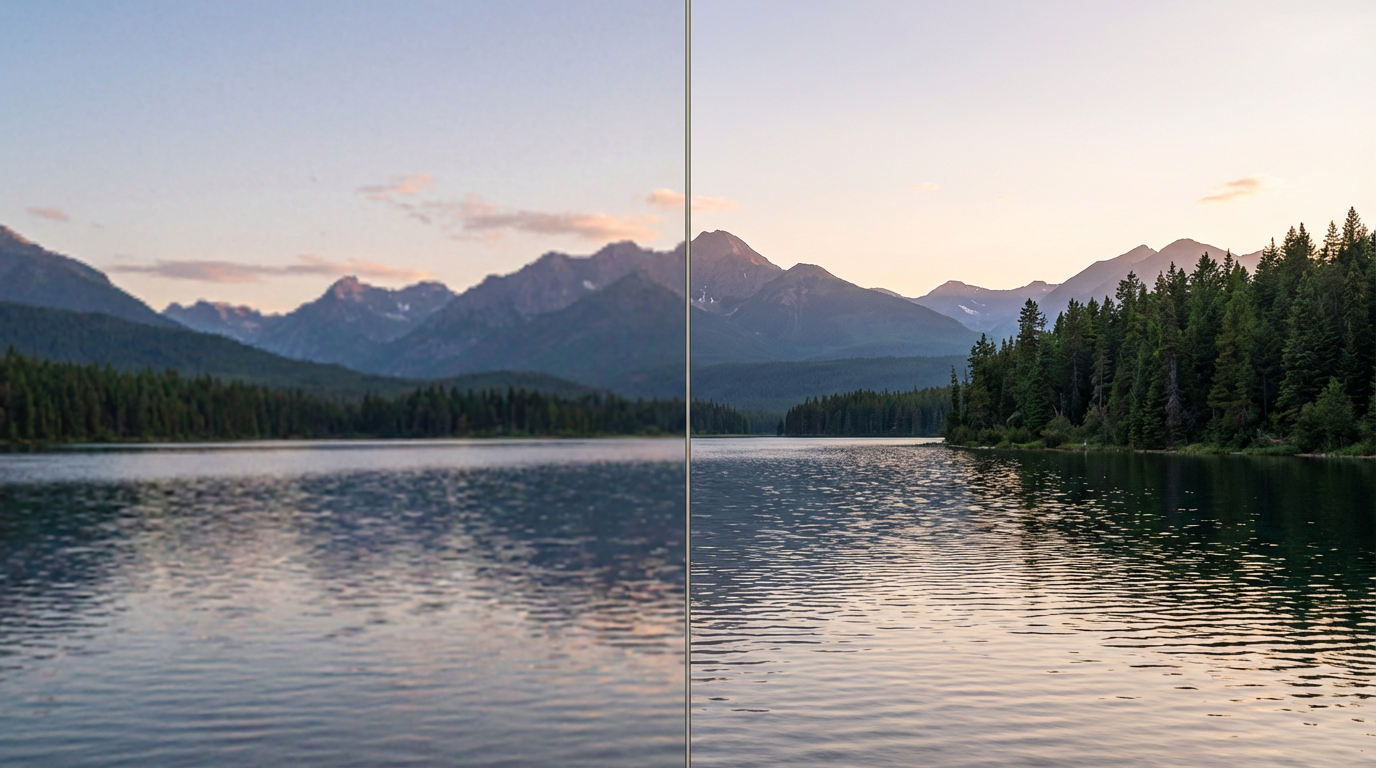
High-quality visuals are no longer a luxury. In today’s digital landscape, sharp images and clean videos directly impact engagement, credibility, and perceived professionalism. Whether you’re working with AI-generated content, older footage, or low-resolution assets, upscaling has become a critical part of modern workflows. This is where topaz upscaler tools play an essential role.
Topaz Upscaler is widely used to enhance image and video quality by increasing resolution while preserving important details. Instead of simply stretching pixels, it relies on AI-based analysis to rebuild textures, edges, and clarity in a more natural way.
This guide explains how topaz upscaler works, when to use it, and how to integrate it into an efficient image and video enhancement workflow.
What Is Topaz Upscaler
Topaz Upscaler refers to AI-powered upscaling technology designed to improve the resolution and clarity of images and videos. Unlike traditional upscaling methods that rely on basic interpolation, topaz upscaler analyzes visual patterns and reconstructs missing details.
Key capabilities include:
- Increasing resolution without heavy blur
- Restoring edge sharpness
- Improving texture detail
- Reducing noise and compression artifacts
This makes it especially useful for AI-generated visuals, social media content, cinematic footage, and legacy media.
Why Upscaling Matters for Image and Video Quality
Low-resolution content often looks unprofessional, especially on high-resolution screens. Upscaling helps bridge the gap between source quality and modern display standards.
Using topaz upscaler allows creators to:
- Repurpose older or lower-quality assets
- Improve AI-generated images and videos
- Prepare content for large screens or high-end platforms
- Maintain visual consistency across projects
For video, upscaling is particularly important because motion exaggerates flaws like blur, noise, and compression artifacts.
How Topaz Upscaler Enhances Images
When enhancing images, topaz upscaler focuses on reconstructing detail rather than inventing unrealistic textures.
Key improvements include:
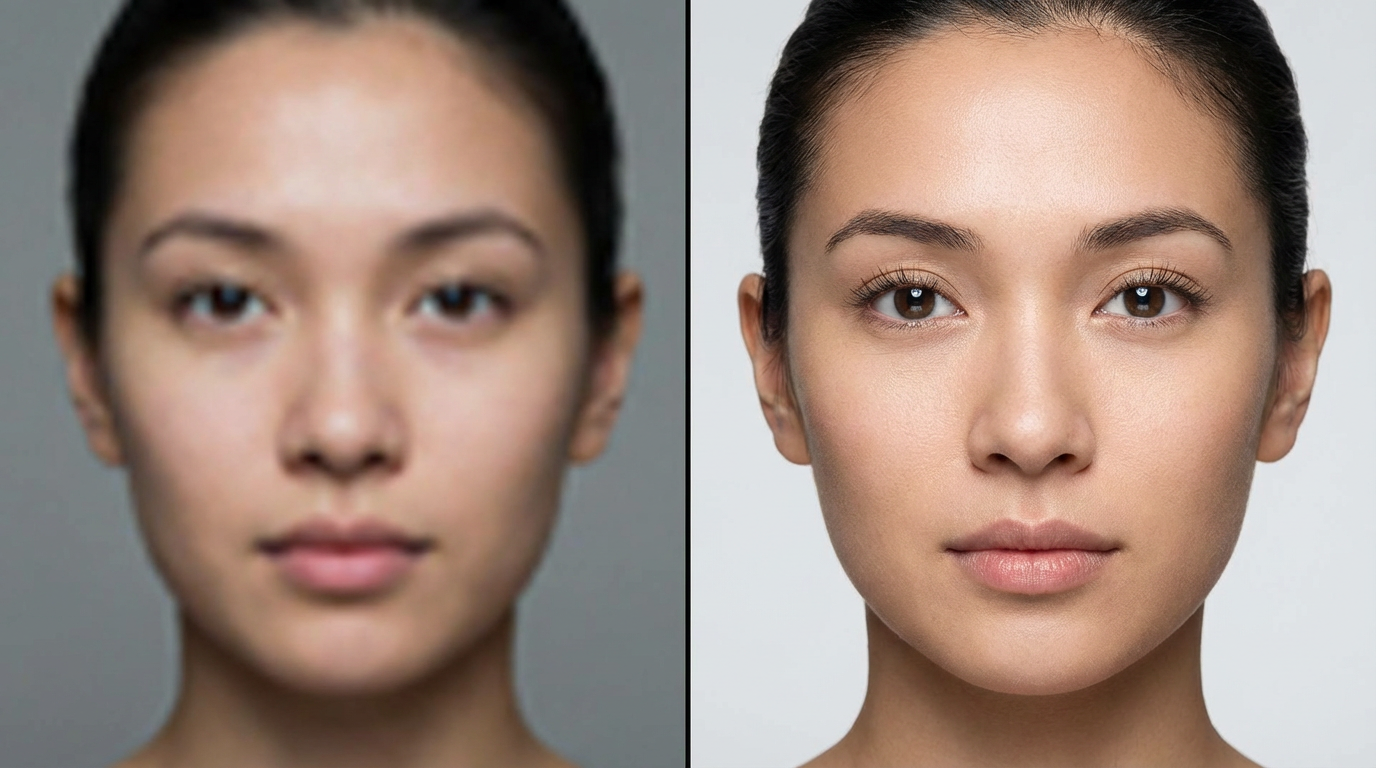
- Sharper facial features
- Cleaner edges around objects
- More natural skin texture
- Reduced pixelation
This makes it ideal for portraits, product images, thumbnails, and AI-generated artwork that needs a polished finish.
For best results:
- Start with the highest-quality source available
- Avoid excessive sharpening before upscaling
- Choose a model optimized for the image type (portrait, illustration, or photo)
How Topaz Upscaler Improves Video Quality
Video upscaling is more complex than image upscaling because consistency across frames matters. Topaz upscaler processes video frame by frame while maintaining temporal stability.
Benefits include:
- Cleaner motion
- Reduced flicker
- Improved detail in moving subjects
- Better compression handling
This makes it suitable for:
- AI-generated video clips
- Cinematic sequences
- Social media videos
- Archival footage restoration
Upscaling videos before final export helps preserve quality when platforms apply their own compression.
When to Use Topaz Upscaler in Your Workflow
Topaz upscaler works best as a finishing or refinement step rather than the first stage of creation.
Typical use cases include:
- After generating AI images or videos
- Before publishing content online
- Before color grading or final edits
- When preparing content for larger displays
Eachlabs allows creators to experiment with AI-generated visuals first, then apply upscaling as a final quality pass to achieve cleaner, more professional results.
Best Practices for Using Topaz Upscaler
To get the most out of topaz upscaler, it’s important to treat upscaling as a refinement step rather than a fix-all solution. The goal is to enhance clarity and detail without introducing artifacts or making the image or video look overprocessed.
First, avoid over-upscaling beyond what’s actually needed. Increasing resolution too aggressively can exaggerate imperfections and create an unnatural look. In many cases, a moderate upscale delivers cleaner and more realistic results than jumping directly to very high resolutions.
It’s also best to avoid stacking multiple enhancement tools before upscaling. Applying heavy sharpening, noise reduction, or contrast adjustments prior to using topaz upscaler can confuse the AI model and reduce the quality of reconstructed details. Starting with a clean, minimally processed source gives the upscaler more accurate information to work with.
Matching the upscaler model to your content type is another key factor. Different models are optimized for photos, illustrations, faces, or video footage. Selecting the correct model helps preserve important textures, such as skin detail in portraits or fine edges in product shots.
Always review your results at 100% zoom. This allows you to spot issues like haloing, oversharpening, or texture distortion that might not be visible when viewing the image at a smaller size. What looks good at a glance can sometimes reveal flaws upon closer inspection.
For video projects, testing short segments before processing full clips is strongly recommended. This saves time and ensures that motion, consistency, and detail reconstruction behave as expected across frames. Once you’re satisfied with a test segment, you can confidently apply the same settings to longer footage.
Overall, subtle enhancement almost always produces better results than aggressive sharpening or extreme resolution jumps. When used with restraint, topaz upscaler enhances visual quality while keeping images and videos natural, clean, and professional-looking.
Common Mistakes to Avoid
Even powerful tools like topaz upscaler can produce poor results if misused.
Common mistakes include:
- Upscaling heavily compressed sources
- Applying strong sharpening before upscaling
- Ignoring motion artifacts in video
- Over-processing facial features
The goal is enhancement, not transformation. Preserving natural detail is key to professional-looking results.
Why Topaz Upscaler Is Popular for AI-Generated Content
AI-generated images and videos often look impressive but slightly soft or inconsistent at higher resolutions. Topaz upscaler helps bridge that gap by refining detail and improving clarity without altering the original style.
This makes it especially valuable for:
- AI portraits
- Stylized artwork
- Short-form AI videos
- Cinematic AI scenes
By combining AI generation with AI upscaling, creators achieve results that feel intentional and production-ready.
Wrapping Up
Enhancing image and video quality is no longer optional in a visually competitive world. Topaz upscaler provides an effective way to improve resolution, clarity, and overall polish without sacrificing realism.
When used correctly, it becomes a powerful final step in modern creative workflows—especially for AI-generated content. Subtle refinement, thoughtful settings, and quality source material are the keys to achieving professional-grade results.
Frequently Asked Questions
1. What is the main benefit of using topaz upscaler?
Topaz upscaler improves resolution and clarity while preserving natural details, making images and videos look cleaner and more professional.
2. Can topaz upscaler be used for AI-generated videos?
Yes. It’s commonly used to enhance AI-generated videos by improving sharpness, reducing artifacts, and maintaining consistency across frames.
3. Should I upscale before or after editing?
Upscaling is best done after generation and basic edits, but before final export or heavy color grading, to preserve maximum quality.