Flux Kontext Prompts: 12 Edits That Keep the Rest
Flux Kontext reads your photo as context, so the prompt only has to say what changes and what stays. Here are 12 copy-ready edit prompts for Kontext Pro, Max and multi-image Kontext on each::labs.
By Eftal Yurtseven · Nov 24, 2026 · 9 min read

You asked for a red jacket. You got a red jacket, a new face, a different street and a hand with opinions. Most image edits don't fail on the change you asked for. They fail on everything you didn't mention. Flux Kontext prompts work differently because the model reads the picture as context: Black Forest Labs built FLUX.1 Kontext so the input image carries the scene and your text carries only the edit. Write the prompt like a note to a retoucher and the rest of the frame stays put.
Below are the building blocks of a Kontext instruction, twelve copy-ready edit prompts grouped by job, and the habits that keep a long chain of edits from drifting. Every prompt is written for FLUX.1 Kontext Pro on each::labs, and the multi-image ones for its two-image siblings. Swap the nouns for your own image and go.
Pick the Right Flux Kontext Model First
Kontext isn't one endpoint. On each::labs it's a small family, and the same prompt lands differently on each.
Kontext Pro is the default. Black Forest Labs pitches it as the fast, production-ready option, quoting 5 to 6 seconds for a generation, with editing and generation in one mode. On each::labs it takes a prompt and an input_image, keeps the source's aspect ratio by default, and can return up to four variations per request.
Kontext Max is the one to reach for when the words in the picture matter. BFL lists industry-leading typography, maximum prompt adherence and premium consistency as its strengths. Leave the input image empty and Max works as a plain text-to-image model too.
Kontext Dev is the open-weights sibling and works in editing mode only. It exposes more knobs (inference steps, acceleration, guidance) for testing how phrasing moves the result.
Then there are the multi-image endpoints. Multi-image Kontext Pro and Multi-image Kontext Max take two input images and one instruction, while Multi Image Kontext accepts up to four. Finally, Kontext LoRA is a text-to-image endpoint that loads your own LoRA adapters (a weights path plus a scale from 0 to 2), useful when a house style has to show up in every frame.
Say What Changes, Then Say What Stays
BFL's own prompt reference for Kontext boils down to a few rules, and they're worth taking literally. Specify what should change, because the input image already supplies all the other visual context. Be explicit about what to preserve, with phrasing like "while maintaining the same facial features and hairstyle". And when you stack several changes, add as many explicit details as you can.
That gives you a two-part sentence that covers most edits. The first half names the target and the change: which object, what it becomes, where it sits. The second half names the anchors: the face, the pose, the framing, the light, the background. You're not describing the photo. You're fencing off the parts a model might be tempted to "improve".
Verbs matter more than they look. BFL's advice is to prefer specific verbs, "change the clothes" over "transform the person". A word like transform gives the model permission to rebuild the subject from scratch, and it often will. Change, replace, remove, add and recolor are small verbs with small blast radiuses. Save the big verbs for when you actually want a different picture.
And name things the way they appear: "the blue mug on the left", not "the mug". Kontext doesn't need poetry. It needs an address.
Object and Color Edits: Prompts 1 to 3
These are the bread and butter. BFL's own demo is a one-liner ("Change the car color to red"), and short works fine when the frame is simple. The versions below add a preservation clause because real product shots rarely are.
1. Recolor one object
Change the car color to deep forest green. Keep the reflections on the paint, the wheels, the street and the sky exactly as they are.
2. Remove an object cleanly
Remove the coffee cup from the desk and fill the space with the same wooden desk surface. Keep the laptop, the plant and the window light unchanged.
3. Replace one object with another
Replace the ceramic vase on the shelf with a small brass telescope on a tripod, same size and same position, lit by the same warm window light from the left.
Prompt 3 hands the new object the old one's size, position and lighting. That's the difference between a swap and a sticker. For more on swaps, our guide on how to replace objects in images with AI covers the logic step by step.
Keep the Same Face: Prompts 4 to 6
Character consistency is where Kontext earns its name. BFL's docs show a single woman carried through a chain of edits: first "Remove the object from her face", then "She is now taking a selfie in the streets of Freiburg, it's a lovely day out.", then "It's now snowing, everything is covered in snow." Same person, three new situations. The trick is grammar: each prompt states the new situation as a fact about the subject instead of asking for someone similar.
4. Same person, new place
She is now standing on a rainy street at night, holding a clear umbrella, neon reflections on the wet pavement. Keep her exact facial features, hairstyle and expression, and keep the same camera angle.
5. Change the outfit only
Change her denim jacket to a camel wool coat while maintaining the same facial features, hairstyle, pose and background.
6. Change the season around the subject
It's now late autumn. The trees behind him have orange leaves and a few leaves are falling. Keep the man, his clothes, his pose and the framing exactly the same.
Prompt 5 is BFL's preservation clause almost word for word, and it's the one to memorize. When a face starts to drift, the fix is rarely a longer description of the face. It's a clearer list of what's off limits.
Flux Kontext Text Replacement: Prompts 7 and 8
Swapping words on a sign or a package used to mean regenerating the whole thing and praying the font survived. Kontext edits the text in place. BFL's recommended structure is plain: put the old and new text in quotation marks, Replace '[original text]' with '[new text]'. In their example, "Choose joy" becomes "Choose BFL", and the new word comes out in the upper case it was typed in. So type the casing you want.
7. Replace text on a sign
Replace 'OPEN' with 'CLOSED' on the shop sign. Keep the same font, color, neon glow and position on the window.
8. Edit text inside a drawn box
Replace the text in the red box with 'NEW SEASON'. Keep the rest of the poster layout, colors and photography unchanged.
Prompt 8 needs a little prep. Draw a bright colored box over the region on your input image before you upload it. BFL documents that Kontext Pro reads these annotation boxes as part of the input image and removes them from the output, and it says this local approach works especially well for text that needs to move or change size. For headline-heavy work, run the same prompt on Kontext Max as well, since typography is the thing BFL leads with for that model.
Restyle Without Redrawing: Prompts 9 and 10
Style transfer is the easiest edit to overdo. Ask for "an oil painting" and you may get a lovely oil painting of a different building. BFL's own examples turn an architectural photo into a pencil sketch and an oil painting, and the version that holds up is the one that names the medium and then pins the composition.
9. Convert a photo to another medium
Convert this photo into a pencil sketch with visible graphite hatching on off-white paper. Keep the composition, the building's proportions and the position of every window.
10. Use the input as a style reference
Using this style, a fox and an owl sharing a lantern-lit picnic in a pine forest.
Prompt 10 flips the logic. The input image is no longer the thing being edited, it's the look you want borrowed, and the text describes a brand-new scene. It follows BFL's own pattern ("Using this style, a bunny, dog and cat having tea"). BFL notes that this works best with Kontext Pro and that Dev may match the style less consistently, so start on Pro.
Two Images, One Edit: Prompts 11 and 12
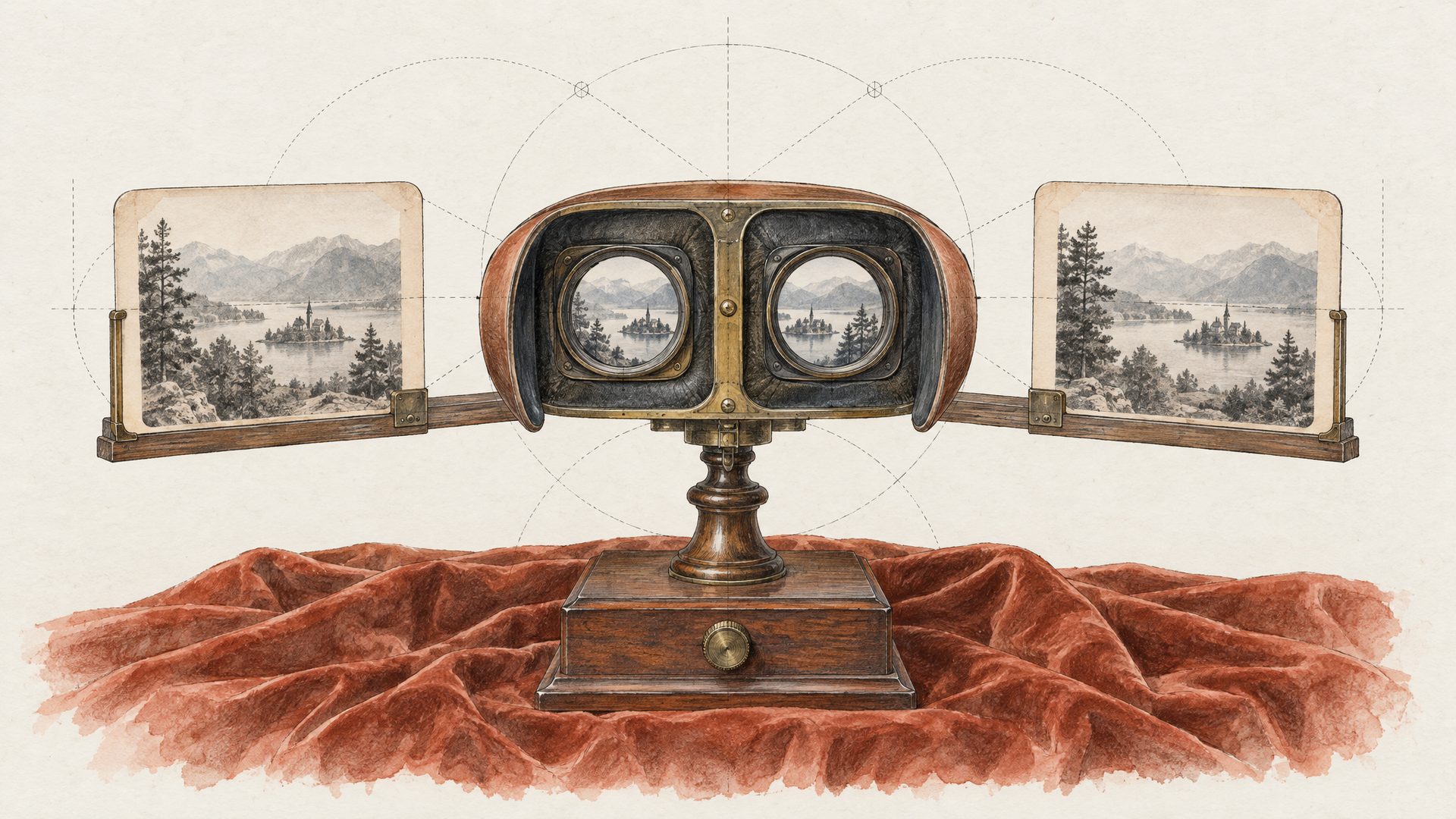
The multi-image endpoints take separate input slots (input_image_1, input_image_2, and on Multi Image Kontext up to input_image_4) and a single instruction. The prompt's whole job is to tell the model which image supplies what. Refer to them by position, say what each one contributes, and say which one sets the scene.
11. Put a product into a scene
Place the perfume bottle from the second image on the marble counter in the first image, standing upright next to the folded towel. Match the soft morning light and shadows of the first image.
12. Dress a person in a garment from another photo
Dress the person in the first image in the jacket from the second image. Keep the person's face, hairstyle, pose and the background of the first image unchanged.
Same pattern as before: the change first, the anchors second. The new piece is the address. "The second image" beats "the product", because both images are full of products, people and surfaces.
Iterate Like an Editor, Not a Gambler
The Freiburg sequence in BFL's docs isn't one prompt. It's three, each building on the last output. That's how Kontext wants to be used. One change per pass, review, then feed the result back in as the next input image.
Stacking five edits into one prompt feels efficient until something breaks and you can't tell which instruction did it. Split them, and a bad pass costs you one rerun instead of the whole chain.
When an edit drifts, resist rewriting from zero. Diagnose instead. If the face changed, add the preservation clause. If the whole image got repainted, check your verb and swap "transform" for "change". If the model changed the wrong object, give it a better address ("the mug on the left"). If text came out wrong, make sure both the old and new strings sit inside quotation marks. Small, specific fixes beat new paragraphs.
Once a chain works, it's worth turning into a repeatable pipeline. each::labs Flows let you wire Kontext steps together (recolor, then restyle, then resize) so the next product shot goes through the same edits without you retyping them.
Settings Worth Touching on each::labs
Most of the result lives in the prompt, but a few request fields change how the prompt lands.
Aspect ratio. Kontext Pro and Max default to match_input_image, and BFL's docs say the model matches the input's dimensions as closely as it can. Leave it alone for edits. Change it only when you need a new crop.
Guidance scale. Pro and Max default to 3.5 on each::labs, Dev to 2.5. Higher values follow the prompt more literally, lower values give the model more room. If an edit is too timid, nudge it up a little before you rewrite the prompt.
Seed and variations. Set a seed when you're comparing two phrasings, so the wording is the only thing that changes. Ask for up to four images per request when you're still exploring, then lock the seed of the one you like.
Enhance prompt. Pro and Max can rewrite a short prompt before generating. For surgical edits, leave it off: you chose those words on purpose.
If you're comparing Kontext against BFL's newer FLUX editors, our Flux 3 edit prompts post uses the same change-then-keep structure, so you can run matching prompts across both families. The full lineup of image models sits under text-to-image on each::labs, and BFL's official Kontext image editing docs show the before-and-after examples most of these rules come from.
Frequently Asked Questions
What is Flux Kontext used for?
Mostly for editing an existing image with one sentence. You upload a photo, describe a change (a color, an object, a line of text, a style, a new setting) and Kontext applies it using the rest of the image as context. Max can also generate from text alone.
Should I use Kontext Pro or Kontext Max?
Start on Pro for everyday edits: BFL positions it as the fast, production-ready model. Move to Max when the job is text-heavy or the edit needs the strictest prompt adherence, since BFL describes Max as its typography and consistency leader.
How do I stop Kontext from changing a person's face?
Tell it what's off limits. Add a clause such as "while maintaining the same facial features and hairstyle", use a narrow verb like change or replace instead of transform, and make one edit per pass.
Can I combine two photos in one edit?
Yes, through the multi-image endpoints. Multi-image Kontext Pro and Max take two images, and Multi Image Kontext takes up to four. Refer to each one by position ("the jacket from the second image") and say which image provides the scene.