Flux 3 Use Cases: 7 Jobs It Was Built For
Where Flux 3 actually earns its slot: banners that hold the grid, text in any language, product composites from ten references, step-by-step edits, grounded images and agent-written layouts.

Most image models are great right up until the art director says "move the headline 40 pixels left and keep everything else." Then you're rerolling. The shoe changes, the light changes, the headline comes back misspelled, and the one thing you wanted fixed is still wrong.
That's the job Flux 3 from Black Forest Labs was built for. So the useful question isn't whether it's good. It's which use cases it's actually right for. Here's the honest map, built only from what BFL has documented and what the each::labs endpoints expose today.
What Makes Flux 3 a Different Kind of Image Model
Flux 3 is one model family trained jointly on image, video and audio. BFL describes the approach, which it calls Self-Flow, as aligning multimodal generation and understanding inside the same architecture. The video side landed first (we covered it in Flux 3: Scenes, Not Clips), and the image side followed in early October 2026.
On each::labs the image side comes as two endpoints. Flux 3 Text to Image takes a prompt, an aspect ratio from 21:9 down to 9:21 (or auto), a resolution from 768 square up to 4k (about 16 MP), and a grounding switch that's on by default. Flux 3 Edit takes the same controls plus 1 to 10 reference images.
The feature that changes which jobs it fits is bounding boxes. You tag elements in your prompt as <id>, write a caption, then append a JSON array where each row gives an element a box as [top, left, bottom, right] on a 0 to 1000 grid. Because the grid is relative, one layout works at any resolution. Because it stretches with the frame, you design the boxes for the aspect ratio you send. Nearly every use case below hangs off it.
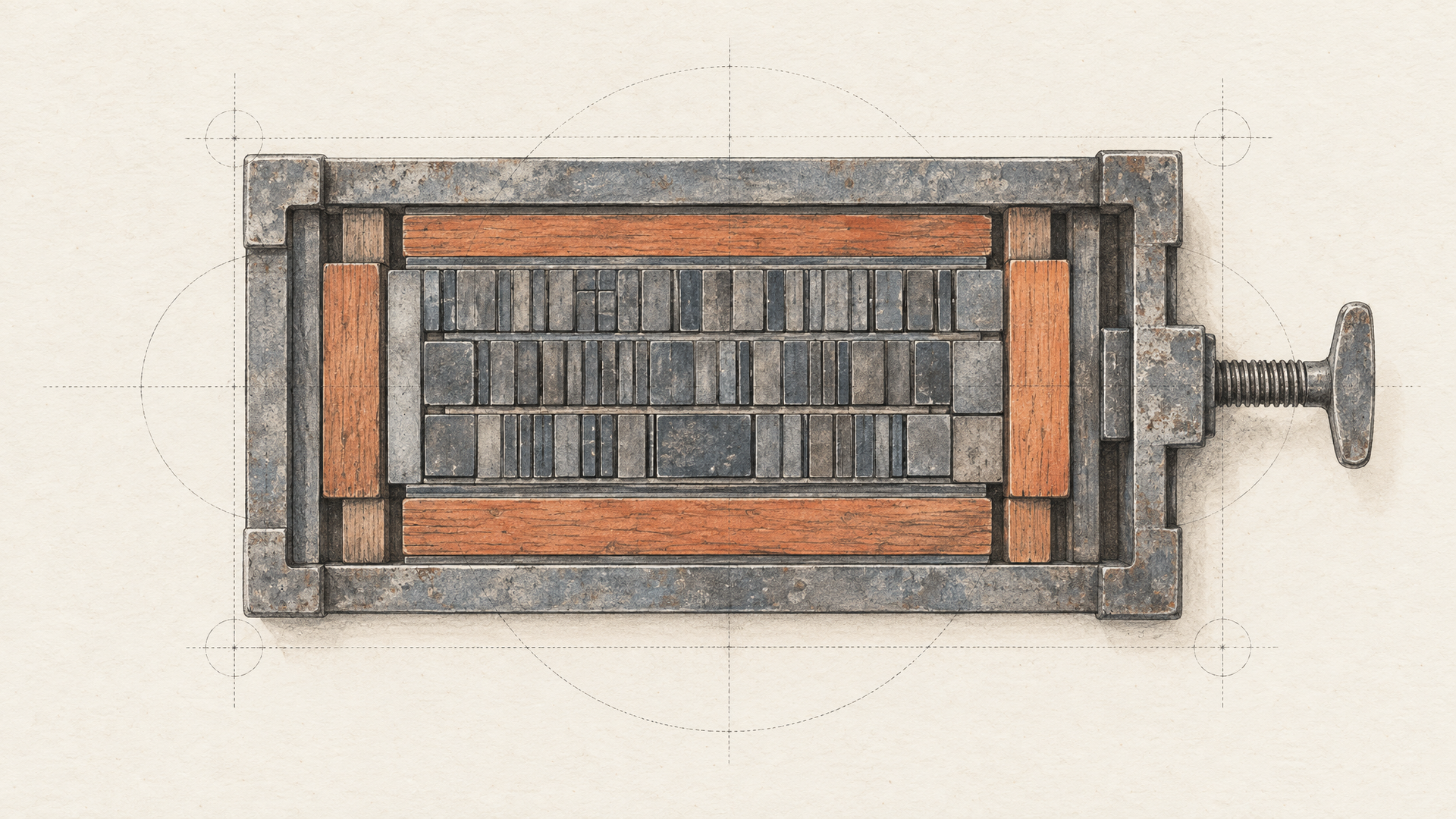
Ad Banners and Packaging Mockups That Hold the Grid
Who it's for: performance marketers producing banner sets, packaging designers pitching mockups, product designers sketching UI or editorial layouts. What they share is a layout that isn't negotiable. The logo zone is the logo zone. The CTA sits bottom left because the brand guide says so.
With a pure prompt, "headline top left, product right" is a suggestion the model weighs against everything else. With boxes, it's a coordinate. A growth marketer at a sneaker label can lock the composition once, then swap product and copy across a dozen variants without the grid drifting.
Workflow: pick the aspect ratio first (21:9 for a web leaderboard, 4:5 for a feed post), draw the zones on paper or in Figma, convert them to the 0 to 1000 grid, then generate on Flux 3 Text to Image at 1k while you iterate and 2k or 4k for the keeper. One practical note from BFL's docs: tiny boxes (around 40 by 25 pixels) often fail to show up, so give new elements real estate.
A clean summer sale web banner, warm peach studio background, soft daylight. <headline> top left, <shoe_1> on the right, <cta_button> bottom left. [{"id": "headline", "bbox": [90, 50, 380, 520], "desc": "bold black sans-serif text reading \"SUMMER DROP\""}, {"id": "shoe_1", "bbox": [120, 560, 900, 960], "desc": "white leather running sneaker with a gum sole, three-quarter view, soft contact shadow"}, {"id": "cta_button", "bbox": [680, 50, 860, 330], "desc": "rounded black pill button with white text reading \"Shop now\""}]Packaging works the same way. Give the front panel, the product name and the claim strip their own boxes, describe the material ("matte kraft carton with a debossed edge"), and you get a mockup a client can react to before anyone opens a dieline.

Put Real Words on the Image, in Any Language
BFL says Flux 3 renders "high-accuracy text in multiple languages" and that text generation improved significantly over earlier FLUX models. For a localization lead, that's the difference between a model you can brief and a model you have to babysit in post.
The docs are specific about how to get it right: text needs its own box, with the exact words quoted inside desc. Don't bury the headline in the caption and hope. Name it, box it, quote it.
Scenario: a regional marketing manager needs the same café poster in English, German and Turkish. Same layout, same illustration, different copy. Keep the JSON identical and change only the quoted string in the headline row.
A hand-painted poster for a neighborhood coffee shop, cream paper texture, a steaming ceramic cup in the center. <title_text> across the top, <cup_1> centered. [{"id": "title_text", "bbox": [60, 100, 260, 900], "desc": "large serif lettering in deep green reading \"Günaydın, komşu\""}, {"id": "cup_1", "bbox": [320, 300, 880, 700], "desc": "white ceramic cup of black coffee with rising steam"}]
Product Placement and Compositing From Up to Ten References
This is the ecommerce merchandiser's favorite. Flux 3 Edit accepts up to ten reference images, and you refer to them in upload order as Image 1, Image 2 and so on. BFL's own phrasing of the pattern is the best brief there is: "the person from image 1 wears the jacket from image 2 and stands in the kitchen from image 3."
Scenario: an apparel brand has a model shot, a flat-lay of a new jacket, and a location photo. Instead of booking a reshoot, a content producer composites the three, then swaps the jacket for next week's colorway using the same model and room. When aspect ratio is set to auto, the output follows Image 1, so upload the frame you want to inherit first. Each reference has to be at least 256 by 256 and at most 16 MP.
The person from image 1 wears the olive waxed jacket from image 2, collar up, and stands by the window in the kitchen from image 3. Keep the person's face, hair and pose from image 1. Soft morning light from the window, natural shadows on the floor.
When placement matters (the bottle has to sit on the left third of the counter, not wherever the model likes), add a row with a target box. In the JSON, references are addressed as ref_image_0, ref_image_1 and so on, counting from zero, while the prose keeps saying image 1, image 2.

Retouch and Localize in Steps, Not Rerolls
Press coverage of the launch highlighted multi-step edits that don't change the other parts of the image, and BFL's docs list the operations: recolor, replace, move and anchor. Anchor is the underrated one. Same source box and target box means "this stays put." Different boxes means "move it."
Who it's for: retouchers cleaning up catalog shots, and anyone adapting a finished visual for a new market. Recolor the product for a regional variant, replace an English shelf label with a local one, move the product closer to the focal point, anchor the model's face while you do it.
Workflow: one change per pass, anchor the surroundings in complex edits, and say every addition or removal both in the prose and in the rows. Name elements distinctly so only one thing matches ("the small brass key on the left," not "the key"). Pixels outside the boxes typically stay the same, though BFL notes that shadows, reflections or nearby light may still shift, so check edges after a move.
In <ref_image_0>, recolor the canvas tote bag <bag_1> to deep cobalt blue. Keep the woman <person_1> exactly as she is. [{"id": "bag_1", "from": "ref_image_0", "src_bbox": [420, 560, 860, 820], "tgt_bbox": [420, 560, 860, 820], "desc": "the same canvas tote bag, now deep cobalt blue, same folds and stitching"}, {"id": "person_1", "from": "ref_image_0", "src_bbox": [80, 200, 980, 640], "tgt_bbox": [80, 200, 980, 640], "desc": "unchanged"}]If you're building this into a product rather than doing it by hand, our piece on the backend behind an AI photo editor app covers how to store and chain multi-step edits.
Ground the Image in Real Places and Objects
Here's the one people miss. Both Flux 3 image endpoints on each::labs have a grounding parameter, and it's on by default. Its description is literal: let the model research the prompt with web and image search before generating.
That matters when the subject is real. A travel editor illustrating a city guide wants the actual skyline, not a plausible one. A product journalist wants the right shape of a famous landmark in the background of a gear shot. With grounding on, the model looks things up before it draws.
A golden hour editorial photograph of the Galata Tower in Istanbul seen from a quiet cobblestone side street, laundry lines overhead, a street cat on a doorstep, warm low sun.
Turn grounding off when you want pure invention (a fictional city, a concept product that doesn't exist yet) so the model isn't anchored to reference imagery you never asked for.
Let an Agent Write the Layout
Look at the prompt format again: a caption, a space, a JSON array of integer boxes on a fixed grid. That's exactly the kind of structured output an LLM produces reliably. Which makes Flux 3 a natural fit for developers building agent pipelines.
Scenario: a marketing platform lets a user type "three Instagram story variants for our autumn sale." An LLM step reads the brand guide, decides the zones for a 9:16 frame, writes the rows with quoted copy, and calls Flux 3 Text to Image. A checker step compares the rendered text against the requested string and retries only the variants that miss.
Because coordinates are relative, the agent can reuse one layout template across sizes by remapping boxes per aspect ratio. Because rows carry ids, the same agent can later send an edit that moves <cta_button> without touching the rest. And even when you skip boxes, BFL says Flux 3 expands your instruction into a detailed prompt and often finds and boxes the named element itself. Chain these steps visually in each::labs flows or call the endpoints from your own orchestrator.
Hand the Still to Flux 3 Image to Video
The family trick pays off at the end. Once a frame is approved, you don't switch ecosystems to animate it. Flux 3 Image to Video picks up the still, and the family also includes text to video, a timestamped image to video variant and video continuation on each::labs.
Scenario: a social video editor gets the approved banner key visual on Monday and needs a six-second loop for Stories on Tuesday. Generate the still with boxes so the product sits where the motion should start, then hand it over with a prompt that only describes movement.
Slow push in toward the sneaker, fine dust drifting through the warm light, the shoe rotates a few degrees on its heel. Background stays still.
The still does the composition work. The video model only has to move it.
When to Pick Something Else on each::labs
Flux 3 Edit has no mask input. You target regions with boxes in the prompt. For most edits that's faster than painting, but sometimes you already have a mask, or the region is an irregular shape a rectangle can't describe (hair, smoke, a torn edge).
Then reach for Ideogram 4.5 Edit. It takes a mask, copies untouched pixels exactly from the source, and was built around multi-turn editing without drift. It's also a strong pick for editing stylized lettering in place. For classic inpainting and outfill, Flux Fill Pro is BFL's dedicated tool. Watch the convention when you switch: Ideogram treats black as the area to edit, Flux Fill Pro treats white as the area to edit. Inverting the mask is the most common mistake people make moving between them.
If you need many sources and a mask in the same call, the GPT Image 2.5 edit models accept up to 16 source images plus an optional alpha mask. And for loose, exploratory edits where you'd rather talk than draw coordinates, browse the text to image models or read our Nano Banana editing use cases. The full spec of the box format lives in BFL's bounding box docs.
Frequently Asked Questions
What is Flux 3 best used for?
Anything where position is part of the brief. Ad banners, packaging mockups, multilingual posters and multi-reference product composites all benefit from boxes on a 0 to 1000 grid. If you only need a loose mood image, almost any model will do.
Can Flux 3 Edit work with a mask?
Not on each::labs. You describe the region with a bounding box in the prompt instead. When you need a painted mask, Ideogram 4.5 Edit (black edits) or Flux Fill Pro (white edits) are the right tools.
How many reference images does Flux 3 accept?
Up to ten on Flux 3 Edit, each at least 256 by 256 and at most 16 MP. Refer to them as image 1, image 2 in prose. With aspect ratio on auto, the output follows the first one you upload.
Should I leave grounding on?
For real places, landmarks and known objects, yes: it lets the model search the web and images before drawing. For invented worlds or concept products, switching it off keeps the result from leaning on real references.