How to Write Better Qwen-Image 3.0 Prompts
Qwen-Image 3.0 was built for images that have to work: readable text, dense layouts, real detail. Here's how to write prompts that use it, with example briefs for posters, labels, infographics and edits.
By Eftal Yurtseven · Nov 6, 2026 · 8 min read

Most image models are judged by how pretty the picture is. The harder test is whether the picture works: whether the opening hours on the poster are readable, whether the infographic labels point at the right thing, whether the menu says "espresso" and not "espressso." That's the test Qwen-Image 3.0 was built for, and it changes how you should write prompts for it.
Qwen-Image 3.0 is Alibaba's third-generation image model, released by the Qwen team on July 21, 2026. Its launch demos lean hard on text and layout: dense infographics, newspaper pages, exam sheets, interface mockups. Good Qwen-Image 3.0 prompts read less like a mood and more like a design brief. This guide shows you how to write them, with example prompts you can paste straight into each::labs.
A quick note on sources, because a prompting guide should be honest about them. The capabilities below come from Qwen's own launch material (as reported by The Decoder) and from Alibaba Cloud's Model Studio API reference. The parameter limits come from the each::labs model pages. The prompting method and the example prompts are ours, written from those docs.
What Qwen-Image 3.0 Is Actually Good At
Qwen's stated goal for this version was a single word: "Real." In practice that showed up in three places. The first is text. Qwen says the model renders legible text as small as ten pixels and supports twelve languages natively, including Japanese, Korean and Spanish. The second is layout: one launch demo packed nine separate infographics into a 3 by 3 grid, each with its own text, formulas and illustrations, and Qwen pitches the model for newspaper layouts, storyboards and exam sheets. The third is photographic detail in portraits, down to pores, skin texture and individual strands of hair.
On each::labs it comes as two endpoints: Qwen-Image 3.0 Pro Text-to-Image and Qwen-Image 3.0 Pro Image Edit. Both live in the Qwen-Image 3.0 family, and both can return up to six images per request. If you want the wider story of the model first, our Qwen-Image 3.0 spotlight covers it.
Write Qwen-Image 3.0 Prompts Like a Design Brief
The single biggest upgrade to your Qwen-Image 3.0 prompts is to stop describing a vibe and start describing a document. Who is this image for? What has to be readable? Where does each block of content sit? A model that's good at layout rewards you for giving it a layout.
A useful order is: format, then structure, then the exact text, then style. Format tells the model what kind of object it's making (a poster, a recipe card, a product label, a slide). Structure says where things go. The text is the copy itself, in quotes. Style comes last, because it's the part the model can fill in best on its own.
A vertical coffee shop menu board, chalkboard texture. Title at the top in large hand-lettered white chalk: "MORNING MENU". Below it, two columns. Left column heading "COFFEE": "Espresso", "Flat White", "Cortado". Right column heading "BAKERY": "Butter Croissant", "Cardamom Bun". Small illustrated coffee cup in the bottom right corner. Warm, friendly, slightly rustic.
Every word that must appear is in quotes. Every block has a place. The style sentence is short. That's the whole method, and it scales.
Put the Exact Text in Quotes
Text rendering is the headline feature, so treat the copy as data, not description. "A poster with a sale headline" leaves the model to invent the headline, and invented text is where spelling goes wrong. "A poster with the headline "WINTER EDIT" in bold condensed sans serif" gives it exactly one thing to render.
Keep copy short where it has to be big, and save long text for places where small type is expected, like the body of an infographic or a label's ingredient list. Name the type style in plain words (bold condensed sans serif, elegant serif, handwritten script) rather than font brand names. And when the image is for a non-English market, write the copy in that language directly. Qwen lists twelve native languages, and Model Studio confirms both Chinese and English prompts are supported.
Minimal skincare product label on a frosted glass bottle, studio shot. Front label text in clean black serif: "HYDRA SERUM". Smaller line below: "Hyaluronic Acid 2%". Bottom line in tiny caps: "30 ML". Soft white background, gentle shadow, centered composition.
Fit Your Qwen-Image 3.0 Prompts Into 800 Characters
Here's the detail that trips people up. Qwen's API documentation recommends prompts up to 4,500 tokens, and the launch coverage makes a lot of that number. The each::labs Qwen-Image 3.0 Pro endpoints cap the prompt at 800 characters, with a separate negative prompt of up to 500 characters. So the long-brief style of Qwen's demos has to be compressed.
That constraint is a good editor. Cut adjectives before you cut structure. "A beautiful, stunning, highly detailed infographic" spends 50 characters on nothing; "Infographic, 3 sections, top to bottom" spends 38 on a layout. Move everything you don't want into the negative prompt rather than writing "no watermark, no extra text, no clutter" into the main prompt. And if a layout truly needs more copy than 800 characters allow, generate the structure first and add the dense text in a second pass with the edit endpoint.
Infographic poster, white background, 3 horizontal sections. Top: title "HOW COLD BREW WORKS" in bold navy sans serif. Middle: three numbered steps with small line icons: "1 GRIND COARSE", "2 STEEP 12 HOURS", "3 FILTER AND CHILL". Bottom: a tall glass of iced coffee, flat vector illustration. Navy, cream and copper palette.
Negative prompt for the same image: extra text, misspelled words, watermark, photographic background, clutter.
Pick the Canvas Before You Write the Prompt
Layout prompts depend on the shape of the canvas. On each::labs, Qwen-Image 3.0 Pro Text-to-Image accepts five sizes: 2048*2048 (the default), 2688*1536 and 1536*2688 for wide and tall, and 2368*1728 and 1728*2368 for gentler landscape and portrait. Decide which one you need first, then write the structure to fit it.
A tall 1536*2688 canvas wants stacked sections: header, body, footer. A wide 2688*1536 canvas wants columns or a left-to-right story. Asking for "three columns" on a tall poster forces the model to squeeze, and squeezed text is where legibility breaks. Match the words to the frame and the type gets room to breathe.
Wide banner for a bakery website, 3 columns of equal width. Each column has a product photo on top and a caption below in warm brown serif. Captions: "Sourdough", "Rye", "Focaccia". Soft natural light, linen texture background, plenty of white space.
Edit With Qwen-Image 3.0: Say What Stays and What Changes
The edit endpoint takes one to three images plus an instruction. The each::labs page puts the core rule plainly: state which details to keep and which to change, and change one thing at a time. That sounds obvious until you write "make it better and more modern" and get a different product back.
Alibaba's own edit example shows the pattern well: it asks the model to "perfectly preserve the facial features and smooth black long hair" of the person in the input while restyling everything else. Lead with what's locked, then give the change.
Keep the bottle, its label text and the camera angle exactly as they are. Replace the background with a softly lit marble bathroom counter, morning light from the left, a small eucalyptus sprig beside the bottle.
With multiple inputs, refer to images by their order so the model knows which plays which role.
Place the sneaker from the first image on the concrete steps from the second image. Match the lighting of the second image. Keep the sneaker's colors, logo position and laces unchanged.
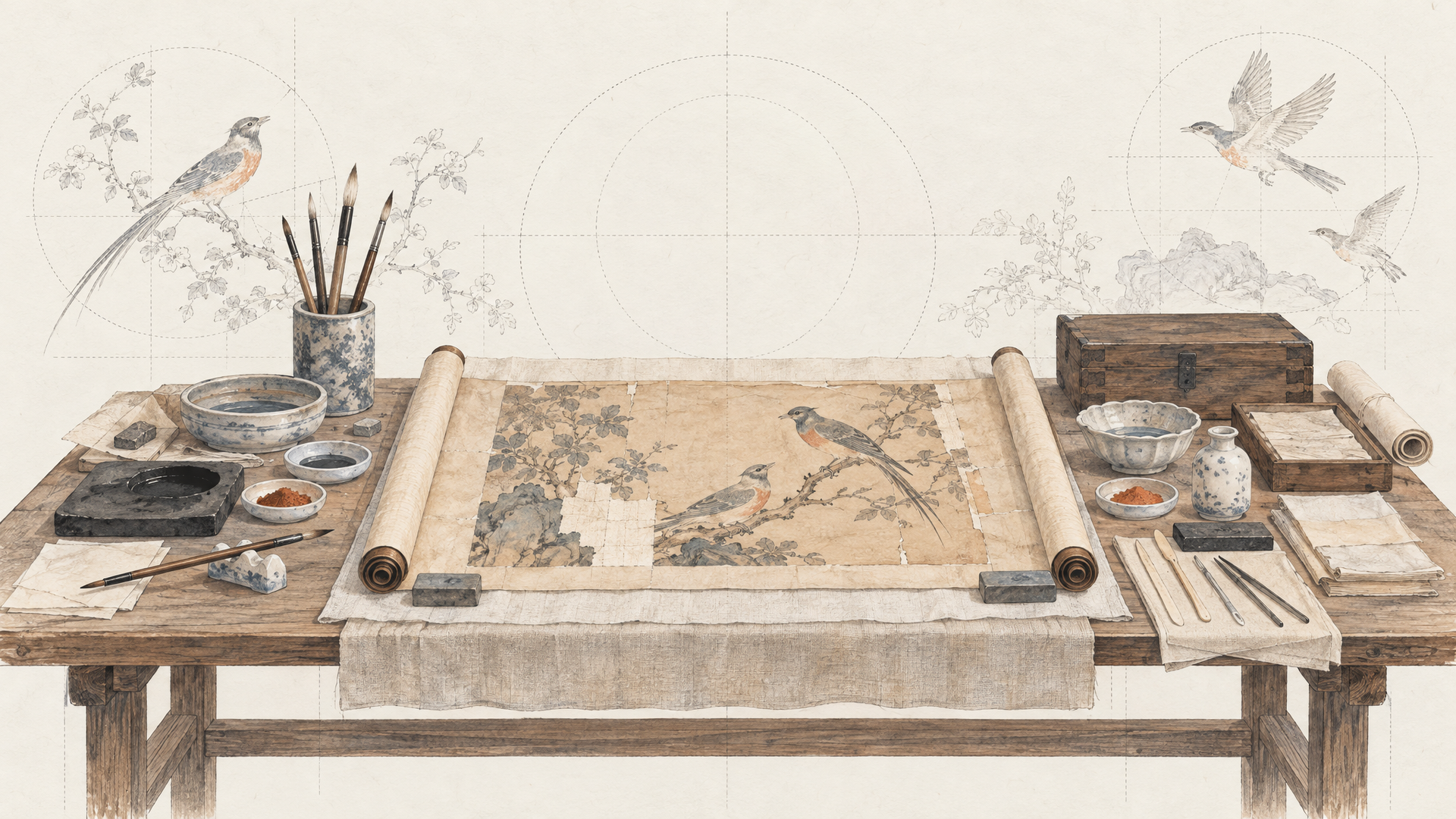
Qwen also showed the model restoring a damaged ink painting, filling missing areas while matching the brushwork. Restoration prompts work the same way: name the damage, name the style to match, and ask for nothing else.
Use Variations and Iteration Deliberately
Both endpoints can return up to six images in one request. Use that while you're still exploring a layout, then drop back to one or two once the structure is right and you're tuning copy or color. Six variations of a finished design is noise; six variations of a rough concept is a real choice.
When something is off, change one variable per run. If the headline is misspelled, shorten it or put it on its own line before you touch the style. If the layout crowds, switch to a larger or differently shaped canvas before you cut content. Qwen-Image 3.0 Pro also exposes seed and prompt extend as advanced settings on each::labs. In Model Studio, prompt extend rewrites short prompts into richer ones, which helps a one-line idea and can work against a carefully structured brief. If your exact copy matters, test with it turned off.
Common Mistakes With Qwen-Image 3.0 Prompts
The first is leaving copy to chance. If the image needs words, write the words. The second is stacking competing directions: a vintage, futuristic, minimal, maximal poster gives the model four briefs and no decision. The each::labs page says it well: start with one clear creative direction before adding competing requests.
The third is trusting small text without checking it. Ten-pixel legibility is a Qwen launch claim, not a guarantee on every run, so zoom in on labels, dates and fine print at the size you'll actually publish. The fourth is ignoring the character cap and pasting a 2,000-character brief. On each::labs, compress first. For more on choosing between image models for type-heavy work, our best AI image generation models roundup compares the field, and Qwen-Image 2.1 is worth a look when you need transparent layers.
Frequently Asked Questions
How long can Qwen-Image 3.0 prompts be?
It depends where you run it. Alibaba's Model Studio docs recommend a maximum of 4,500 tokens. The each::labs Qwen-Image 3.0 Pro endpoints accept up to 800 characters for the prompt and 500 for the negative prompt, so structure beats length.
How do I get readable text in Qwen-Image 3.0?
Quote the exact words, give each text block a position, and describe the type style in plain terms. Keep big headlines short, and check small text at the display size before you publish.
Can Qwen-Image 3.0 edit an existing image?
Yes. Qwen-Image 3.0 Pro Image Edit on each::labs takes one to three input images and a natural-language instruction. Say what must stay unchanged first, then describe the single change you want.
Does Qwen-Image 3.0 support other languages?
Qwen says the model supports twelve languages natively, including Japanese, Korean and Spanish. Write the on-image copy directly in the target language rather than translating it inside the prompt.
Ready to try the briefs above? Open Qwen-Image 3.0 on each::labs, or browse the rest of the text-to-image models.