Hunyuan3D 2.1: Turn One Photo Into a Textured 3D Model
Everyone can make the picture. Few teams can make the 3D asset. A step-by-step guide to turning one photo into a PBR textured model with Tencent's Hunyuan3D 2.1.
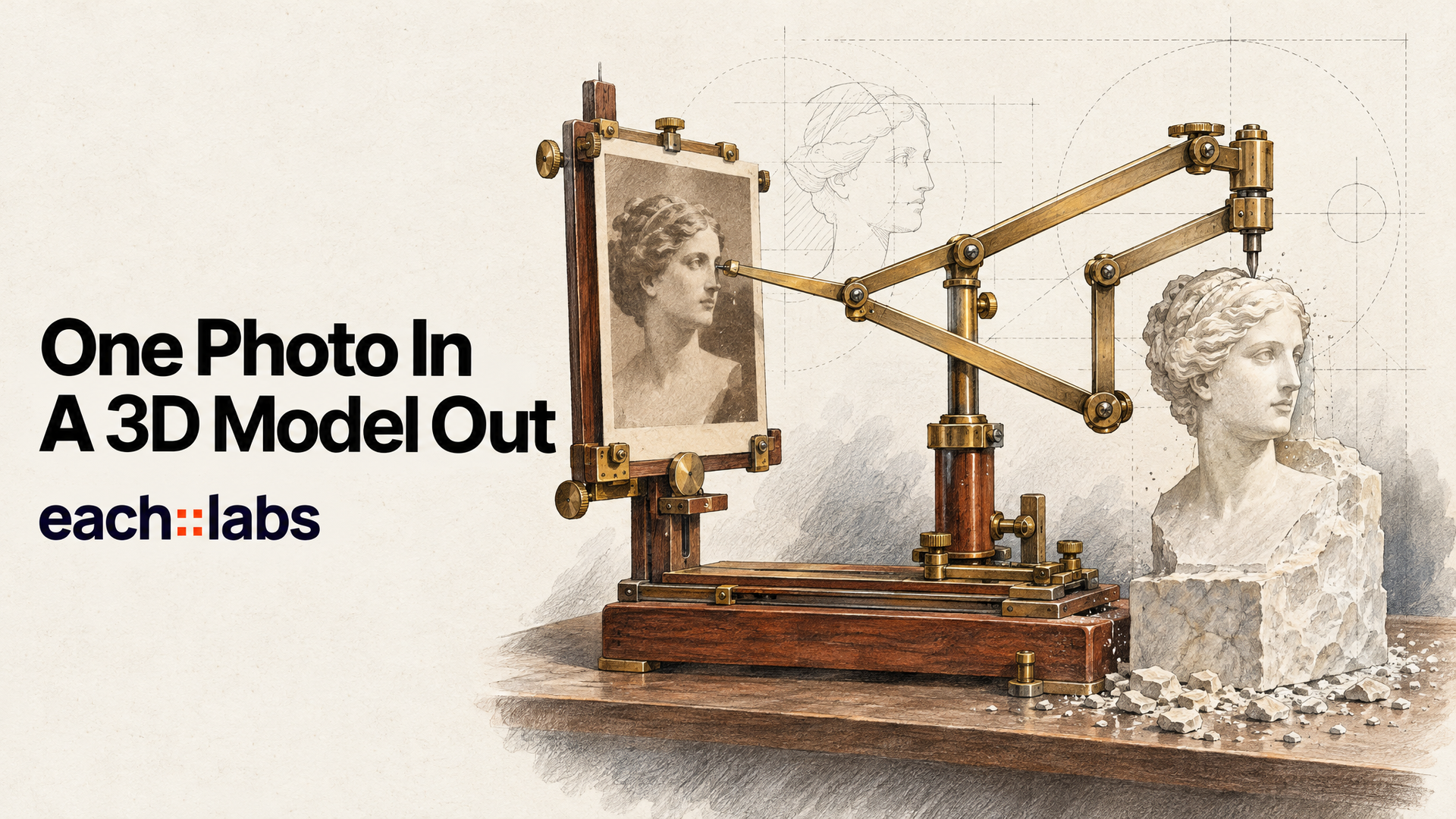
Everyone on your team can make an image now. Ask for a 3D model of the same product and the room goes quiet. Somebody has to open Blender, somebody has to know topology, and somebody has to spend a day on a mug. That gap between "we have the picture" and "we have the asset" is where most 3D plans stall.
Hunyuan3D 2.1 closes a big part of it. Tencent's image-to-3D model takes a single photo and returns a mesh, and with texturing switched on it paints that mesh with physically based materials, the kind that react to light like the real object would. Tencent called it "the first production-ready 3D asset generation model" when it released it in June 2025, and it's still the newest fully open image-to-3D model in the Hunyuan3D line with PBR textures. This guide walks through the whole job: picking the photo, cleaning it, running the model on each::labs, and getting a usable asset out the other end.
What Hunyuan3D 2.1 Actually Does
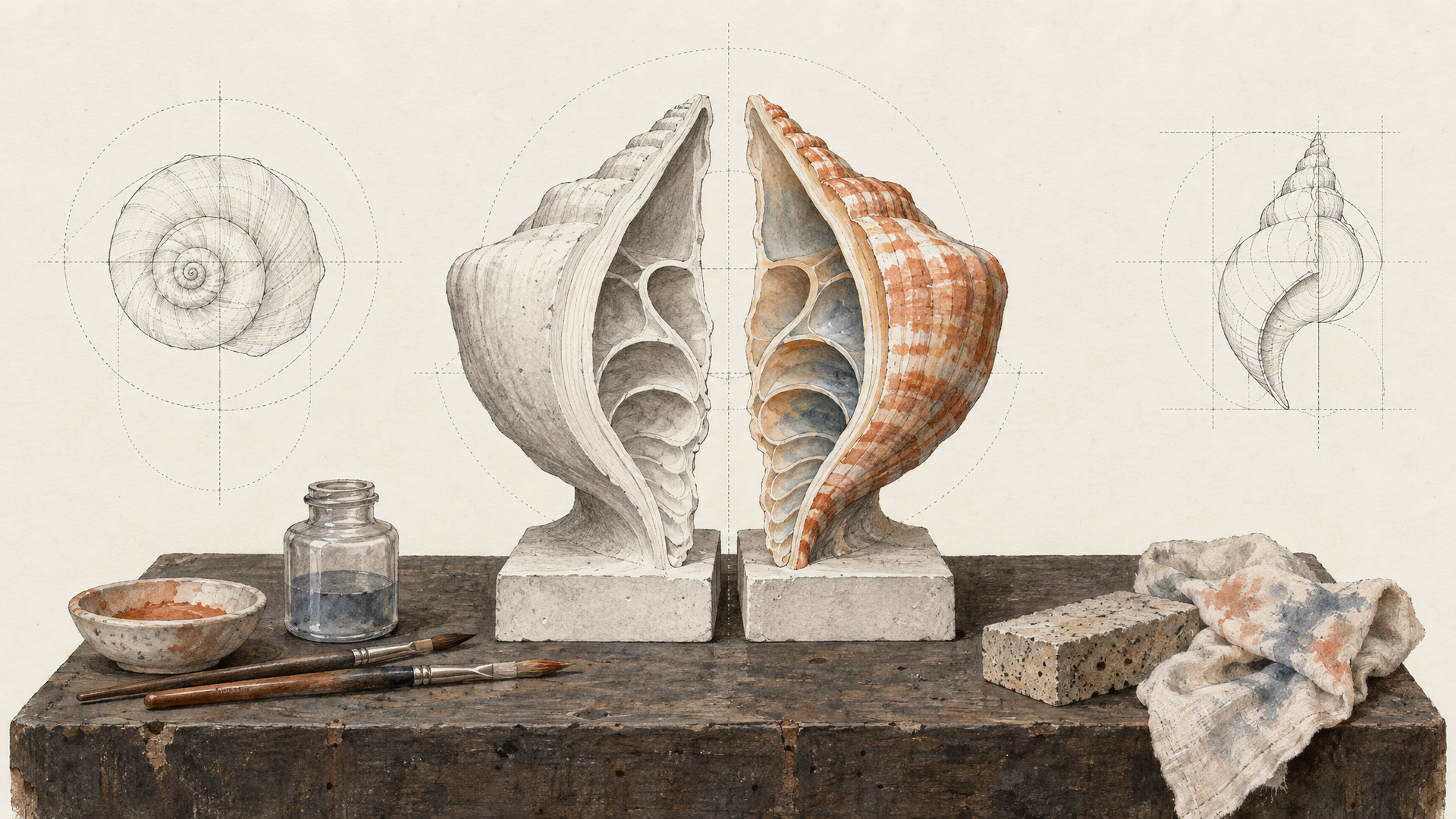
It works in two stages, and knowing that changes how you use it. The first stage builds shape. A 3.3 billion parameter model Tencent calls Hunyuan3D-DiT reads your image and generates an untextured mesh, a grey sculpture of the object. The second stage paints it. Hunyuan3D-Paint, a 2 billion parameter model, renders the object from several views and produces texture maps that wrap around the mesh.
The jump from version 2.0 to 2.1 lives almost entirely in that second stage. Version 2.0 painted plain colour. Version 2.1 generates PBR maps: albedo (the true surface colour with no lighting baked in), plus metallic and roughness. Tencent's technical report describes training the painter to keep albedo free of light and to keep the albedo and metallic-roughness maps aligned across views. In plain terms, a brass lamp comes out looking like brass under any light you put it in, not like a photo of brass glued onto a shape.
Tencent's own benchmarks put both stages ahead of the open models it compared them with, on shape metrics and on texture metrics. Those are the maker's numbers, so treat them as a starting claim and judge your own outputs.
Pick the Right Photo Before You Touch the Model
Hunyuan3D 2.1 can only rebuild what it can see, so the photo is the brief. Tencent's report describes its own preprocessing: remove the background, resize the object to a standard size, centre it, and fill the background with white. Its local demo app removes backgrounds by default. That tells you exactly what the model expects, and you should hand it that from the start.
The ideal input is one object, centred, fully in frame, on a clean or transparent background. Use a three-quarter view rather than a flat front shot, because it shows the model two sides and a top instead of one face. Avoid heavy shadows, reflections of other objects and anything cropped at the edges. A product shot from your catalogue usually beats a lifestyle photo. Hands, tables and props all read as part of the object.
Don't have a clean photo? Make one. Generate the object with a text-to-image model on a plain studio background. Tencent's own Hunyuan Image 3.0 is a natural partner here. A prompt like this gets you a strong input:
A single vintage brass desk lamp with a green glass shade, three-quarter view from slightly above, centred, full object in frame, soft even studio lighting, plain white seamless background, no shadows, no props, product photography
Clean the Background in One Step
Even a decent photo usually needs its background removed. Run it through a background removal model first. Bria Remove Background is built for exactly this kind of product cutout, and the each::labs background remover works too. You get a transparent PNG with nothing in it but the object.
This step is insurance you want. A stray chair leg or a patterned tablecloth can end up fused to your mesh, and fixing that in a 3D tool takes far longer than removing it in 2D. Clean in 2D, always.
Run Hunyuan3D 2.1 on each::labs
The Hunyuan3D 2.1 page on each::labs takes one required input: the URL of your image. Everything else has sensible defaults. The one setting you'll want to change is textured_mesh, which is off by default. Leave it off and you get the bare shape. Turn it on and you get the painted, PBR textured asset.
{
  "input_image_url": "https://your-bucket.example/brass-lamp-cutout.png",
  "textured_mesh": true,
  "octree_resolution": 256,
  "num_inference_steps": 50,
  "guidance_scale": 7.5,
  "seed": 42
}
A good habit: run shape only first. It's the faster pass and it tells you whether the geometry is right. If the silhouette is wrong, no texture will save it, so fix the photo and rerun. Once the shape looks right, rerun the same seed with textured_mesh on. Locking the seed keeps the geometry you approved while you add the paint.
Tune Only the Settings That Matter
There are five knobs, and you'll touch two of them. octree_resolution controls how finely the shape is carved. The default of 256 is right for most objects; raise it when a product has thin parts or fine edges that come out soft. seed is your reproducibility switch. Change it to get a different interpretation of the same photo, keep it to iterate on one you like.
The other three are best left alone until you have a reason. num_inference_steps (default 50) trades time for refinement. guidance_scale (default 7.5, range 0 to 20) sets how strictly the model follows the image. Pushing guidance high doesn't make the result more faithful in any useful way; it tends to make it stiffer. If an output looks wrong, the photo is the first thing to fix and the settings are the last.
Check the Asset Like a 3D Artist Would
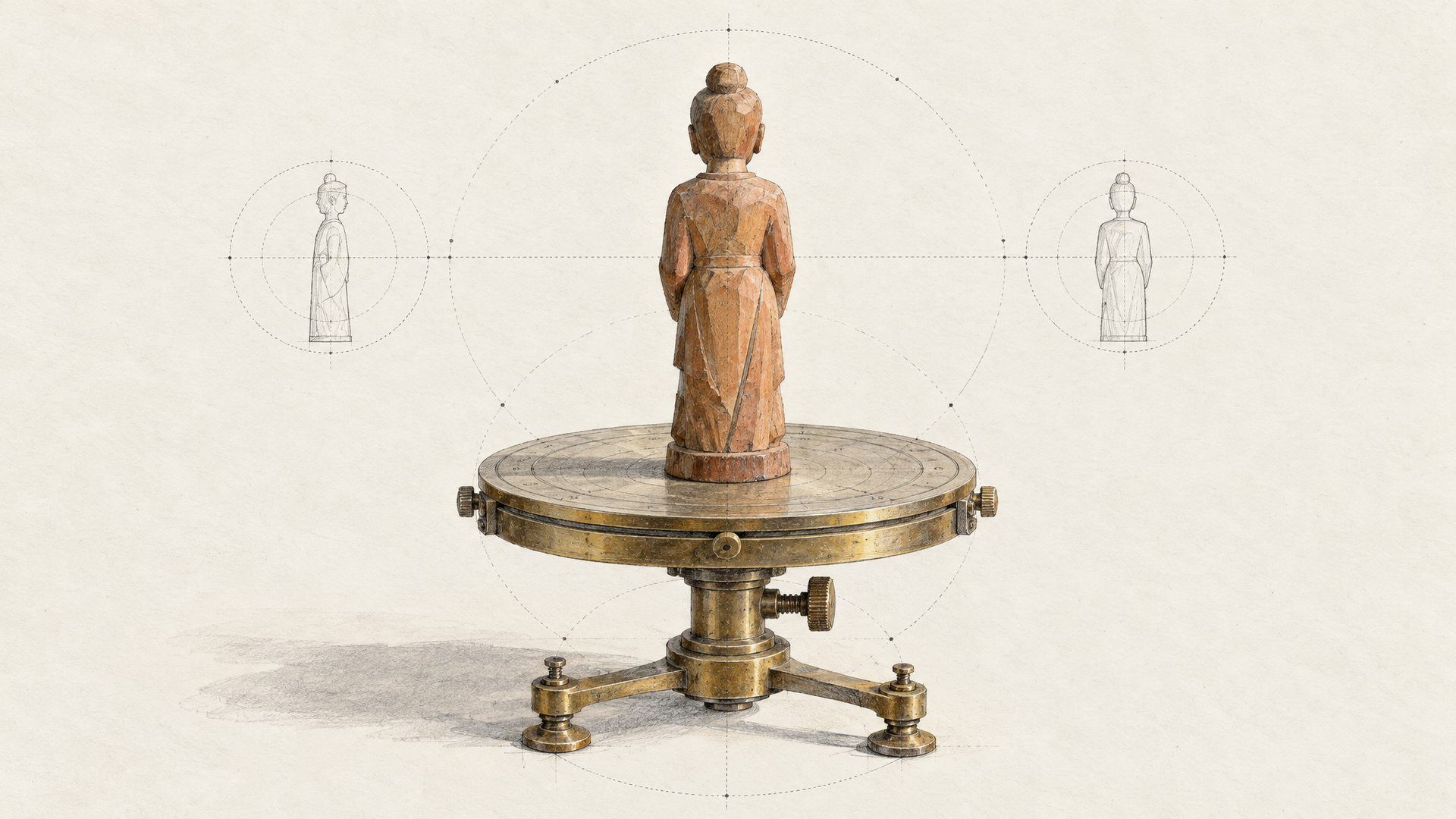
Open the result in any 3D viewer and spin it. Front views always look good, because the front is what the model saw. Look at the back, the bottom and the places the photo couldn't show. That's where image-to-3D models have to invent, and it's where you decide whether the asset is done or needs a second photo angle and another run.
Then check the materials. Put the model under a different light than the photo had. Good PBR textures hold up: the metal stays metal, the matte plastic stays matte. Tencent's own local app exports GLB, OBJ, PLY and STL, and GLB is the format most web viewers, game engines and AR tools open directly, so it's the one to plan your pipeline around.
Where Teams Use Hunyuan3D 2.1
Tencent's report names gaming, film, virtual reality and industrial design, and the pattern in each is the same: fast first drafts of assets that used to start from nothing. A game studio turns concept art into blockout props for a level and spends artist time only on the hero items. An e-commerce team turns catalogue photos into spinnable 3D product views. An industrial designer turns a sketch into a rough model for a design review on the same afternoon. A 3D printing hobbyist turns a photo into an STL-ready shape to refine.
None of these replace a 3D artist on the final asset. They remove the empty-canvas day at the start, which is the part nobody enjoys and the part that kills most "let's do 3D" plans.
Know the License Before You Ship
Hunyuan3D 2.1 is open, with full weights and training code released by Tencent, but it ships under the Tencent Hunyuan 3D 2.1 Community License, not a standard open source license. Read it before a commercial launch. Two terms stand out: the license territory excludes the European Union, the United Kingdom and South Korea, and products with more than 1 million monthly active users need a separate license from Tencent. Tencent claims no rights in your outputs. If your team or your users sit in the excluded regions, sort that out with your legal team before you build on it.
Build It as One Flow
Each step above is a single model call, which makes the whole thing a natural each::labs flow: generate or upload a photo, remove the background, run Hunyuan3D 2.1 with texturing on. Feed a folder of product photos in and get a folder of 3D assets out. If your source photos are small or soft, add an upscaler before the 3D step; our guide to upscaling product catalogues covers which model fits which job. And if you're building the product images themselves at scale, bulk product image generation is the step before this one.
Everything runs through the same API, and the full image-to-3D category sits next to the rest of the model catalog. Start with one object you know well. You'll see in a single run whether your photos are good enough, and that's the real test.
Frequently Asked Questions
Is Hunyuan3D 2.1 better than Hunyuan3D 2.0?
For textures, clearly. Version 2.0 painted RGB colour, while 2.1 generates PBR maps (albedo, metallic and roughness) that respond to lighting realistically. Both versions are on each::labs with the same inputs, so you can run one photo through each and compare.
What kind of image works best for Hunyuan3D?
A single object, centred and fully in frame, on a clean or transparent background, ideally from a three-quarter angle. That matches the preprocessing Tencent describes in its technical report. Remove the background before you send it.
Can Hunyuan3D 2.1 make textured models?
Yes. On each::labs, set textured_mesh to true. Without it you get the untextured shape, which is useful for a quick geometry check before the full run.
Can I use Hunyuan3D 2.1 commercially?
Under its community license, generally yes, with conditions: the licensed territory excludes the EU, the UK and South Korea, and products above 1 million monthly active users need a separate license from Tencent. Read the license on Tencent's GitHub before you launch.