A Guide to Camera Movements for AI Video Generation
Camera movements play a critical role in how AI-generated videos feel, flow, and communicate emotion. In AI video generation, the camera is not just a visual tool—it’s part of the storytelling logic that guides attention, mood, and realism. If you’re creating videos with text-to-video models on Eachlabs, understanding camera movements can dramatically improve the quality of your results. This guide breaks down the most important camera movements used in AI video generation and explains how to u
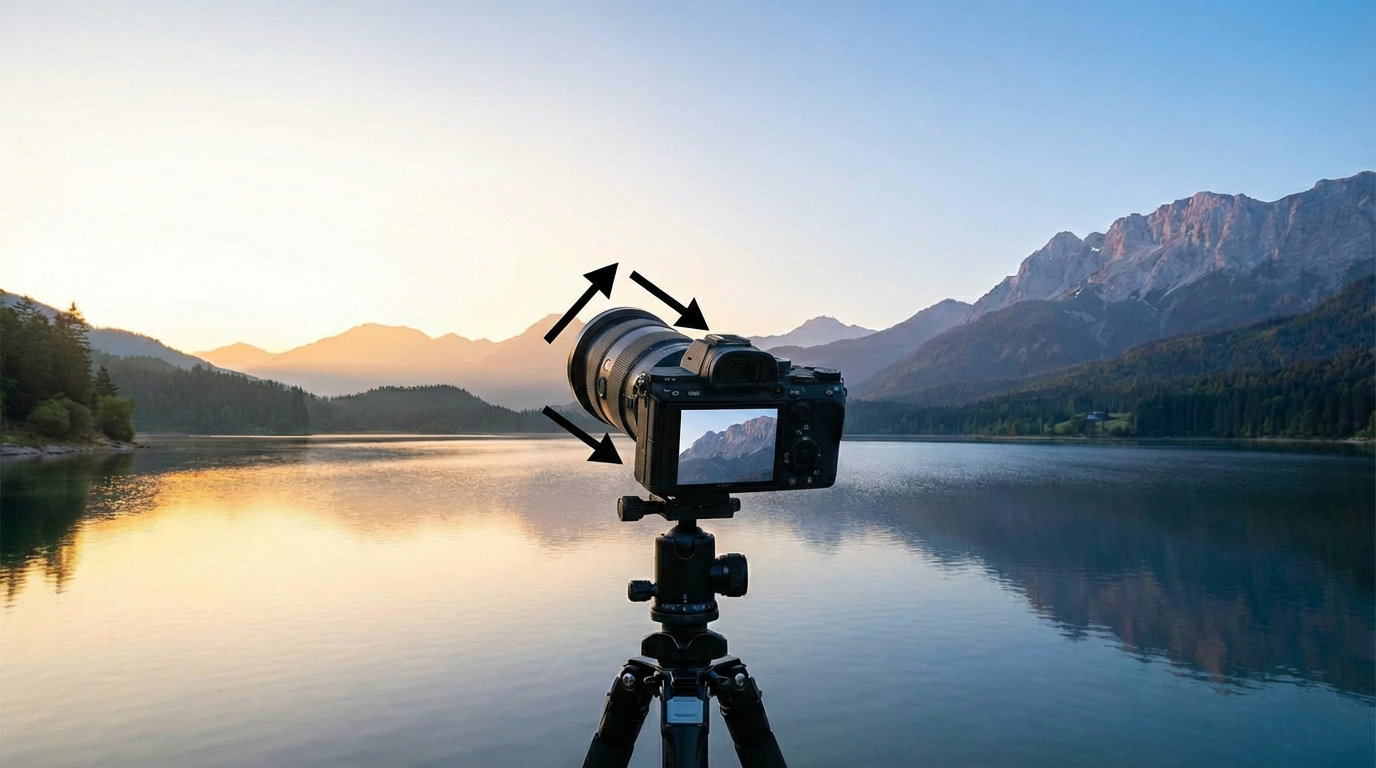
Camera movements play a critical role in how AI-generated videos feel, flow, and communicate emotion. In AI video generation, the camera is not just a visual tool—it’s part of the storytelling logic that guides attention, mood, and realism.
If you’re creating videos with text-to-video models on Eachlabs, understanding camera movements can dramatically improve the quality of your results. This guide breaks down the most important camera movements used in AI video generation and explains how to use them effectively.
Why Camera Movements Matter in AI Video Generation
In traditional filmmaking, camera movement controls perspective and emotion. The same principle applies to AI-generated video. The difference is that, instead of physically moving a camera, you describe the movement through prompts.
Well-defined camera movements help AI models
- create more realistic scenes
- maintain visual consistency
- guide focus within the frame
- add cinematic depth
Without clear camera direction, AI videos often feel static or random. With the right movement, they feel intentional and professional.
Common Camera Movements Used in AI Video Generation
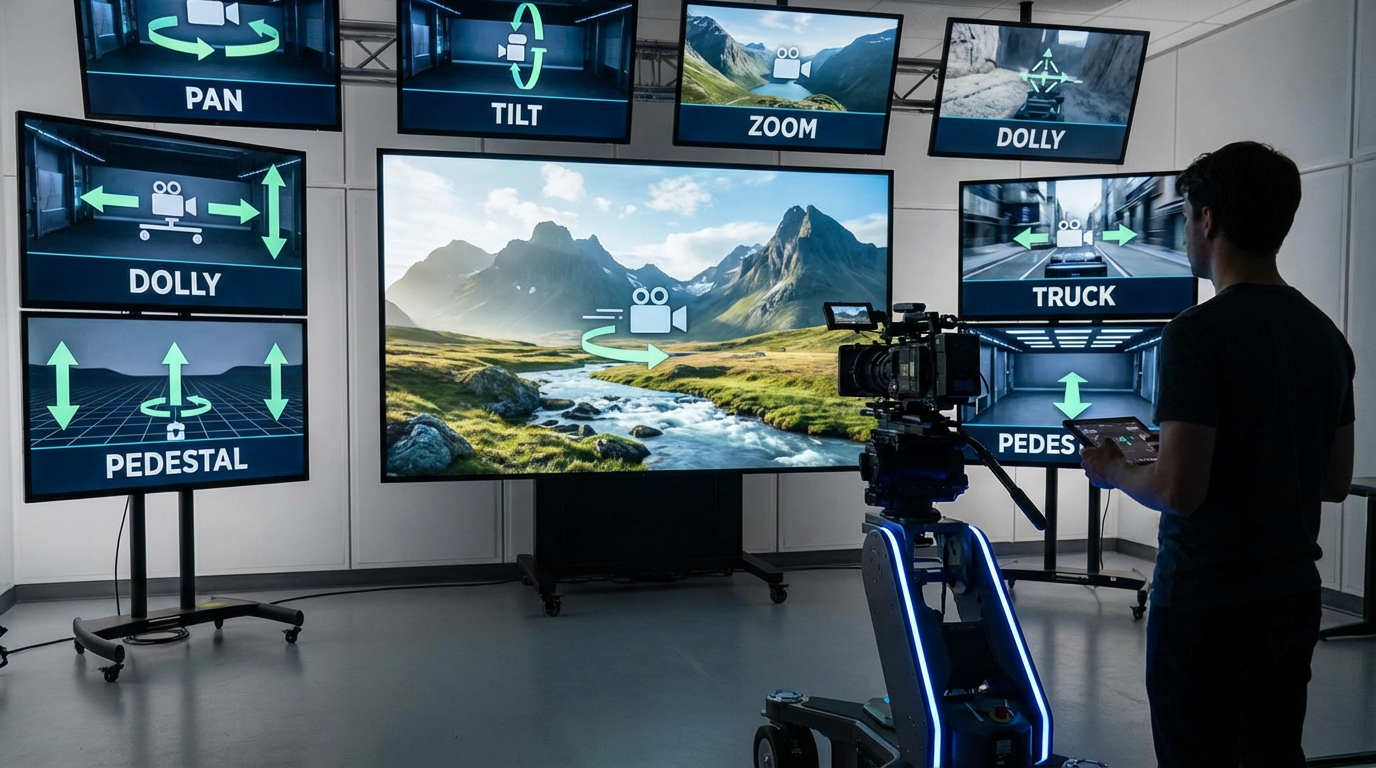
Pan
A pan moves the camera horizontally from left to right or right to left.
In AI video generation, pan movements are commonly used to reveal environments or follow a subject across a scene.
Example prompt
“Slow camera pan across a futuristic city skyline at sunset”
Tilt
A tilt moves the camera vertically, either upward or downward.
This movement is effective for emphasizing height, scale, or dramatic reveals.
Example prompt
“Camera tilts up from the ground to reveal a towering structure”
Dolly In and Dolly Out
A dolly in moves the camera closer to the subject, while a dolly out moves it away.
These camera movements are useful for emotional emphasis and cinematic focus.
Example prompt
“Slow dolly in toward the subject’s face, cinematic lighting”
Zoom
A zoom changes the focal length rather than moving the camera itself.
In AI video generation, zooms work best when used subtly to highlight specific details.
Example prompt
“Subtle zoom in on the product, clean studio background”
Tracking Shot
A tracking shot follows a moving subject through the scene.
This camera movement is ideal for action, character-driven scenes, and immersive storytelling.
Example prompt
“Camera tracks behind a person walking through a neon-lit street”
Crane Shot
A crane shot moves the camera vertically through space, often combined with forward motion.
It’s commonly used for large-scale reveals and cinematic opening shots.
Example prompt
“Camera cranes upward, revealing a wide landscape below”
Using Camera Movements Effectively
When creating AI videos inside Eachlabs, camera movements should be clearly stated in your prompt. Most advanced text-to-video models respond better to simple, direct instructions rather than complex combinations.
Best practices
- Use one main camera movement per scene
- Keep descriptions clear and concise
- Add pacing words like “slow”, “smooth”, or “cinematic”
- Match camera movement to the mood of the video
Text-to-video models available on Eachlabs interpret camera instructions more accurately when movement is defined early in the prompt.
Improving AI Video Quality with Camera Movements
Camera movements are one of the simplest ways to improve AI-generated videos. Even basic movements like a slow pan or dolly can significantly enhance realism and visual flow.
By using camera movements intentionally, you give AI models a clearer structure to follow, resulting in videos that feel more polished, cinematic, and professionally designed.
Prompt Writing Tips for Better Camera Movements
To get the best results from camera movements in AI video generation, how you write your prompt matters as much as the movement itself. Clear and simple language helps the model understand exactly how the camera should behave within the scene.
One of the most effective approaches is placing the camera movement at the beginning of the prompt. This gives the model a strong structural reference before it starts generating visuals. For example, starting with “slow dolly in” or “wide crane shot” immediately defines how the scene should unfold.
It’s also important to avoid stacking multiple camera movements in a single sentence. While it may sound creative, combining movements like pan, tilt, and zoom at the same time often confuses the model and leads to unstable results. Instead, focus on one primary movement per scene and let the AI build around it.
Pacing words are another powerful tool. Terms such as “slow”, “smooth”, “steady”, or “cinematic” help control the rhythm of the video. Without pacing, camera movements may appear too fast or abrupt, which can reduce realism.
Matching Camera Movements to Content Type
Different types of content benefit from different camera movements. Understanding this makes AI video generation more intentional and visually effective.
For product videos, subtle movements like slow zooms or gentle dolly-ins work best. They keep attention focused without distracting from the product itself.
For storytelling or cinematic scenes, tracking shots and crane movements add immersion and scale.
For social media content, short pans or controlled zooms help maintain visual energy while keeping the scene simple.
Choosing the right camera movement based on content type improves clarity and prevents unnecessary visual noise.
Common Mistakes to Avoid
One of the most common mistakes in AI video generation is over-directing the camera. Adding too many instructions can overwhelm the model and reduce output quality.
Another issue is using vague language. Phrases like “dynamic camera” or “cool movement” are often interpreted inconsistently. Specific camera movements always produce more reliable results.
Finally, ignoring the relationship between camera movement and scene emotion can make videos feel disconnected. A fast camera movement in a calm scene, or a static camera in an action sequence, often breaks immersion.
Why Camera Movements Improve AI Video Quality
Camera movements give structure to AI-generated videos. They guide the viewer’s eye, establish scale, and create a sense of realism that static shots cannot provide.
Even simple movements can dramatically improve perceived quality. A slow pan adds atmosphere. A controlled dolly-in creates focus. A crane shot adds cinematic depth. These small choices make AI videos feel deliberate rather than randomly generated.
By mastering camera movements, creators can produce AI videos that look cleaner, more professional, and more aligned with traditional filmmaking principles—while still benefiting from the speed and flexibility of AI video generation.
Wrapping Up
Camera movements are a key factor in creating high-quality AI-generated videos. Even small, intentional movements can dramatically improve realism, pacing, and visual storytelling. When camera direction is clearly defined, AI models are able to generate scenes that feel more structured, cinematic, and visually consistent.
For creators using text-to-video tools on Eachlabs, understanding and applying camera movements is an easy but powerful way to level up results. Combined with clear prompting, camera movements help bridge the gap between basic AI clips and professional-looking video content.
Frequently Asked Questions
1. Why are camera movements important in AI video generation?
Camera movements guide how a scene unfolds visually. In AI video generation, they help the model understand focus, motion, and perspective. Without camera movement, videos can feel static or disconnected, even if the visuals themselves are high quality.
2. How many camera movements should I use in one prompt?
It’s best to use one primary camera movement per scene. Adding multiple movements in a single prompt can confuse the model and reduce visual consistency. Simple and clear instructions usually produce the best results.
3. Do all text-to-video models support camera movements?
Most modern text-to-video models support camera movement instructions, but results may vary by model. Advanced systems available on Eachlabs tend to respond more accurately when camera movements are clearly described and placed early in the prompt.