Practical Qwen-Image Examples for Visual Refinement
So, you've heard about Qwen-Image, right? It's this cool tool that can make images and even put text right into them. But what if you already have an image and just want to tweak it a bit? That's where the editing side of things comes in. It’s not just about making something new; it’s about refining what you already have. We're going to look at some practical qwen-image examples to show you how it can help clean up your visuals, change things around, and make your designs exactly how you want th
So, you've heard about Qwen-Image, right? It's this cool tool that can make images and even put text right into them. But what if you already have an image and just want to tweak it a bit? That's where the editing side of things comes in. It’s not just about making something new; it’s about refining what you already have. We're going to look at some practical qwen-image examples to show you how it can help clean up your visuals, change things around, and make your designs exactly how you want them.
Key Takeaways
- Qwen-Image is great for making new images with text, but its editing features are super useful for changing existing pictures. You can swap out objects, adjust colors, or clean up backgrounds without starting over.
- This tool lets you play with styles and colors easily. Imagine changing a whole painting's mood just by describing it, or trying out different color schemes for a product photo quickly.
- It’s also handy for making small, precise changes. You can swap out text, fix specific parts of an image, or even change the whole look of a background while keeping the main subject the same.
Mastering Text Integration with Qwen-Image Examples
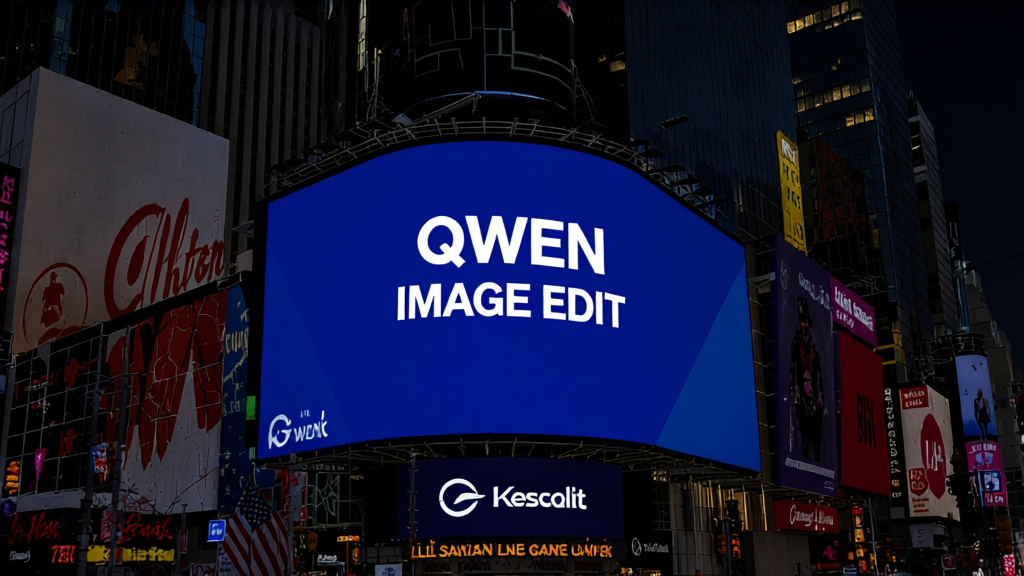
Getting text to look right in images can be a real headache. You know, like when you're trying to make a poster or a product shot, and the words just look... off? Qwen-Image is pretty good at handling this. It's not just about slapping text on an image; it's about making it look like it belongs there, with the right perspective and style.
Generating Images with Embedded Text
This is where Qwen-Image really shines. It's built to put text into the image, not just overlay it. Think about creating a cool graphic for social media or a mock-up for a t-shirt. You can tell it what text you want, and it tries to render it naturally, considering how light would hit it or how it would curve on a surface. It supports multiple languages too, which is handy.
Here's a quick look at what you can do:
- Realistic Text Rendering: Get text that looks like it's part of the scene, not just pasted on.
- Style and Font Control: Specify the look and feel of the text to match your design.
- Layout Awareness: The model understands where text typically fits in a design, like titles or labels.
Qwen-Image's ability to handle text directly within generated images opens up new possibilities for designers. It means less time spent in separate editing software trying to fix awkward text placements.
Editing Existing Text in Visuals
What if you have an image that already has text, but you need to change it? Maybe it's a sign in a photo, or text on a product label. Qwen-Image-Edit can help here. You can tell it to change the words, or even modify the font or color, and it attempts to do so while keeping the rest of the image looking consistent. It's like having a super-powered photo editor that understands typography. For example, you could take a photo of a shop sign and change the name of the business without making the whole picture look fake. This kind of precise editing is a big deal for making quick updates or correcting mistakes in existing visuals. You can even get it to edit specific letters, like changing the color of just one letter in a word. This is a step up from basic image editing tools, offering more granular control over visual elements. You can explore some of these capabilities further with Eachlabs.
Here's a breakdown of what's possible:
- Modify Text Content: Change words or phrases directly.
- Adjust Text Appearance: Alter font, color, or material properties.
- Preserve Image Integrity: Keep the surrounding image details and lighting consistent.
Practical Qwen-Image Examples for Visual Refinement
So, you've got an image, and it's pretty good, but it's not quite there yet. Maybe the colors are a bit off, or you need to swap out a product. This is where Qwen-Image-Edit really shines. It's not about starting from scratch; it's about making smart, targeted changes to what you already have. Think of it as having a super-powered digital paintbrush that understands what you want without messing up the rest of the picture.
Color and Style Transformations
One of the most common things people want to do is tweak the colors or overall style of an image. This is super useful for branding, making artwork fit a specific mood, or even just adapting visuals for different seasons. Instead of generating a whole new image, you can tell Qwen-Image-Edit to, say, "Make the background a soft, muted blue" or "Give this painting a more vibrant, impressionistic feel." It keeps the main subject and composition intact, just shifts the aesthetic. This is a huge time-saver when you're trying out different looks.
- Color Palette Adjustment: Easily shift the entire color scheme to match new branding or a specific theme.
- Style Transfer: Apply artistic styles to photographs or other images.
- Mood Enhancement: Adjust saturation and contrast to create a more dramatic or serene atmosphere.
Object Replacement and Background Adjustments
Need to swap out a couch in a room design or change the accessories on a model? Qwen-Image-Edit can handle that. You can specify an object to be replaced and describe what should go there instead. It's pretty clever about maintaining the lighting and perspective, so the new object looks like it belongs. Similarly, you can adjust backgrounds. Maybe you want to simplify a busy background or change the environment entirely. This is great for product shots where you need a clean, consistent look, or for creating mockups.
The ability to edit specific elements without affecting the entire image is a game-changer for iterative design processes. It means fewer redos and more focused adjustments.
Iterative Design and Product Customization
For designers and e-commerce folks, this is gold. Imagine you're customizing a product for a client. You can use Qwen-Image-Edit to change product colors, materials, or even add specific text overlays like a logo or a tagline. This allows for rapid prototyping and client previews. You can quickly generate several variations of a product image, showing different options side-by-side, which makes the decision-making process much smoother. It’s all about refining the visual until it’s perfect, without the hassle of starting over.
Here's a quick look at what you can achieve:
- Product Color Swapping: Show a product in multiple colors instantly.
- Material Changes: Update the texture or finish of an item (e.g., from matte to glossy).
- Text Overlays: Add or modify text elements like titles, prices, or slogans with precision.
- Background Simplification: Remove distracting elements or change the environment for a cleaner presentation.
Advanced Editing Techniques with Qwen-Image
So, you've got your image looking pretty good, but maybe you want to push it further? That's where the more advanced stuff with Qwen-Image comes in. It's not just about simple tweaks anymore; we're talking about really fine-tuning the visuals.
Leveraging ControlNet-Style Conditioning
This is where things get really interesting if you like having a lot of control. Think of it like having a blueprint for your edits. Qwen-Image can work with things like depth maps, edge maps, or even keypoint maps. What does that mean in plain English? It means you can tell the AI not just what to change, but exactly where and how the structure of the image should be maintained or altered. For instance, you could use an edge map to ensure a new object you're adding fits perfectly along existing lines, or use a depth map to make sure it looks like it's actually sitting on a surface at the right distance.
- Depth Maps: Control how far objects appear from the camera.
- Edge Maps: Preserve or define the outlines of objects.
- Keypoint Maps: Pin specific points to maintain poses or object structures.
This level of control is fantastic for making sure edits feel natural and integrated, not just slapped on.
Semantic vs. Appearance Editing
Qwen-Image also lets you get granular about what kind of edit you're making. It can handle two main types:
- Semantic Editing: This is about changing the meaning or content of the image while keeping the overall look and feel. For example, you could swap out one type of animal for another in a scene, or change a character's outfit. The AI understands the concept of what's there and can replace it intelligently.
- Appearance Editing: This is more about the surface-level stuff. Think changing the color of a car, altering the texture of a fabric, or adjusting the lighting. The goal here is to modify the visual properties without necessarily changing the object itself. It's about making things look different, not necessarily replacing them with something else.
Understanding the difference between semantic and appearance editing helps you craft prompts that get you exactly the result you're looking for. Sometimes you want to change what's in the picture, and other times you just want to change how it looks.
It's pretty neat how you can specify these different kinds of edits. For example, you might say, "Change the shirt to blue" (appearance) versus "Replace the dog with a cat" (semantic). The model uses different internal processes for each, leading to more predictable and accurate outcomes.
Want to learn how to make your images even better using Qwen-Image? We've got some cool tricks up our sleeve! Discover how to fine-tune your creations and unlock new possibilities. Ready to become an image editing pro? Visit our website to start creating amazing visuals today!
Wrapping It Up
So, we've looked at how Qwen-Image and its editing sibling can really help out with visual stuff. It's not just about making cool pictures out of thin air, but also about tweaking and fixing what you already have. Whether you need to change colors, swap out an object, or just clean up some text, this tool seems pretty handy. It feels like it could save a lot of time for designers and anyone working with images regularly. Give it a try and see what you can create or improve!
Frequently Asked Questions
What is Qwen-Image-Edit best for?
Qwen-Image-Edit is great for making specific changes to pictures. You can alter colors, swap out objects, adjust backgrounds, or just make things look a bit better without having to create the whole image again from scratch.
Can Qwen-Image-Edit keep the original look of the picture?
Yes, it sure can! One of its best features is that it keeps the layout, the way light hits things, and the size of objects the same while it makes the changes you ask for.
Is Qwen-Image-Edit useful for professional designers?
Absolutely. Because it's so precise and consistent, it's perfect for jobs like creating brand visuals, making product pictures look just right, improving artwork, and trying out different design ideas quickly.