Image to Video Prompt Guide: Best Practices for Realistic Results
So, you want to make videos from still images, huh? It sounds pretty cool, like magic. But getting the AI to do exactly what you want can be a bit tricky. It's like trying to explain a movie scene to someone who can't see it. This guide is all about helping you write better prompts for that image to video prompt magic, so you get results that actually look real and not, well, weird. We'll break down how to talk to the AI so it understands your vision. Key Takeaways * Think of your image to v
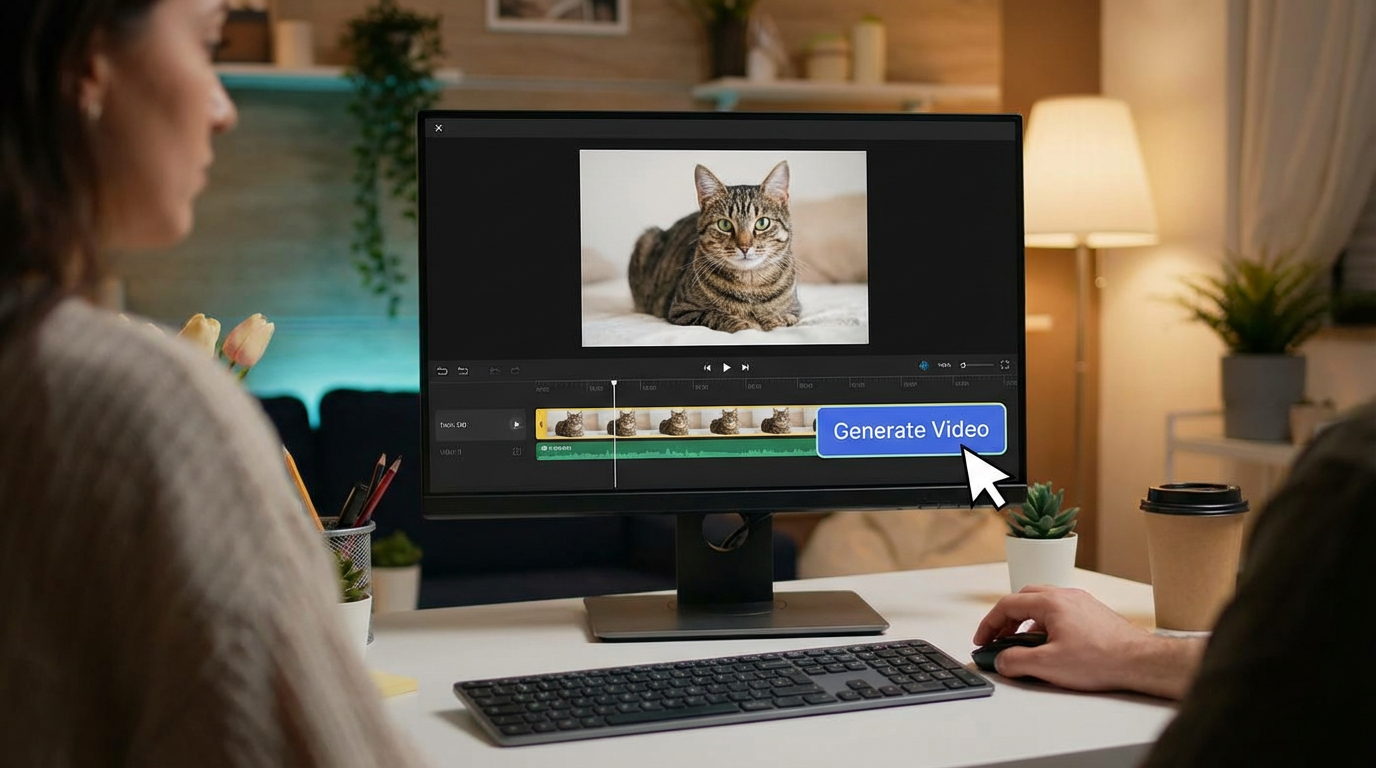
So, you want to make videos from still images, huh? It sounds pretty cool, like magic. But getting the AI to do exactly what you want can be a bit tricky. It's like trying to explain a movie scene to someone who can't see it. This guide is all about helping you write better prompts for that image to video prompt magic, so you get results that actually look real and not, well, weird. We'll break down how to talk to the AI so it understands your vision.
Key Takeaways
- Think of your image to video prompt like giving directions to a filmmaker. Be clear about what you want to see – the subject, what they're doing, the setting, and the overall mood. Too few details, and the AI might guess wrong. Too many, and it might get confused. Find that sweet spot.
- Don't expect the same result every time you use the same prompt. The AI is creative, and each try is a new interpretation. Be ready to tweak your prompt a little – maybe change the lighting or the camera angle – to get closer to what you imagined. It's all about trying again.
- For the most realistic results with your image to video prompt, use specific keywords that tell the AI you're aiming for photorealism. Think about camera settings, lighting styles, and even lens types. Also, consider using an actual image as a starting point for more control over the look.
1. Prompt Anatomy
Think of your prompt as a set of instructions for a very talented, but sometimes literal, director. The clearer and more structured your instructions, the closer the final video will be to what you imagined. It’s not just about listing things; it’s about how you arrange them.
At its core, a good prompt for image-to-video generation often follows a pattern. While there's no single rigid formula, a common and effective structure looks something like this:
- Subject: Who or what is the main focus?
- Action: What is the subject doing?
- Context/Environment: Where is this happening? What's around the subject?
- Cinematography/Camera: How is the scene being filmed? (e.g., shot type, angle)
- Style/Ambiance: What's the overall mood, aesthetic, or lighting like?
Let's break that down a bit. The subject is your star. The action is what they're up to. Context sets the stage. Cinematography is how you frame the shot – are we close up, far away, looking up or down? Finally, style and ambiance dictate the feel – is it gritty and dark, or bright and cheerful?
A well-structured prompt acts like a blueprint. It guides the AI by providing specific details about the visual elements and their relationships, leading to more predictable and controllable outputs. Without this structure, the AI might make assumptions that stray from your vision.
For instance, instead of just saying "a cat," you'd want to specify "a fluffy ginger cat" (subject). Then, "chasing a red laser pointer dot" (action). The environment could be "on a polished wooden floor in a sunlit living room" (context). You might add "medium shot, eye-level camera" (cinematography) and finish with "warm, cozy atmosphere, soft natural light" (style/ambiance). This level of detail helps the AI understand precisely what you're aiming for.
2. Cinematography
When you're thinking about making a video from an image, the cinematography part of your prompt is super important. It's basically how you tell the AI to frame the shot and move the camera. Getting this right makes a huge difference in how the final video feels.
Think about the basics: What kind of shot do you want? Are we talking a wide shot that shows a whole scene, or a close-up that focuses on a person's face? You can also specify the angle – is the camera looking up, down, or straight on? For example, you might ask for a "wide establishing shot, eye level" or a "medium close-up, slight angle from behind."
Camera movement is another big one. Do you want the camera to stay still, or move? You can ask for a "slow pan," a "dolly shot," or even a "tracking shot." Keep it simple though; usually, one clear camera move per shot is best. Trying to do too much can make the video look messy.
Here are some common camera movements you can use:
- Static Shot: No movement, just holding the frame.
- Pan: Swiveling the camera horizontally.
- Tilt: Swiveling the camera vertically.
- Dolly: Moving the camera forward or backward.
- Track: Moving the camera sideways.
- Crane/Boom: Moving the camera up or down on a crane.
The way you describe the camera's perspective and motion directly influences the viewer's experience. A low angle can make a subject seem powerful, while a high angle might make them appear vulnerable. Similarly, a fast-moving camera can create excitement, whereas a slow, deliberate movement can build suspense.
3. Subject
When you're crafting your video prompts, figuring out the main subject is your first big step. This is basically who or what the video is all about. It could be a person, an animal, an object, or even something more abstract.
The clearer you are about your subject, the better the AI can focus on bringing it to life. Think about details like their appearance, their general vibe, and what makes them unique. For instance, instead of just saying 'a dog,' try 'a scruffy terrier mix with one floppy ear and a curious expression.' That gives the AI so much more to work with.
Here are some things to consider when defining your subject:
- Identity: Who or what is the central figure?
- Appearance: What do they look like? (e.g., age, gender, species, clothing, physical traits)
- Expression/Mood: What emotion or state are they in?
- Key Features: What specific details make them stand out?
Sometimes, the subject isn't a single entity. You might have multiple subjects interacting, or the subject could be a group. In these cases, be sure to describe each key element or the collective nature of the group to avoid confusion. For example, 'a pair of elderly twins' is different from 'a crowd of people.'
If you're aiming for realism, describing your subject with grounded, everyday characteristics will help a lot. Avoid making them too fantastical unless that's your specific goal. The more specific and grounded your subject description, the more likely you are to get a result that feels like it could exist in the real world.
4. Action
Okay, so you've got your scene set up, your subject is ready to go, but what are they actually doing? This is where action comes in. It's the engine of your video, what makes it move and feel alive. Without action, even the most beautifully shot scene can feel a bit… static, right?
The key is to be specific. Instead of saying "a person walks," try something like "the person walks three steps towards the door, pauses, and then reaches for the handle." See the difference? It gives the AI a much clearer picture of what needs to happen and when. Think of it like choreographing a tiny dance for your subject.
Here are some ways to think about describing action:
- Gestures and Movements: What are their hands doing? Are they fidgeting, pointing, waving? What about their body? Are they leaning, slouching, standing tall?
- Interaction with Environment: Are they picking something up, opening a drawer, leaning against a wall? How do they engage with the world around them?
- Facial Expressions: A subtle smile, a furrowed brow, a quick glance – these small details add so much personality.
- Dialogue (if applicable): Even a short phrase or a sigh can be an action. "He whispers, 'I'm here.'" or "She sighs, looking away."
It’s also helpful to think about the timing of actions. Breaking down a movement into smaller beats, like "takes two steps, turns head, blinks," helps create a more natural flow. This is especially important if you're trying to match actions across different clips or if you have a specific duration in mind for the action to complete.
When describing actions, focus on observable behaviors. Instead of saying a character is "sad," describe the physical manifestations of sadness: "their shoulders slump, they stare at the floor, and a single tear rolls down their cheek." This gives the AI concrete details to work with, leading to more believable results.
Don't be afraid to get a little detailed here. The more precise you are, the better the AI can interpret your vision and bring your scene to life. It’s all about giving the AI clear instructions so it knows exactly what performance to generate.
5. Context
Context is all about where your video is happening. It's the backdrop, the environment, the whole scene that surrounds your main subject and action. Think of it as setting the stage. Without good context, even a clear subject and action can feel a bit lost or out of place.
The environment plays a huge role in how the viewer perceives the scene. Is it a bustling city street, a quiet forest, a futuristic spaceship, or a cozy living room? Each of these places tells a story on its own and influences the mood. For example, a character looking sad might feel more poignant if they're alone in a vast, empty desert compared to a crowded room.
Here are some things to consider when defining your context:
- Location: Be specific. Instead of just "a room," try "a dimly lit, cluttered attic" or "a minimalist, sun-drenched kitchen."
- Time of Day: Morning, noon, sunset, or deep night? This affects lighting and mood.
- Weather: Is it raining, snowing, sunny, or foggy? Weather adds a lot of atmosphere.
- Background Details: What's happening in the background? Are there other people, objects, or elements that add to the scene? Think about things like distant traffic, birds chirping, or the hum of machinery.
The details you include in the context can subtly guide the viewer's interpretation of the video. A character performing a simple action like reading a book can feel completely different if the context is a peaceful park bench versus a tense, shadowy alleyway.
For instance, if you're describing a character walking, the context could be "on a busy sidewalk during rush hour" or "along a deserted, moonlit beach." These two contexts create vastly different feelings and visual styles for the same basic action. Getting the context right helps make your video feel grounded and believable, even if it's a fantastical scene.
6. Style & Ambiance
Setting the right style and ambiance is like choosing the perfect filter for your video. It’s what gives your footage its unique feel and mood. Think about the overall aesthetic you’re going for – is it a gritty, realistic documentary, a dreamy, romantic scene, or a fast-paced action sequence?
The style you choose will influence everything from the color grading to the camera work and even the sound design. For instance, a 1970s romantic drama might call for 35mm film grain, soft focus, and warm, hazy lighting, maybe with a bit of gate weave for that vintage vibe. On the other hand, a modern sci-fi scene might need sharp, clean visuals, cool color tones, and a sense of vastness.
Here are some elements that contribute to style and ambiance:
- Film Stock/Format: Mentioning specific film types (like 35mm, 16mm) or digital formats can guide the look. Think about grain, color rendition, and potential artifacts like flares or halation.
- Era/Period: Specifying a time period (e.g., '1950s noir', 'Victorian era') immediately sets expectations for clothing, architecture, and overall mood.
- Genre Cues: Using terms associated with genres like 'cyberpunk', 'western', 'slapstick comedy', or 'gothic horror' helps the AI understand the desired tone and visual language.
- Atmospheric Effects: Details like 'foggy morning', 'dusty sunlight', 'rainy night', or 'blizzard conditions' add layers to the ambiance.
The interplay between visual style and ambient sound is key. A quiet, melancholic scene might benefit from the subtle sounds of rain and distant traffic, while a bustling marketplace needs a rich tapestry of voices, music, and activity. Don't forget that sound is half the experience.
Consider how these elements combine. A 'low-key, noir-inspired' style with 'heavy shadows' and 'rain-slicked streets' creates a very different feeling than a 'bright, high-key' style with 'sun-drenched landscapes' and 'upbeat music'.
7. Lighting
Lighting is a huge part of setting the mood for any video. Think about it: a scene lit with soft, warm light feels totally different from one with harsh, cool shadows, right? Getting the lighting right in your prompts is key to achieving those realistic results you're after.
When you're writing your prompt, try to be specific about the kind of light you want. Instead of just saying "bright," describe how it's bright. Is it the warm glow of a sunset? The sharp, artificial light of a neon sign? Or maybe the diffused light coming through a window on a cloudy day?
Here are a few ways to describe lighting:
- Quality: Is the light hard (creating sharp shadows) or soft (creating gentle shadows)?
- Direction: Where is the light coming from? Front, back, side, above, below?
- Color: Is it warm (yellows, oranges), cool (blues, purples), or neutral?
- Source: What's creating the light? A lamp, the sun, a fire, streetlights?
For example, instead of "a room at night," you could try "a dimly lit study with a single desk lamp casting warm, focused light on a book, with cool blue shadows pooling in the corners." See how much more detail that gives the AI?
Consistency in lighting across different shots is what makes a video feel cohesive. If one scene is bathed in golden hour light and the next is under harsh fluorescent bulbs, it can be jarring. Try to maintain a similar lighting style or at least a logical progression if the scene changes.
Using terms like "golden hour," "volumetric lighting," or "chiaroscuro" can also help guide the AI. You can even specify camera settings that affect light, like "shot with an f/1.8 aperture" to get that nice, blurry background effect.
8. Color Palette
The colors you choose can really set the mood for your video. Think about what feeling you want to evoke. Do you want something warm and cozy, or cool and dramatic? Specifying a few key colors helps keep things consistent across your video clips.
When you're describing the colors, it's helpful to think about different parts of the image. You can talk about the highlights (the brightest parts), the midtones (the middle shades), and the shadows (the darkest areas). This gives you a lot of control.
Here’s a way to break it down:
- Highlights: What color is the light hitting the subject?
- Midtones: What are the main colors of the objects and environment?
- Shadows: What color do the darker areas take on?
For example, instead of just saying "bright room," you could say something like "soft window light with a warm lamp fill, and a cool edge from the hallway." Then, you can add specific color anchors like "amber, cream, and walnut brown." This gives the AI a much clearer picture.
Using a consistent color palette makes your video feel more polished and professional. It's like having a signature look that viewers can recognize.
Don't be afraid to experiment. Sometimes, unexpected color combinations can lead to really interesting results. Just remember to keep it focused on the feeling you're trying to create.
9. Camera Movement
Camera movement is how you guide the viewer's eye and build a sense of motion within your video. It's not just about showing something; it's about how you show it. Think about what you want the audience to feel. Do you want them to feel immersed, like they're right there? Or maybe you want them to feel a sense of distance or observation.
The key is to keep it simple and purposeful. Trying to cram too many camera moves into one short clip can make it look messy and confusing. It's usually best to pick one main movement and let it play out. This could be a slow pan across a landscape, a gentle zoom in on a character's face, or a steady track alongside someone walking.
Here are some common camera movements and what they can do:
- Pan: Swiveling the camera horizontally (left or right). Great for revealing a scene or following a subject.
- Tilt: Swiveling the camera vertically (up or down). Useful for showing height or a subject's full form.
- Dolly/Track: Moving the entire camera forward, backward, or sideways. This creates a real sense of depth and immersion.
- Zoom: Changing the focal length to make the subject appear closer or farther away. Use this sparingly, as it can sometimes feel less natural than a dolly.
- Crane/Pedestal: Moving the camera up or down on a boom arm. Excellent for dramatic reveals or establishing shots.
When you're writing your prompt, be specific. Instead of just saying "camera moves," try something like "slow pan right" or "dolly in towards the subject." If you're using an image as a reference, the movement you describe will happen after that initial frame. Remember, consistency is important, especially if you're generating multiple clips that need to flow together. Try to use similar types of movement or keep the motion subtle to maintain a cohesive feel.
Don't overcomplicate things. A single, well-executed camera move can be far more effective than a flurry of random motions. Focus on what best serves the story you're trying to tell.
10. Composition
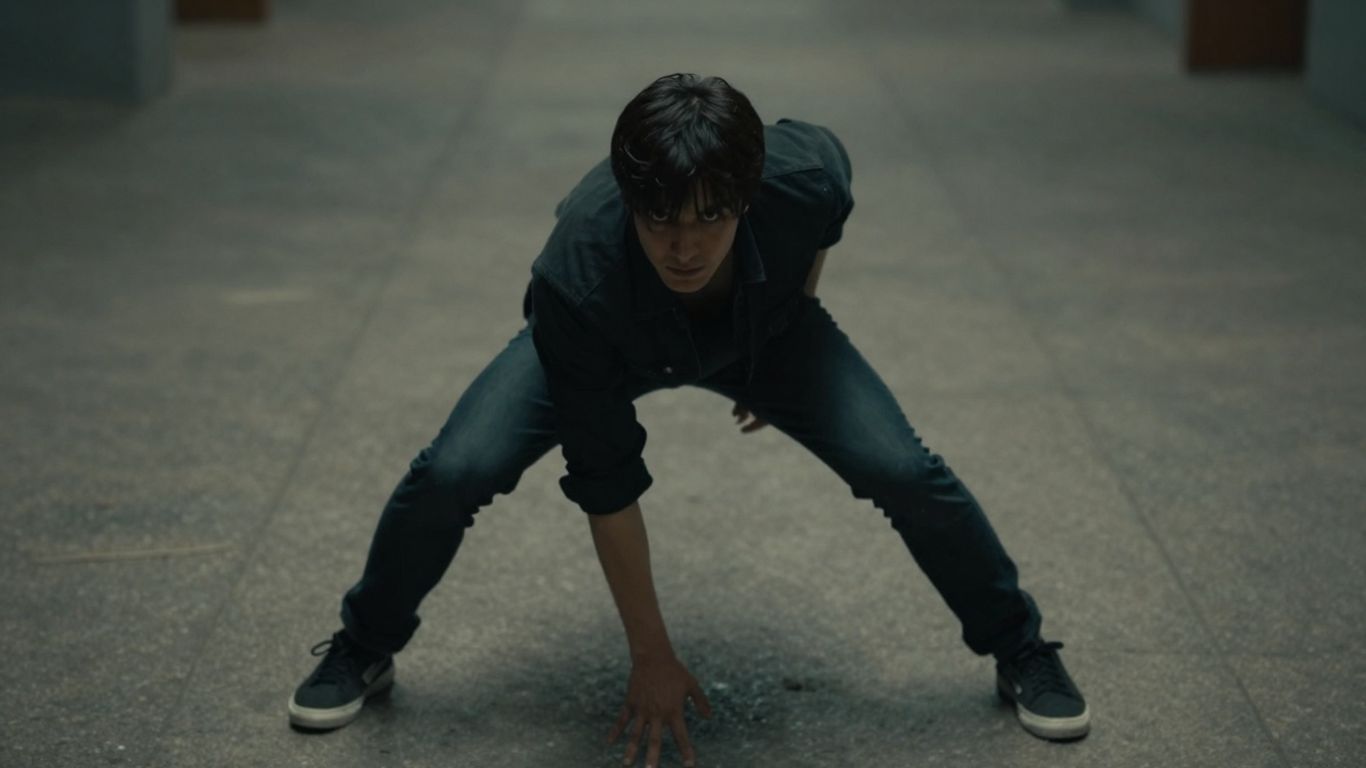
Composition is all about how you arrange the elements within your video frame. It's like setting the stage for your actors, but instead of a physical stage, you're working with the digital space of the video. Getting the composition right makes a huge difference in how viewers perceive your video. Think about what you want the audience to focus on and how you want them to feel.
Different shot types frame the subject in distinct ways:
- Wide Shot (or Long Shot): Shows the subject from head to toe, often including a good amount of the surroundings. This is great for establishing a scene or showing the scale of something.
- Medium Shot: Typically frames the subject from the waist up. It's a good balance between showing the subject and some of their environment, and it's often used for dialogue scenes.
- Close-Up: Focuses tightly on a specific part of the subject, like their face. This is powerful for conveying emotion and detail.
- Extreme Close-Up: Even tighter than a close-up, focusing on a very small detail, like eyes or lips. Use this sparingly for maximum impact.
Beyond just the shot size, consider the angle and depth of field. A low angle can make a subject look powerful, while a high angle might make them seem vulnerable. Shallow depth of field blurs the background, making your subject pop, while deep depth of field keeps everything in focus. You can even use an image input to lock in specific compositional elements from a reference photo, giving you more control over the initial frame [5381].
The arrangement of elements within the frame guides the viewer's eye. Think about leading lines, symmetry, or the rule of thirds to create visual interest and direct attention. What you choose to include or exclude from the frame is just as important as what's in it.
Here's a quick rundown of common compositional terms:
| Term | Description |
|---|---|
| Rule of Thirds | Dividing the frame into nine equal parts and placing key elements along the lines or intersections. |
| Symmetry | Balancing elements on either side of a central axis. |
| Leading Lines | Lines within the frame that draw the viewer's eye towards the subject or a point of interest. |
| Negative Space | The empty or uncluttered area around the main subject, which can help emphasize the subject. |
11. Negative Prompts
Sometimes, telling the AI what not to do is just as important as telling it what to do. This is where negative prompts come in handy. They help you steer clear of unwanted elements or styles that might creep into your video.
Think of it like this: if you're trying to create a serene forest scene, you wouldn't want random cars or buildings popping up, right? A negative prompt lets you say, "no cars, no buildings." It's a way to refine the output and make sure the AI stays focused on your vision. This is especially useful when you're aiming for a specific aesthetic or trying to avoid common AI artifacts.
Here are some common things you might want to exclude:
- Unwanted Objects: Specify things like "no people," "no text," or "no logos."
- Undesired Styles: If you want a photorealistic look, you might add "no cartoon," "no illustration," or "no painting."
- Distracting Elements: Things like "blurry background," "grainy footage," or "poor lighting" can be excluded.
- Anatomical Issues: For character-focused videos, you might add "deformed hands," "extra limbs," or "unnatural eyes."
For example, instead of just saying "a desolate landscape," you could prompt "a desolate landscape, no buildings, no roads, no signs of human activity." This gives the AI a clearer picture of what to avoid. It's a powerful tool for getting closer to the realistic results you're after, helping to avoid those little glitches that can pull you out of the scene. You can find more about creative tools and AI models at Eachlabs.
Using negative prompts is like having a safety net. It catches those little mistakes or unexpected interpretations the AI might make, allowing you to maintain control over the final look and feel of your video. It's not about limiting creativity, but about guiding it precisely.
12. Image Input
Sometimes, you just need a little more control than a text prompt alone can give you. That's where image input comes in handy. Think of it as giving the AI a visual blueprint for your video's first frame. You can use a photograph, a piece of digital art, or even a previously AI-generated image. This is super useful for locking down specific details like character appearance, clothing, or the overall look and feel of a scene. The AI then uses this image as a starting point, and your text prompt guides what happens next.
Using an image as a reference can significantly improve consistency and guide the AI towards your desired aesthetic. It's like saying, "Start here, and then do this." This method is particularly helpful when you have a very clear vision for the initial look of your video.
Here’s a quick rundown of how it generally works:
- Provide an Image File: You'll typically upload your reference image through a specific parameter, often labeled something like
input_referencein the API request. - Match Resolution: For best results, make sure your input image is the same resolution as your target video. This helps the AI maintain aspect ratios and avoid distortion.
- Supported Formats: Common image formats like JPEG, PNG, and WebP are usually supported.
If you don't have a perfect image already, don't sweat it. You can use an image generation tool to create a starting visual. This lets you quickly mock up environments or character designs before committing them to video. It’s a great way to experiment with different styles and generate beautiful starting points for your videos.
13. Prompt Enhancement
So, you've got a basic idea for a video, but how do you make it really pop? That's where prompt enhancement comes in. Think of it like adding extra seasoning to a dish – it takes something good and makes it even better. The goal is to add detail and specificity without overwhelming the AI.
Sometimes, a simple prompt just won't cut it. You might get something that's technically correct but lacks that certain oomph. This is where you can really start to play. Instead of just saying "a dog running," you could try something like: "A golden retriever, mid-stride, tongue lolling out, chasing a bright red ball across a sun-drenched park lawn, with dappled sunlight filtering through oak trees." See the difference? More descriptive words paint a clearer picture.
Here are a few ways to beef up your prompts:
- Add sensory details: What does it sound like? Smell like? Feel like? Even if the AI can't directly generate sound or smell, these details can influence the visual mood.
- Specify camera angles and movements: Are we looking up from the ground? Is the camera slowly panning? This adds a cinematic feel.
- Describe the lighting: Is it harsh midday sun, soft golden hour light, or moody neon glow?
- Include atmospheric elements: Is there fog, rain, dust motes dancing in the light?
When you're enhancing a prompt, it's often best to build upon what already works. If you have a generated video that's close to what you want, use that as a starting point. Then, make small, targeted changes. For example, instead of rewriting the whole thing, try adding a phrase like "with a slightly desaturated color palette" or "shot with a shallow depth of field."
Don't be afraid to experiment. Sometimes the most unexpected combinations of words can lead to the most interesting results. Just remember to keep it focused; too many conflicting details can confuse the AI and lead to weird outputs. It's a balancing act, for sure.
14. Model Selection
When you're generating videos, the AI modelyou pick makes a pretty big difference. It's not just a minor detail; it's like choosing the right tool for the job. Different models are trained on different data and have different strengths, so one might be better at realistic textures while another excels at dynamic motion. You'll want to experiment to see which one gives you the results closest to what you're imagining.
It's not always about picking the 'best' model overall, but the best model for the specific video you want to create. Sometimes, a model that's a bit less polished in one area might be exactly what you need if another area is your primary focus. Don't be afraid to try them all out and see what happens. You might be surprised by the unique qualities each one brings to your project.
15. Realistic Outputs and more
Getting your AI to produce videos that look like they were shot with a real camera can be tricky. It's not just about saying "realistic"; you've got to give the AI some solid clues.
Think about the details a real camera captures. This means specifying things like lens types (e.g., "shot on a 50mm lens"), aperture settings (like "f/1.8 for shallow depth of field"), and even the camera model if you have a preference (e.g., "Canon EOS R5"). These technical terms tell the AI you're aiming for a photographic look, not just a drawing.
Here's a quick rundown of terms that help push towards realism:
- Photographic Terms: "photorealistic," "hyper-realistic," "8K UHD," "DSLR quality," "cinematic lighting," "HDR."
- Camera Settings: "shot on [camera model], [lens type], f/[aperture], ISO [number]."
- Lighting: "natural window light," "golden hour," "soft studio lighting," "volumetric lighting."
- Detail: "detailed skin texture," "realistic facial proportions," "natural shadows."
Sometimes, you might get weird results, like extra fingers or distorted faces. That's where negative prompts come in handy. Just tell the AI what not to do, like "no extra limbs, no distorted faces, no blurry details."
The key is to treat the AI like a photographer who needs specific instructions. Vague requests lead to vague results. The more precise you are with camera settings, lighting, and desired detail, the closer you'll get to that true-to-life look you're after. It's a bit of an art and a science, figuring out which terms work best for the specific model you're using.
Don't forget that sometimes, even with the best prompts, you might need to do a little cleanup afterward. Using upscaling tools or basic editing software can help polish those final frames and make them truly shine.
Discover how our AI models can create amazing things. Want to see what's possible? Visit our website to explore more and start building your own AI-powered apps today!
Wrapping It Up
So, we've gone over a bunch of ways to get better videos from your prompts. Remember, it's not just about typing words and hoping for the best. Think of it like talking to a director – the clearer you are, the closer you'll get to what you see in your head. Don't be afraid to try different things, tweak your words a little, and see what happens. Sometimes, a small change makes a big difference. And hey, if it doesn't work the first time, just try again. That's kind of the whole point, right? Keep experimenting, and you'll start seeing some really cool stuff come out of it.
Frequently Asked Questions
How do I make my video look super real?
To get videos that look like they were filmed in real life, use words like 'photorealistic,' 'hyper-realistic,' 'cinematic lighting,' and '8K resolution.' Also, mentioning camera types like 'DSLR' or specific lenses (like '50mm lens') can help a lot. Think about real photos and what makes them look genuine.
What's the best way to describe what should happen in the video?
Think of describing a scene to someone who can't see it. Be clear about who or what is in the video, what they are doing, and where they are. For actions, break them down into small steps, like 'takes three steps forward, then turns around.' This helps the AI understand the timing better than just saying 'walks across the room.'
Can I tell the AI what NOT to include in the video?
Yes, you can use 'negative prompts' to guide the AI away from unwanted elements. Instead of saying 'no cars,' it's often better to describe what you *do* want, like 'a quiet forest road with no vehicles.' This gives the AI a clearer picture of your desired outcome.