How to Write Better Prompts for Flux AI
So, you're looking to get more out of Flux for your image generation needs? It's a pretty neat tool, but like anything, you get what you put in. Getting the right image often comes down to how you ask for it. This guide is all about making those prompts work better for you. We'll go over how Flux handles descriptions and how to structure your requests so the AI knows exactly what you're after. Ready to make some cool stuff? Key Takeaways * Flux really shines when you give it detailed, descri

So, you're looking to get more out of Flux for your image generation needs? It's a pretty neat tool, but like anything, you get what you put in. Getting the right image often comes down to how you ask for it. This guide is all about making those prompts work better for you. We'll go over how Flux handles descriptions and how to structure your requests so the AI knows exactly what you're after. Ready to make some cool stuff?
Key Takeaways
- Flux really shines when you give it detailed, descriptive prompts. Think of telling a story about the image you want, not just listing a few words.
- You can get a head start by using existing images. Describe them, then tweak that description to fit your own ideas for Flux.
- Structuring your prompts matters. Break down what you want into layers, from the main subject to background details and style, and put the most important stuff first.
Leveraging Flux's Natural Language Understanding
Flux AI has a pretty neat way of understanding what you're asking for, and it's a bit different from other image generators out there. Instead of just spitting out keywords, Flux really digs into the details you give it. Think of it like explaining a scene to a friend who's going to draw it – the more you tell them, the better they can capture what's in your head.
Embrace Detailed and Descriptive Prompts
This is where Flux really shines. While some AI tools might get confused by long sentences, Flux actually uses that extra information to create more specific and interesting images. It's not just about listing objects; it's about setting a mood, describing the lighting, and even hinting at the time of day or weather.
For example, instead of just saying:
A cat on a mat
Try something like:
A fluffy ginger cat with bright green eyes is curled up asleep on a worn, braided rug. Sunlight streams through a nearby window, casting a warm glow on its fur and the dusty floorboards. A half-knitted scarf lies beside the rug, with a single wooden knitting needle sticking out.
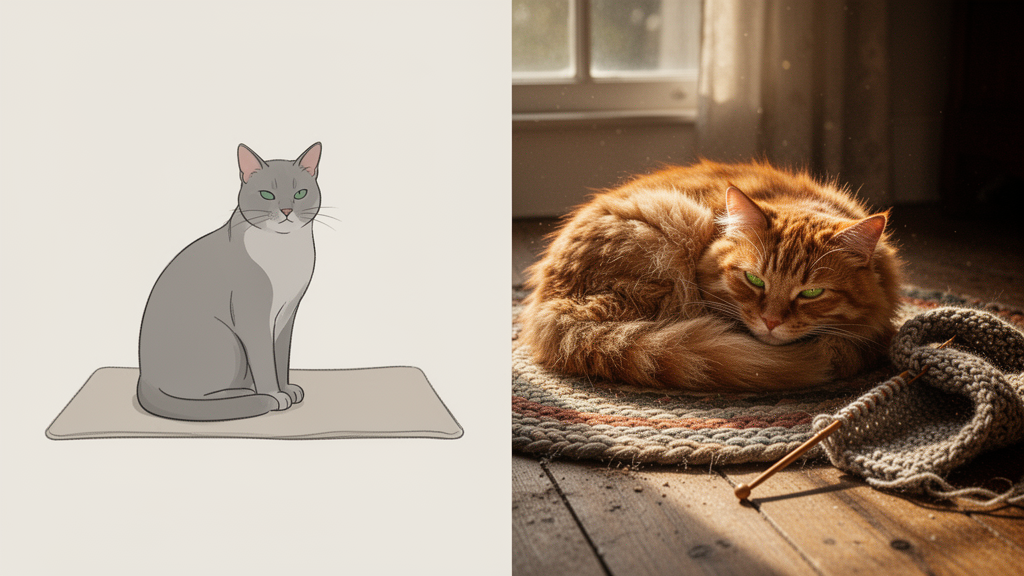
See the difference? That second prompt gives Flux so much more to work with. It understands the texture of the rug, the quality of the light, and even adds little story elements like the scarf.
The key here is to paint a picture with your words. Describe the atmosphere, the textures, the colors, and any subtle actions or details that make your vision unique. Flux is built to process this kind of rich input.
Reverse Engineer From Existing Images
Another cool trick is to use images you already like as a starting point. Found a picture online that has the exact vibe you're going for? You can use that as inspiration.
Here’s a simple way to do it:
- Find an image you really like the style or content of.
- Describe it in as much detail as you can, or use an AI tool to help generate a description.
- Use that description as your prompt in Flux.
- Tweak it to add your own specific ideas or change elements.
This method is super helpful because:
- It gives you a solid foundation to build upon.
- You can be sure you're including all the visual elements you want.
- It helps maintain a consistent style if you're working on a series of images.
It’s like having a cheat sheet for creating prompts that you know will produce good results, at least in terms of style and composition.
Structuring Your Flux Prompts for Success

Alright, so you've got a cool idea for an image, but how do you actually tell Flux what you want? It's not just about throwing a few words at it and hoping for the best. Think of it like giving directions to a friend – the clearer you are, the better they'll understand and the closer the result will be to what you imagined. The way you structure your prompt makes a huge difference.
The Power of Layered Descriptions
Flux really shines when you give it layers of information. Instead of just saying "a cat," try building it up. Start with the core subject, then add what it's doing, the style you're going for, and finally, the setting or mood. It’s like building a story, piece by piece.
Here’s a basic structure that works well:
- Subject: What's the main thing? (e.g., "A fluffy ginger cat")
- Action: What's it doing? (e.g., "sleeping peacefully")
- Style: How should it look? (e.g., "in a watercolor painting style")
- Context: Where is it, and what's the vibe? (e.g., "on a sun-drenched windowsill, warm and cozy")
Putting it all together, you get: "A fluffy ginger cat sleeping peacefully on a sun-drenched windowsill, in a watercolor painting style, warm and cozy."
You can add more and more detail. Think about the lighting, the colors, the camera angle, even the feeling you want the image to evoke. The more context you provide, the more Flux has to work with.
Integrating Text and Specific Elements
Sometimes, you need more than just visuals. Maybe you want text in your image, or a very specific object. Flux can handle this, but you need to be precise. For text, use quotation marks and describe its appearance and placement. For specific objects, integrate them naturally into your description.
For example, if you want a sign that says "Welcome" above a door:
- Subject: "A rustic wooden cabin door"
- Text Element: "with a hand-painted sign above it that reads 'Welcome' in a friendly, slightly worn font."
- Style: "photorealistic"
- Context: "during a golden hour sunset"
This would become: "A rustic wooden cabin door with a hand-painted sign above it that reads 'Welcome' in a friendly, slightly worn font, photorealistic, during a golden hour sunset."

Remember, Flux pays attention to what you say first, so put your most important details at the beginning of the prompt. This helps guide the AI right from the start. If you're looking to experiment with different AI models.
Advanced Prompting Techniques for Flux
Refining Results with Negative Prompts and Seeds
So, you've got a decent image, but it's not quite hitting the mark. This is where the real fine-tuning comes in. Flux, like many AI image tools, lets you steer the output away from things you don't want. This is done using negative prompts. Instead of just saying "a forest," if you keep getting images with people in them and you want a deserted scene, you'd add something like "people, crowds, figures" to your negative prompt. It's like telling the AI, "Whatever you do, don't put that in there." This is super handy for cleaning up common issues or avoiding specific elements that just don't fit your vision.
Think of negative prompts as a way to set boundaries for the AI. They help prevent unwanted artifacts or themes from creeping into your generated images, making the final output much closer to what you had in mind from the start.
Another powerful tool for consistency is the seed. Every image generated by Flux has a unique seed number associated with it. If you find an image you really like, you can note down its seed number. Then, when you want to generate a similar image, perhaps with a slight tweak to the prompt, you can input that same seed number. This tells Flux to use the same starting point, which often results in a very similar composition and style. It's fantastic for creating a series of images that feel connected or for iterating on a specific design without starting from scratch every time.
Iterative Testing and Prompt Optimization
Honestly, getting the perfect image rarely happens on the first try. It's a process of trial and error, and that's totally normal. You'll want to test out different phrasing, add more detail, or sometimes even simplify your prompt to see how Flux reacts.
Here’s a basic approach to iterating:
- Start with a core idea: Write down the main subject and action.
- Add descriptive details: Flesh out the scene, lighting, and mood.
- Generate and review: See what Flux produces.
- Identify what's missing or wrong: Is the style off? Is an element not quite right?
- Adjust the prompt: Add negative prompts, change keywords, or rephrase sections.
- Repeat: Keep tweaking until you're happy.
Don't be afraid to experiment with different models within Flux too. Sometimes, a prompt that works well in one model might need slight adjustments for another to achieve the best results. It’s all about learning how Flux interprets your words and using that knowledge to guide it more effectively.
Want to get more out of your AI tools? We've got some cool tricks for using Flux that can make your projects even better. These advanced methods help you get exactly what you want from the AI, making it super powerful. Ready to level up your AI game? Check out our website for more tips and tricks!
Wrapping Up Your Flux Prompting Journey
So, we've gone over a bunch of ways to get better images out of Flux. Remember, it really likes it when you give it lots of detail, almost like telling a story. Don't just list things; describe the scene, the mood, and how everything fits together. Trying out prompts based on images you already like is a smart move too. It gives you a solid starting point. Keep playing around with it, tweak your prompts based on what you get, and don't be afraid to get really descriptive. The more you practice, the more you'll figure out what works best for you and Flux. Happy creating!
Frequently Asked Questions
Why should I make my Flux prompts really detailed?
Flux is super smart and can understand a lot of information. When you give it lots of details, like what the lighting is like, the colors you want, or even the mood of the picture, it can create images that are much closer to what you're imagining. Think of it like giving a painter a very clear idea of what you want them to paint, instead of just saying 'paint a house'.
Can I use pictures I already like to help me make prompts?
Absolutely! It's a great trick. You can find an image you really like, then use a tool to describe that image in detail. You can then take that description and use it as a starting point for your own prompt in Flux. It's like getting a head start by looking at a great example.
What's a 'negative prompt' and how do I use it?
A negative prompt tells Flux what you *don't* want in your image. For example, if you don't want any people in your picture, you could add 'no people' to the negative prompt. It helps clean up the image by removing things you don't want, so you can focus on what you do want.