Veed Fabric 1.0: Perfect Lip Sync for AI Influencers
AI influencers are having a moment. UGC content built around synthetic personas is growing fast, and the production pipeline behind it has gotten genuinely interesting. Getting the look right is manageable there are strong image models for that. Getting a matching voice is also not the hard part anymore, text to voice models have made that accessible. The part that trips people up is lip sync. Making a face actually move with the audio in a way that reads as real, not as a slightly off animation
AI influencers are having a moment. UGC content built around synthetic personas is growing fast, and the production pipeline behind it has gotten genuinely interesting. Getting the look right is manageable there are strong image models for that. Getting a matching voice is also not the hard part anymore, text to voice models have made that accessible. The part that trips people up is lip sync. Making a face actually move with the audio in a way that reads as real, not as a slightly off animation that breaks the illusion immediately. That's where Veed Fabric 1.0 comes in. Upload a photo, add your audio file, and your AI influencer speaks mouth movements, facial micro-expressions, head motion all synced to the voice. On Eachlabs, the whole thing is a few steps.
An AI influencer records a selfie video with perfect lip sync, generated using Veed Fabric 1.0 on Eachlabs.
What Is Veed Fabric 1.0?
Veed Fabric 1.0 is an image to video model built specifically for lip sync. You give it two things: a still image of a face and an audio file. It gives you back a video of that face speaking, with the mouth movements synchronized to the speech at a phoneme level. Not just approximate mouth shapes actual lip sync that tracks the audio precisely.
What makes it different from generic image to video models is that it's not trying to do everything. It's not generating camera movements or scene dynamics. It's focused entirely on making a face speak convincingly, and that specialization shows in the output quality. Micro-expressions, eye movement, subtle head motion these details get picked up and included alongside the lip sync, which is what separates a believable talking avatar from something that looks AI-generated at first glance.
It supports real photos, illustrated characters, mascots, and stylized renders. Whatever your AI influencer looks like, Veed Fabric 1.0 works with it. Output goes up to 720p, aspect ratios cover 16:9, 9:16, and 1:1, and clips can run up to 5 minutes.
How to Use Veed Fabric 1.0 on Eachlabs
The workflow on Eachlabs is straightforward. You need two inputs ready before you start: your image and your audio file.
For the image, a clear front-facing portrait works best. Good lighting, unobstructed face, reasonably high resolution. The model preserves the visual identity of whatever you upload, so the quality of that source image matters for the quality of the output.
For the audio, you need a clean recording with minimal background noise. This is where your text to voice output goes generate the voice track first, export it as an MP3 or WAV, then bring it into Veed Fabric 1.0 as the audio input.
From there, select your aspect ratio based on where the content is going 9:16 for TikTok or Reels, 16:9 for YouTube or presentations, 1:1 for feed posts. Choose your resolution, hit run, and the model generates the lip-synced video. The face in your image speaks the audio you provided, with the mouth and facial movements synced to the speech.
A podcast host puts on headphones at his studio desk.
Use Cases
AI Influencer UGC Content
This is the most direct use case. You've built an AI persona specific look, specific aesthetic. Veed Fabric 1.0 lets that persona actually speak to camera without you filming anything. Upload the portrait, add the voice track for the script, get a UGC-style video where the influencer talks to the audience naturally. The lip sync holds up well enough that the content doesn't read as obviously synthetic if the source image and audio are good quality.
Product Review Videos
AI influencers reviewing products is a real content format now. Generate your influencer image, write the review script, run it through a text to voice model to get the audio, then bring both into Veed Fabric 1.0. The output is a talking head video of your AI persona reviewing the product ready for social media without a single day of filming.
Multilingual Content at Scale
You have one AI influencer image and one script. You want that content in five languages. Run the script through a text to voice model in each language, generate five audio files, feed each one into Veed Fabric 1.0 with the same image. Five videos, same character, different languages, consistent visual identity across all of them. The model handles the lip sync for each language independently.
Brand Mascot Activation
Illustrated mascots and stylized brand characters work in Veed Fabric 1.0 alongside real-looking portraits. If your brand has a character that's been a static image until now, you can upload it and give it a voice. The model preserves the illustrated style while adding the lip sync and facial animation on top.
Educational and Explainer Content
Instructors, course creators, and educational brands can build avatar-based explainer content without needing to film themselves every time a video needs updating. Create the educator portrait once, generate the audio for each lesson, run it through Veed Fabric 1.0. The persona stays consistent across every video in the series.
Personalized Outreach Videos
Marketing teams generating personalized video messages at scale can use Veed Fabric 1.0 to automate the talking-head component. Same avatar image, different audio per recipient. The model handles the lip sync for each version, and the output is a personalized video that looks like the speaker recorded it directly without any of the filming overhead.
The Full Workflow: From Nothing to a Speaking AI Influencer
Let's put the whole pipeline together. You want to create an AI influencer from scratch and have them speak in a UGC video. Here's how the workflow runs on Eachlabs.
Start with the image. Use Nano Banana Pro or Flux 2 Pro text to image to generate your AI influencer portrait. Describe the look you want age, aesthetic, lighting, style. Get a high-resolution, front-facing portrait with clean lighting. This is your character's visual identity going forward.
Next, the voice. Go to one of the text to voice models on Eachlabs and write your script. Describe the kind of voice you're after tone, pace, gender, energy. Generate the audio and export it as a clean audio file.
Now bring both into Veed Fabric 1.0. Upload the portrait, upload the audio, set your aspect ratio for the platform you're targeting, and run. The model generates a video of your AI influencer speaking the script with fully synced lip movements and natural facial animation.
That's the complete workflow: text to image for the face, text to voice for the audio, Veed Fabric 1.0 for the lip sync. Three steps and you have a fully produced AI influencer video.
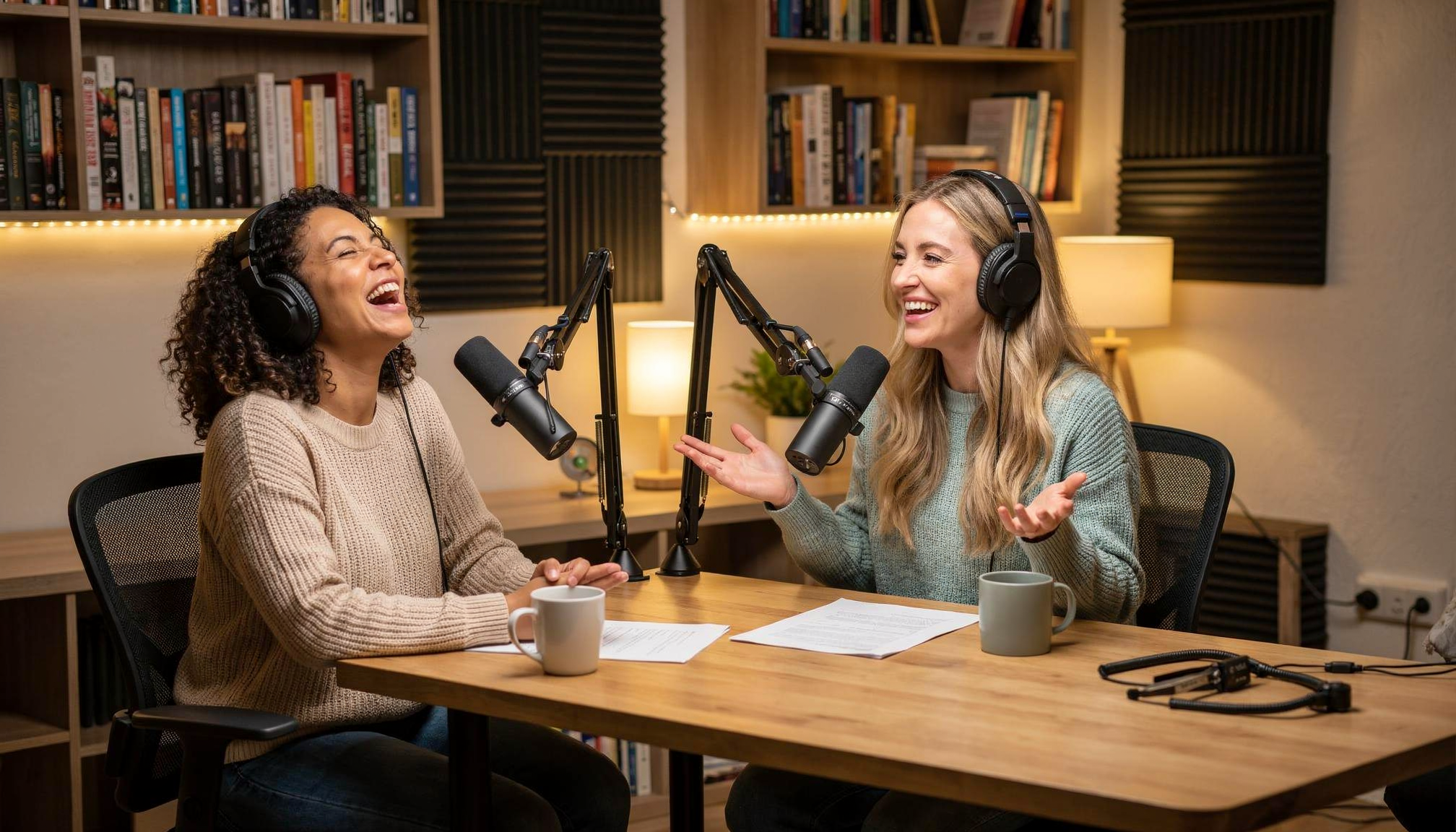
A photorealistic woman speaks at a studio microphone, animated from a single portrait using.
When to Use Veed Fabric 1.0 vs. an Image to Video Model
This is worth thinking through before you commit to a workflow, because the choice affects more than just the output quality of a single video.
Veed Fabric 1.0 is the right call when consistency across multiple videos matters. Your AI influencer needs to sound like the same person every time, and that means choosing a specific voice and sticking with it. The image to video models that generate audio alongside the video don't give you control over which voice gets used the model picks it. You can't specify "use this exact voice" and get consistent results across a series of videos. If you're building a persona that audiences will see multiple times and the voice is part of that persona, you need to control the audio separately. That means text to voice for the audio, Veed Fabric 1.0 for the lip sync.
Image to video models with built-in audio generation make sense for one-off content where the speaker's identity doesn't matter that much. You need a single video, you don't care if the voice changes in a future video, and you want the simplest workflow possible one step instead of three. Text to video models that generate audio alongside the clip work the same way, and are fine for that scenario. The moment you need the same character to come back and sound like themselves again, you're back to Veed Fabric 1.0 with a defined voice you control.
Try It on Eachlabs
If you want to test the full pipeline generate an influencer image, create the audio, run the lip sync everything you need is on Eachlabs. Veed Fabric 1.0 is in the Playground for immediate testing. Upload a portrait, add an audio file, and see the output. No setup, no configuration.
Wrapping Up
Veed Fabric 1.0 solves a specific problem that most other AI video tools don't address cleanly: making a static portrait speak with lip sync that actually holds up. For AI influencer content, UGC production, and any workflow where a consistent persona needs to talk on camera repeatedly, the combination of a text to image model for the face, a text to voice model for the audio, and Veed Fabric 1.0 for the sync is the pipeline that makes it work at scale. All three are available on Eachlabs, ready to connect into whatever content workflow your project needs.
Frequently Asked Questions
What does Veed Fabric 1.0 do and how is it different from regular image to video models?
Veed Fabric 1.0 takes a still image and an audio file and generates a video of that face speaking, with the mouth movements synchronized to the speech. Most image to video models are built for scene animation camera movements, environmental motion, object dynamics. Veed Fabric 1.0 is built specifically for lip sync and facial animation, which is why the phoneme tracking and micro-expression quality is stronger than what you get from a general-purpose image to video model trying to handle the same task.
Do I need to use a specific voice model with Veed Fabric 1.0?
The audio input is separate from the model itself you generate the voice wherever you want and bring it in as an audio file. The important thing is that if you're building an AI influencer persona that appears in multiple videos, you pick a specific voice and keep using it. Veed Fabric 1.0 handles the lip sync for whatever audio you provide, but the consistency of the voice across videos is something you control by using the same voice model and settings each time.
Can I use illustrated or stylized characters with Veed Fabric 1.0, or does it only work with realistic photos?
Realistic photos, illustrated characters, mascots, and stylized renders all work as input images. The model preserves the visual style of whatever you upload while adding the lip sync and facial animation on top. A hand-drawn character stays hand-drawn in the output it just speaks. This makes it useful for brand mascots and fictional personas alongside photorealistic AI influencers.