From Still Images to Motion with Kling AI
Remember when making a picture move felt like a huge project? You'd need special software, hours of work, and a lot of patience. Well, things have changed a lot. Now, with tools like Kling AI, turning a still photo into a video clip is way simpler. It's more about picking the right inputs and letting the AI do its thing. This guide will walk you through how to use Kling AI for image-to-video, making your photos come alive with motion. Key Takeaways * Kling AI motion control lets you animate
By Bartu Varol · Feb 5, 2026 · 8 min read

Remember when making a picture move felt like a huge project? You'd need special software, hours of work, and a lot of patience. Well, things have changed a lot. Now, with tools like Kling AI, turning a still photo into a video clip is way simpler. It's more about picking the right inputs and letting the AI do its thing. This guide will walk you through how to use Kling AI for image-to-video, making your photos come alive with motion.
Key Takeaways
- Kling AI motion control lets you animate a still image by borrowing movement from a reference video, making the animation look more natural than AI guessing.
- To get good results with Kling AI image to video, you need a clear photo, a simple motion reference video, and a prompt that focuses on style and environment, not the action itself.
- When generating, check for face stability, hand and foot accuracy, and background warping. If something looks off, adjust one input at a time, like swapping the motion video or tweaking the prompt, to fix it.
Understanding Kling AI Motion Control For Image-To-Video
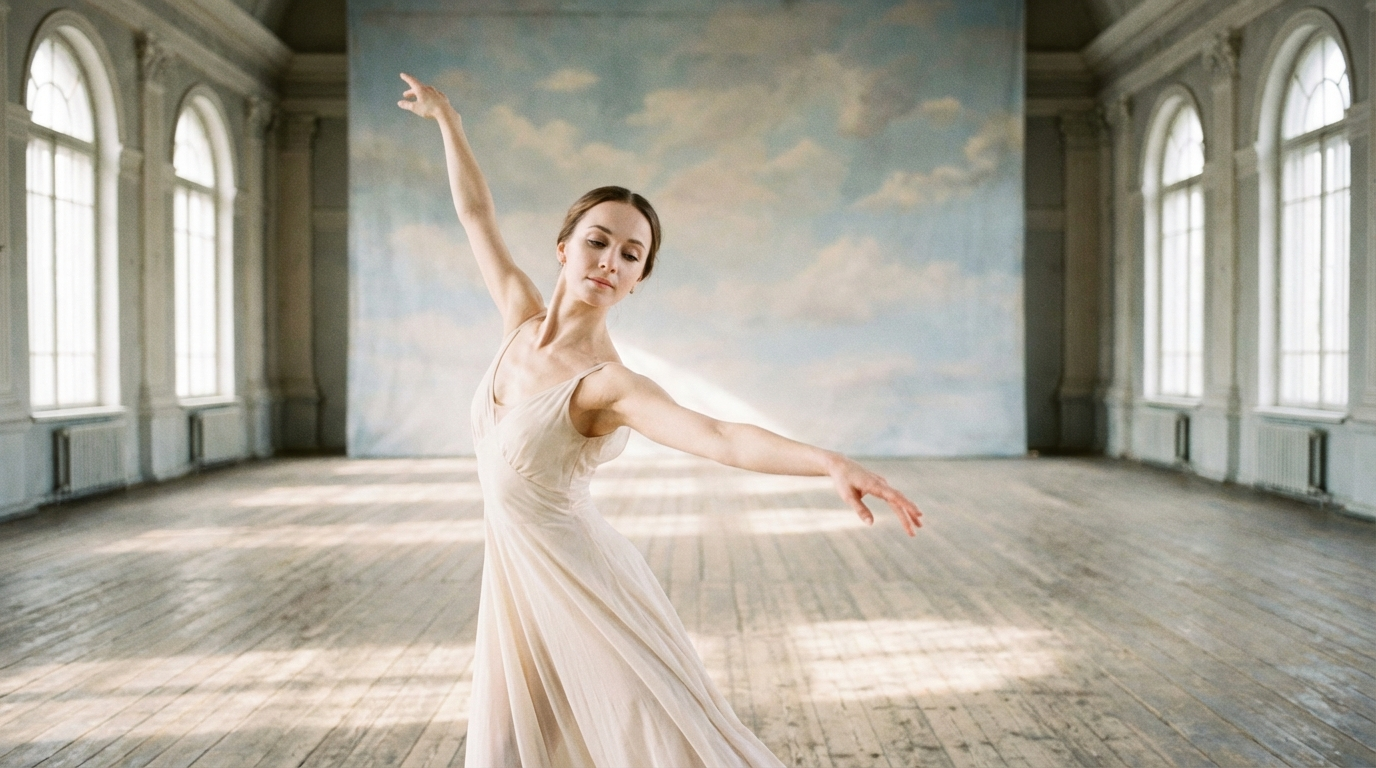
So, you've got a cool still image and you're thinking, 'How can I make this move?' That's where Kling AI's motion control comes in. Forget about trying to guess how a person would move or painstakingly drawing every frame. Kling AI lets you borrow motion from a real video and apply it to your static picture. It's like giving your photo a blueprint for movement.
Think of it this way: your image provides the 'who' – the face, the clothes, the overall look. The reference video provides the 'how' – the timing, the gestures, the way the body shifts. Your prompt then tells the AI about the 'where' and 'what' – the background, the lighting, the overall style. This approach is way more controlled than other image-to-video methods that just try to invent motion from scratch. It’s often called "digital puppeteering" because you're guiding the animation with a clear reference.
Here’s a breakdown of what makes this work:
- Identity Preservation: Kling AI focuses on keeping your original subject's look consistent, even as it adopts new movements. This means your character stays recognizable.
- Motion Transfer: The core idea is to map the motion from a reference video onto your still image. This includes everything from subtle facial expressions to full-body actions.
- Control Over Output: Unlike simpler tools, Kling AI offers ways to influence how the motion is applied, giving you more say in the final result. You can even change the scene or environment using text prompts, while the character keeps moving based on the reference video.
This technology is pretty neat because it understands things like body physics. So, if your reference video shows a character jumping, the AI can make your character look like they're actually jumping, with a sense of weight and impact. It's also gotten really good at handling tricky things like hand and finger movements, which have historically been a challenge for AI animation. You can even adjust how the AI interprets camera movements from the reference video, giving you more flexibility in how the final clip looks. It's a big step up from just hoping an AI guesses the right animation.
The key is that Kling AI doesn't just guess motion; it transfers it. This makes the animation feel more natural and predictable because it's based on real human movement. You're essentially providing the AI with a clear set of instructions derived from actual footage, which leads to more believable results.
Mastering The Kling AI Workflow For Photo Animation
So, you've got a cool still image and you're itching to see it move. Forget the old days of complicated software and endless hours. Kling AI makes turning your photos into dynamic clips way more straightforward. It's all about borrowing motion from a video and applying it to your picture, making things look natural instead of just, well, weirdly animated. Think of it like giving your photo a set of dance moves or a voice to speak with, all guided by a reference video.
Step-By-Step Guide To Animating Your First Photo
Getting started is pretty simple. You really only need two things besides the Kling AI tool itself: your photo and a short video clip to borrow motion from. Plus, a little text prompt to guide the AI on the style you're going for.
- Prep Your Inputs: First, grab the photo you want to animate. It's best if it's clear, well-lit, and not blurry. Then, find a short video clip that has the kind of movement you want. Ideally, this video should feature just one person and have a steady camera. Matching the framing is key here – a full-body photo works best with a full-body motion reference, and a portrait shot pairs well with a similar reference.
- Upload and Prompt: Head over to Kling AI and upload both your image and your motion reference video. Now, write a prompt. This isn't about describing the motion itself – that's coming from your video. Instead, focus on the scene, the lighting, the camera's feel, and whether you want it to look realistic or stylized. For example, you might prompt for "cinematic lighting, a clean background, and a steady camera."
- Generate and Review: Hit generate and watch the magic happen. Once it's done, don't just give it a thumbs up or down. Check a few things: Does the face stay put, or does it drift? Are the hands looking okay, or are they doing that weird AI thing? Does the character seem to slide around unnaturally? These are the tells that tell you what might need tweaking.
Optimizing Inputs For High-Quality Kling AI Results
Getting good results consistently is all about refining your inputs. It's not usually a one-shot deal, and that's okay. The trick is to change just one thing at a time when you're trying to fix something.
- Photo Quality Matters: A clean, sharp photo is your best friend. If your image is blurry, has harsh shadows, or the subject is too small, the AI will have a harder time. This often leads to weird artifacts or parts of the image looking a bit melted.
- Motion Reference Choice: For beginners, a simple talking-head video or a basic, rhythmic dance clip works wonders. These are forgiving. Avoid complex actions like fast spins or intricate hand gestures until you're more comfortable. If the background in your motion reference is distracting, try using a prompt like "static background" to help.
- Prompting for Stability: To keep the camera from doing its own thing, always include phrases like "tripod shot," "fixed camera," or "no zoom, no shake" in your prompt. This tells the AI to keep things locked down.
When you're iterating, focus on fixing one problem at a time. If the face is wobbly, maybe the photo needs to be clearer, or the motion reference is too extreme. If the hands are strange, try a different motion clip. Changing too many things at once makes it hard to know what actually fixed the issue.
Advanced Techniques And Creative Applications
Leveraging Motion Control For Complex Sequences
So, you've got the basics down, and your first few animations are looking pretty good. Now, let's talk about pushing Kling AI a bit further. When you want to create something more involved than just a simple wave or a head nod, you need to think about how the motion reference video itself is structured. Complex actions, like dance routines or intricate hand gestures, require careful selection of your reference footage. It's not just about finding a video of someone dancing; it's about finding one that clearly shows the weight transfer, the momentum, and the specific limb movements you want. If your reference video shows a character doing a powerful stomp, Kling AI can actually mimic that physical impact. This is where the AI really shines, understanding the physics of movement.
Here’s a quick rundown of what to keep in mind for trickier motions:
- Body Mechanics: Look for references that show clear weight shifts. If a character is jumping, you want to see them land. This helps the AI maintain a sense of gravity.
- Hand and Finger Detail: Hands are notoriously tough for AI. If your motion reference has clear, deliberate hand movements, Kling AI has a better chance of replicating them without weird glitches.
- Pacing and Flow: A reference video with a consistent pace, even for a fast action, often yields better results than something jerky or erratic.
Practical Use Cases And Iterative Refinement
Beyond just making cool animations, Kling AI opens up some really interesting practical doors. Think about creating virtual influencers for social media. You can use your own team members as motion references to give a digital character a relatable, human feel, all without needing a big studio setup. Or imagine product demos where you need to show hands interacting with a screen or a physical item – Kling AI can handle that.
One of the most powerful aspects is localization. You can take one core video and then use different character images – say, representing various ethnicities or age groups – to create a global campaign. The motion stays identical, but the on-screen persona changes, saving a massive amount of filming costs.
When you're refining your creations, don't be afraid to go back and tweak your inputs. If the face looks a bit off, try a sharper, more front-facing reference image. If the hands are wonky, simplify the motion reference or add a simple prompt like "realistic hands, natural proportions." It's an iterative process, kind of like editing a photo. You generate, you review, and you adjust until it feels right. The goal is to get to a point where the output looks polished, not just like a demo.
Ready to go beyond the basics? Explore how our tools can unlock amazing new possibilities for your projects. Visit our website today to see what you can create!
Wrapping Up Your Motion Creation Journey
So, that's the lowdown on turning your still images into moving clips with Kling AI. It’s pretty wild how far this tech has come, right? Gone are the days of needing a whole studio setup just to get a character to blink. Now, with a good photo and a reference video, you can make your images come alive. It’s not magic, but it feels pretty close. Give it a shot, play around with different photos and motions, and see what you can create. You might surprise yourself with what you can whip up in just a few minutes.
Frequently Asked Questions
Can I use any picture to make a video?
You can try to animate any picture, but it works best with clear, sharp photos. Blurry pictures or ones with really dark shadows can sometimes make the video look a bit glitchy or wobbly.
What kind of movement video is easiest to start with?
For beginners, a video of someone talking calmly with small head movements or a simple dance bounce is usually the easiest. These kinds of movements are less likely to cause weird effects in the final video.
Why does the background in my video sometimes look strange?
Sometimes the AI tries too hard to make the motion look smooth, which can affect the background. To help keep the background steady, you can add phrases like 'static background' or 'fixed camera' to your instructions, and use a reference video with a clear, simple background.