Flux Prompts: Techniques for More Accurate, Aesthetic Results
So, you've been playing around with Flux prompts, huh? Sometimes you get exactly what you pictured, and other times... well, it's a bit of a surprise. Getting those crystal-clear, amazing images from Flux AI can feel like a guessing game. But it doesn't have to be! With a few smart tricks for your flux prompts, you can steer the AI toward the results you actually want, making your creations look way more professional and just plain better. Let's talk about how to make your flux prompts work hard
By Bartu Varol · Jan 15, 2026 · 8 min read

So, you've been playing around with Flux prompts, huh? Sometimes you get exactly what you pictured, and other times... well, it's a bit of a surprise. Getting those crystal-clear, amazing images from Flux AI can feel like a guessing game. But it doesn't have to be! With a few smart tricks for your flux prompts, you can steer the AI toward the results you actually want, making your creations look way more professional and just plain better. Let's talk about how to make your flux prompts work harder for you.
Key Takeaways
- Make your flux prompts super specific. Instead of just saying 'a car,' describe the make, model, color, and even the environment it's in. This level of detail helps Flux understand your vision much better.
- Think about the feeling you want. Are you going for a calm, sunny day or a dramatic, stormy night? Tell Flux about the mood and use artistic references, like 'in the style of Van Gogh' or 'like a scene from Blade Runner,' to guide the look.
- Don't forget the little things. Use negative prompts to tell Flux what *not* to include, like 'no blurry edges' or 'no text.' Also, adding camera details, like 'shot with an 85mm lens,' can make your images look more real.
Elevating Flux Prompts With Specificity
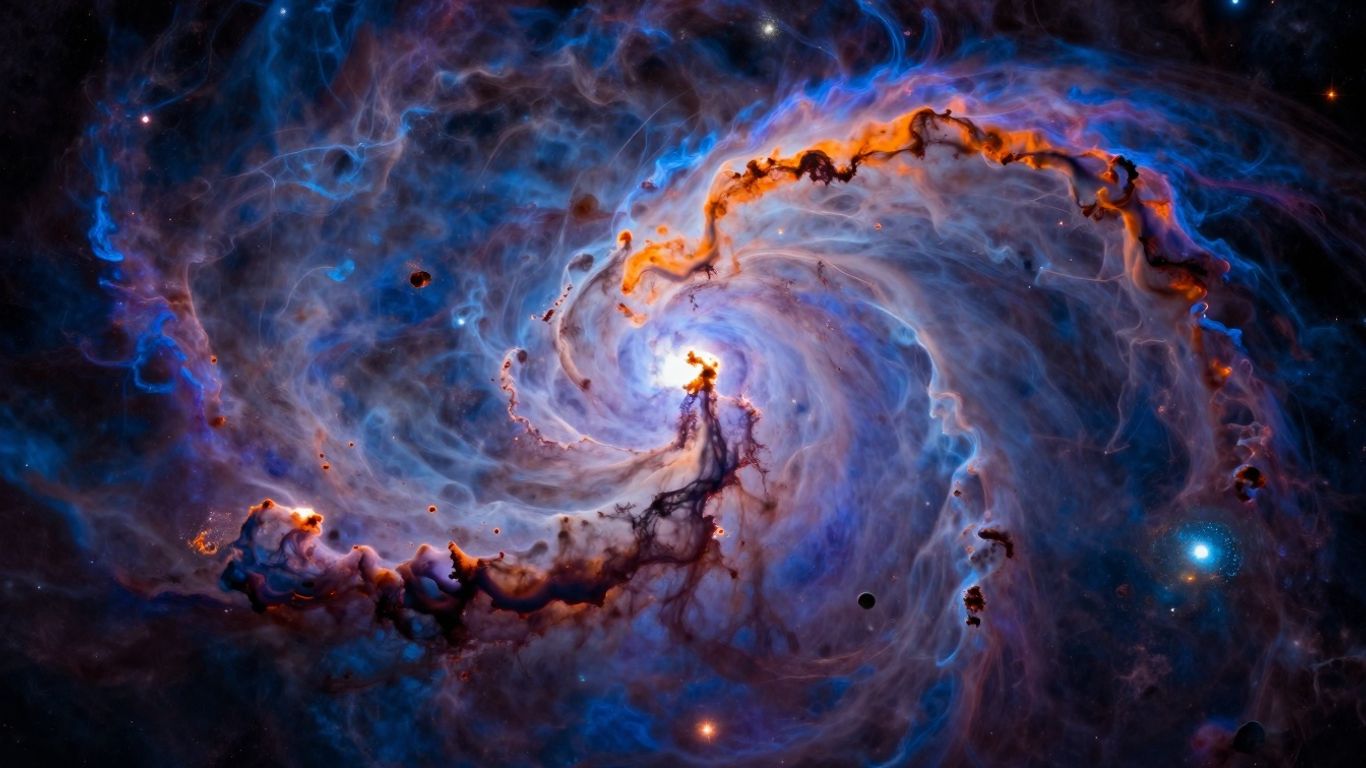
Okay, so you've got Flux, and you're ready to make some cool stuff. But sometimes, you type in what you think is a pretty clear idea, and what you get back is... well, not quite it. That's where getting specific with your prompts comes in. It's not just about saying what you want; it's about painting a picture with words so detailed that Flux can't possibly misunderstand.
Leveraging Descriptive Language and Technical Terms
Think of your prompt as a blueprint. The more detail you include, the closer the final build will be to your vision. Instead of just asking for "a car," try "a vintage red 1965 Ford Mustang convertible, parked on a dusty desert road at sunset." See the difference? We've added the make, model, year, color, condition, setting, and time of day. This level of detail helps Flux understand the exact subject and its context.
When you're aiming for a certain look, don't shy away from technical terms. If you want something to look like a real photograph, mention camera settings. For example, "shot with an 85mm lens, f/1.8 aperture, shallow depth of field" tells Flux to create a portrait with a nicely blurred background. If you're going for a cinematic feel, terms like "wide shot," "tracking shot," or "dolly zoom" can guide the composition and movement.
Here's a quick rundown of how descriptive words can change things:
- Subject: "Dog" vs. "A fluffy golden retriever puppy with floppy ears, panting happily."
- Setting: "Forest" vs. "A dense, ancient redwood forest with shafts of sunlight breaking through the canopy."
- Action: "Running" vs. "Leaping gracefully over a fallen log."
Layering Descriptions for Depth and Composition
To really make your Flux creations pop, you need to think about how elements are arranged and how they interact. This is where layering descriptions comes in handy. It's like building a scene from front to back, or from the main subject outwards.
Start with your main subject and its immediate surroundings. Then, describe what's happening in the background. For instance, if you're creating a cityscape, you might start with "a lone figure standing on a rooftop" and then add details about the city behind them: "futuristic skyscrapers with glowing neon signs, a hazy, rain-slicked street far below, distant flying vehicles." This layering helps Flux build a sense of depth and scale.
Composition is also key. Do you want the subject centered? Off to the side? Is it a close-up or a distant view? Specifying this helps Flux frame your scene effectively. You can even guide the camera's movement for video prompts, like "slow pan across the bustling market square, focusing on the vendor's stall in the foreground."
Sometimes, the simplest way to get a better result is to just add more information. Think about what makes an image or video interesting to you, and then try to describe those specific qualities in your prompt. It's a bit of trial and error, but the more you practice, the better you'll get at anticipating what Flux needs to see your vision.
Remember, the goal is to give Flux enough information to create something that matches what's in your head. Don't be afraid to get detailed – it's the secret sauce to getting those amazing, accurate, and aesthetically pleasing results.
Crafting Atmosphere and Style in Flux Prompts
So, you've got the basic scene down, but how do you make it feel like something? This is where atmosphere and style come in. It's not just about what's in the picture, but the mood it gives off and the artistic vibe it carries.
Defining Mood and Emotional Impact
Think about how you want the viewer to feel when they see your image. Are you going for something calm and peaceful, or maybe something exciting and a bit tense? You can tell Flux this directly. Instead of just saying "a forest," try "a quiet, misty forest at dawn, with a feeling of gentle mystery." This tells Flux to use softer lighting, maybe some fog, and a color palette that suggests peace rather than alarm.
Here are some ways to set the mood:
- Serene: Soft light, muted colors, gentle shapes.
- Dramatic: Strong contrasts, bold colors, dynamic compositions.
- Nostalgic: Warm tones, vintage elements, a sense of looking back.
- Mysterious: Shadows, fog, unusual juxtapositions, limited visibility.
Describing the emotional tone helps Flux match the overall feel of the scene. It's like giving the AI a personality to aim for.
Incorporating Artistic References and Styles
Want your image to look like it came from a specific era or artist? You can absolutely do that. Mentioning styles or even specific platforms where artists share their work can guide Flux. For instance, saying "in the style of 1980s cyberpunk" will bring in neon lights and a certain gritty, futuristic feel. Or, you could try "inspired by the surrealism of Salvador Dalí" to get some wonderfully weird and dreamlike results.
Here's a quick look at how references can change things:
| Prompt Element | Example 1 (No Style) | Example 2 (Cyberpunk) | Example 3 (Dalí) |
|---|---|---|---|
| Core Subject | A city street | A city street | A city street |
| Atmosphere/Style | Neon-lit, rainy | Melting clocks, odd | |
| Color Palette | Standard | Vibrant, cool tones | Muted, earthy tones |
Using stylistic references is a powerful way to shape the final aesthetic of your generated images. Don’t be afraid to experiment with different art movements or visual styles. Just be clear and descriptive in your wording, since Flux relies on natural language rather than complex weighting systems to understand and follow your intent.
Refining Flux Prompts Through Exclusion and Detail
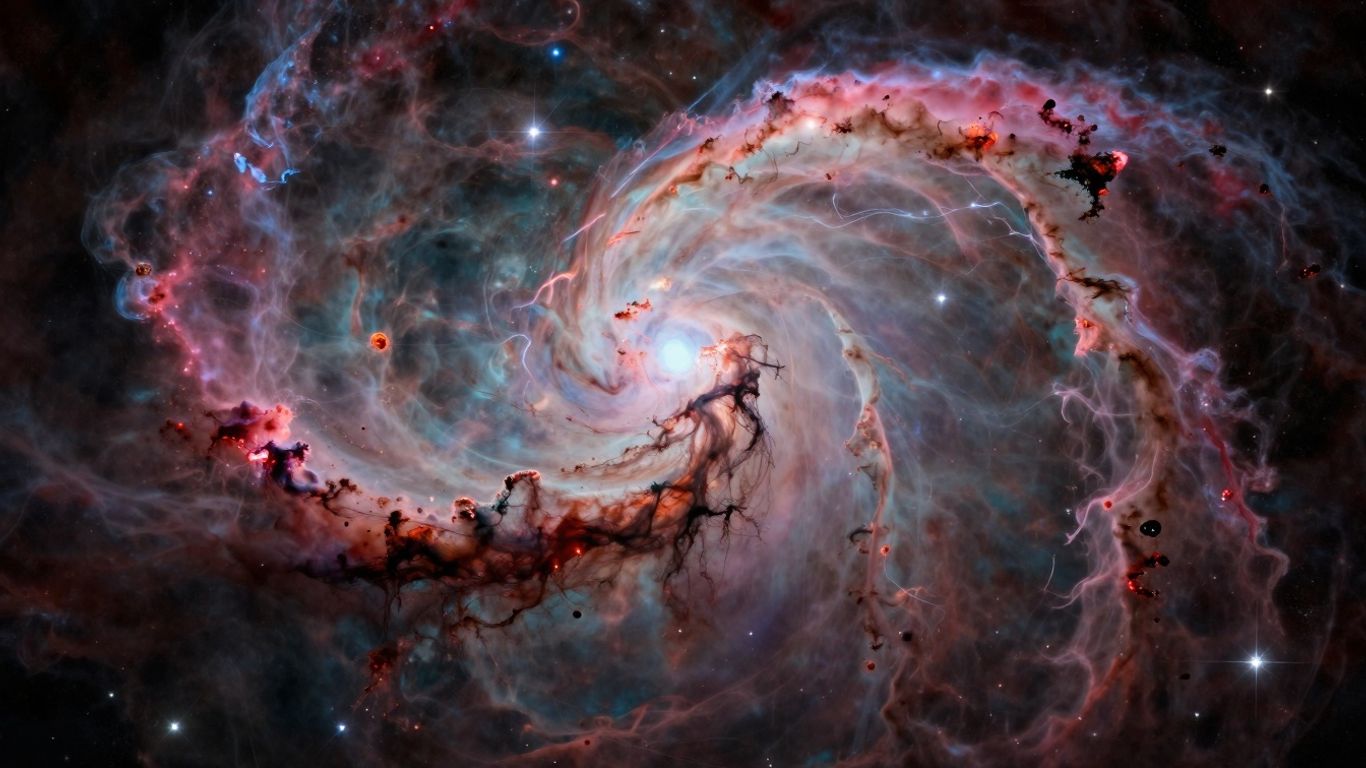
Sometimes, getting the image you want isn't just about telling Flux what to include, but also what to leave out. This is where negative prompts and super-specific details really shine.
Utilizing Negative Prompts for Cleaner Outputs
Think of negative prompts as your digital bouncer, keeping unwanted elements out of your generated image. If you're getting weird artifacts, blurry backgrounds when you want sharpness, or maybe text that looks like gibberish, a negative prompt can fix that. It's like saying, "No, not that." For instance, if you're aiming for a crisp, realistic photo, you might add "no blur, no distortion, no watermarks" to your prompt. This helps Flux focus on creating a clean, polished result without getting sidetracked by common AI generation issues. It's a simple way to steer the AI away from common pitfalls.
Here are some common things people exclude:
- Blurry or out-of-focus elements
- Watermarks or signatures
- Unwanted text or logos
- Distorted or malformed features (especially hands or faces)
- Specific colors or objects you don't want
Specifying Camera Settings for Realistic Effects
To really nail a specific look, especially if you're going for photorealism or a cinematic feel, you'll want to talk Flux's language – camera settings. Mentioning things like lens type, aperture, or even camera angle can make a huge difference. For example, specifying an "85mm lens" with "shallow depth of field" will give you that nice background blur that makes your subject pop, just like in a professional portrait. If you want a wide, sweeping view, try "wide-angle shot" or "cinematic panorama." It's all about giving Flux the technical cues it needs to mimic real-world photography or filmmaking.
Here's a quick look at how different settings can change the output:
| Setting | Effect |
|---|---|
| 50mm lens | Natural perspective, similar to human eye |
| 24mm lens | Wider field of view, slight distortion |
| f/1.8 aperture | Shallow depth of field, blurred background |
| f/16 aperture | Deep depth of field, sharp foreground/bg |
| Low angle | Makes subject appear imposing or grand |
| High angle | Makes subject appear small or vulnerable |
Using technical camera terms tells Flux exactly how you want the scene framed and focused. It's like giving the AI a director's brief for a photoshoot, guiding the perspective, depth, and overall visual impact.
Don't be afraid to experiment with these settings. Combining specific camera details with descriptive language and negative prompts will help you get much closer to the exact image you have in mind, cutting down on guesswork and improving the overall quality of your Flux creations.
Want to get better results from your AI prompts? By telling Flux what you don't want, alongside specific details, you can guide it more effectively. This method helps create exactly what you imagine. Ready to see how it works? Visit our website to learn more and try it yourself!
Wrapping It Up
So, we've gone over a bunch of ways to get Flux to make the images and videos you actually want. It's not just about typing in a few words and hoping for the best. You really need to think about what you're asking for – the details, the lighting, the mood, even the camera stuff. It takes a bit of practice, sure, but when you start seeing those results that are way closer to what you pictured in your head, it’s totally worth it. Don't be afraid to try different things and see what happens. The more you play around with it, the better you'll get at telling Flux exactly what you're after. Happy creating!
Frequently Asked Questions
How can I make my Flux AI images look more realistic?
To get more realistic pictures, use very specific words. Talk about the lighting, like 'soft morning light' or 'bright midday sun.' Also, mention camera details such as the type of lens (like '85mm lens') or how the camera is moving, for example, a 'slow pan' to make it feel like a real movie.
What's the best way to describe the mood or feeling of an image?
You can tell Flux what mood you want by using words that describe feelings. For example, say 'peaceful and calm' for a relaxing scene, or 'exciting and dramatic' for something more action-packed. Also, mentioning colors like 'warm, sunny colors' or 'cool, dark colors' can help set the mood.
How do I stop Flux from adding things I don't want in my image?
You can use 'negative prompts' to tell Flux what to avoid. Just add phrases like 'no text,' 'no watermarks,' or 'no blurry parts' to your prompt. This helps keep your image clean and focused on what you actually want to see.