A New Era in Video Production: The Kling O1 Models
As we enter 2025, the most significant leap in visual generation technologies is happening in the field of video production. In the final month of the year, Kling O1 stands out as a strong contender among video AI models. The model family can be used not only to generate videos but also to edit existing footage, produce alternative versions of the same scene, and animate photos. Four models have been released as part of this suite: * Reference Image to Video * Image to Video * Video to Video
As we enter 2025, the most significant leap in visual generation technologies is happening in the field of video production. In the final month of the year, Kling O1 stands out as a strong contender among video AI models. The model family can be used not only to generate videos but also to edit existing footage, produce alternative versions of the same scene, and animate photos. Four models have been released as part of this suite:
- Reference Image to Video
- Image to Video
- Video to Video Edit
- Video to Video Reference
In this article, we explain the four core modes of Kling O1 clearly and practically, without diving into complex technical details. Under each mode, you will also find example prompts you can use.
In 2025, visual production is no longer limited to generating a video alone. Identity consistency, motion transfer, cinematic camera styles, post-production steps, and frame-based visual editing have become essential parts of the same creative pipeline.
At this point, two powerful tools come together:
- Kling O1 → For video generation, video transformation, and motion transfer
- Nano Banana Pro + Nano Banana Edit → For frame-level improvements in style, identity, texture, lighting, and composition
With this combined approach, you will not only generate a video, you will elevate every single frame to a professional-quality level.
Why Are Kling O1 and Nano Banana Used Together?
Nano Banana generates the visuals and prepares characters, objects, and scene elements with high accuracy. Kling O1 then takes these elements and builds the video, creates the motion, and establishes the flow of the scene.
The combination of these two tools strengthens the production process both creatively and technically. Nano Banana defines the visual quality, while Kling O1 transforms that visual language into a seamless video narrative.
As a result, even a 5 to 10 second clip can reach near cinematic quality, offering professional level lighting, composition, motion, and overall visual coherence.
1. Kling O1 — Reference Image to Video
This mode takes the photos you provide and transforms them into a motion-enabled scene. You can use character photos, product images, or environment references. The model preserves the appearance and identity features in these references while generating a video.
It is typically used for the following purposes: • Bringing a character to life in different scenes while keeping the same face • Animating a product or object within a realistic environment • Creating fashion shoot or commercial-style scenes • Producing consistent video content from branded visuals
What to Expect The model preserves the face, hairstyle, and clothing details from your reference image. The scene is generated according to your prompt. Movements appear natural, and the camera flow maintains a cinematic quality.
🔗 Try Kling O1 Reference Image to Video on Eachlabs
🔗 Try Nano Banana Pro on Eachlabs
Step 1: The main visual is created using Nano Banana.
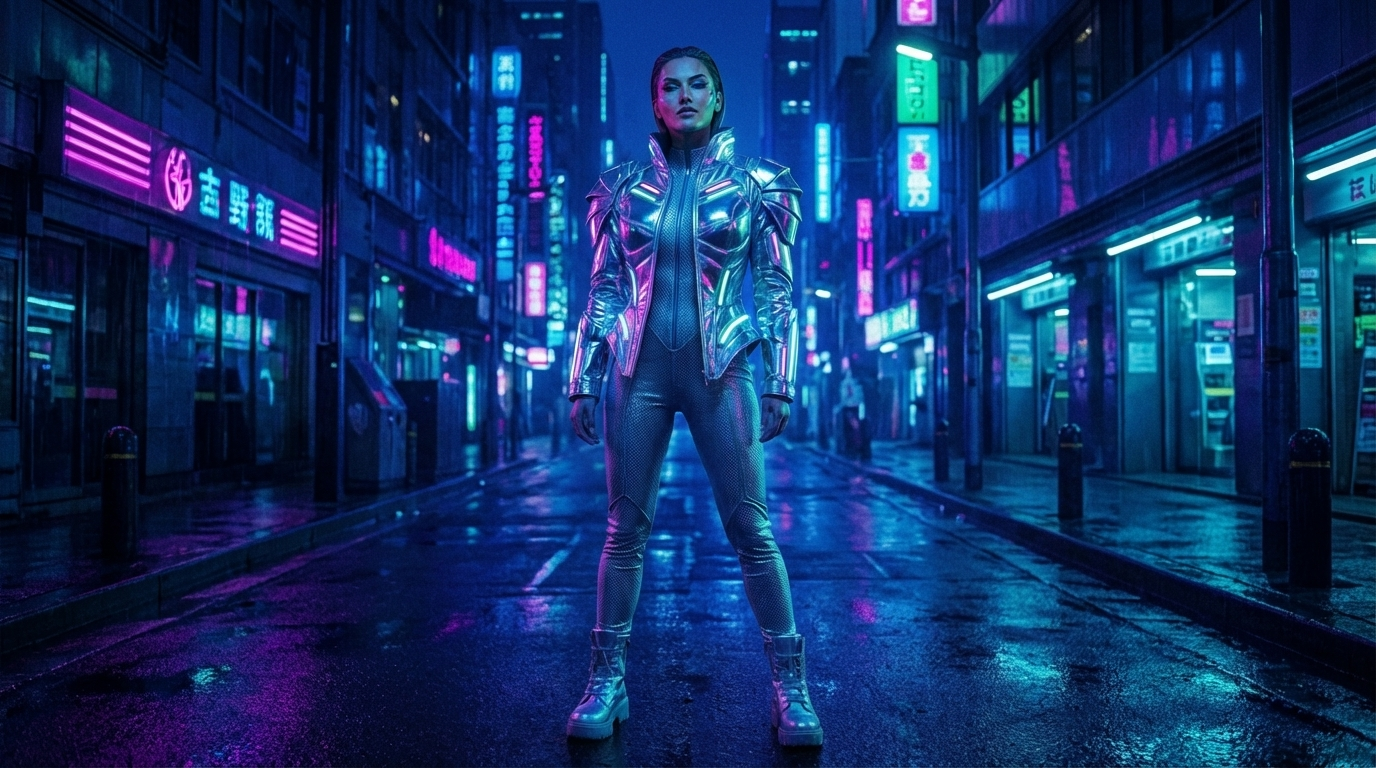
Prompt: A full-body portrait of a woman wearing a futuristic silver jacket, neon reflections on fabric, sharp facial features, deep blue ambient lighting.
Step 2: A different angle of the main visual is created, or a new prompt is used to define the environment.
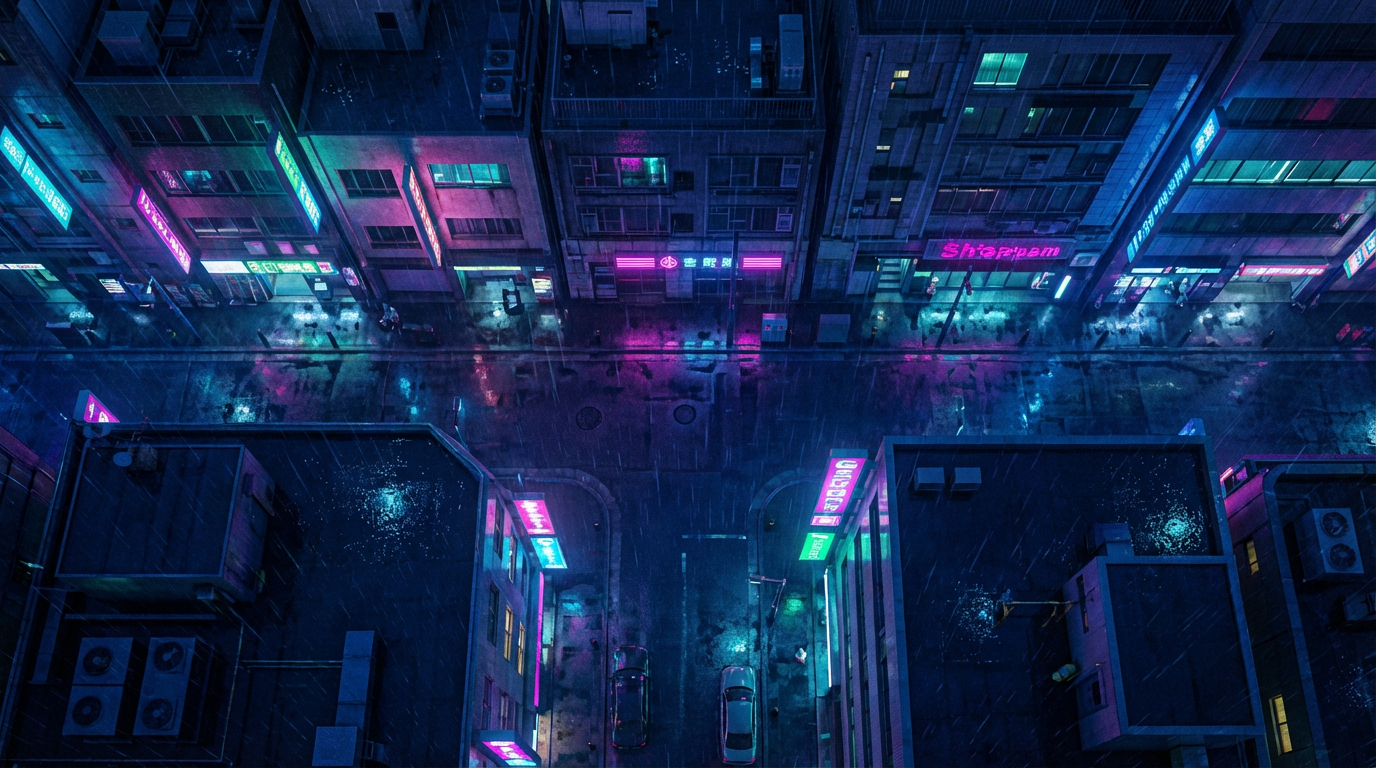
Prompt: bird eye view
Step 3: Close-up visuals and additional angles of the product or character are created.
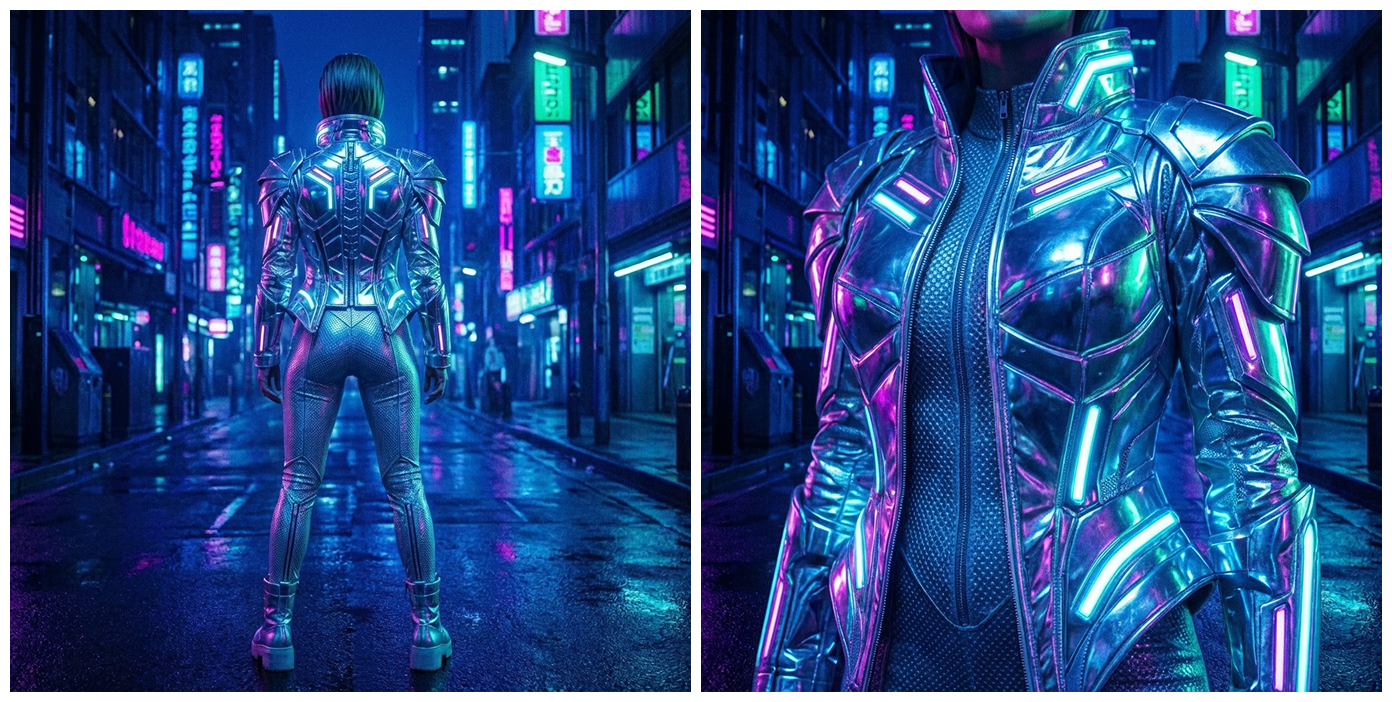
Prompt: back view - zoom the jacket
Step 4: The generated visuals are placed into the appropriate sections within the Kling O1 model.
The main visual and the top-view visual are placed in the Image section, the front and back views of the person or product are placed in the Element section, and the detailed close-up is placed in the Reference Image section. Then you enter the prompt, and the result is ready.
Prompt: “Begin with a high-altitude aerial shot overlooking a neon-lit cyberpunk city at night. The camera looks down on rain-soaked streets and glowing signs in deep blues, magentas, and cyan tones. Slowly descend toward the street level as the reflections shimmer across rooftops and wet pavement.
As the camera reaches the ground, transition smoothly into a forward glide through the center of a deserted neon street. Continue moving until the frame reveals a futuristic woman standing in the middle of the road with her back turned. She wears a high-tech metallic suit illuminated by vivid magenta-cyan reflections, the kind that shine against the wet ground of the nighttime city.
The camera keeps advancing in one continuous motion. As it gets closer, the woman slowly turns her head toward the viewer. Her face becomes visible under dramatic neon lighting cool blues and hot magentas reflecting on the metallic textures of her suit, capturing the intense cyberpunk atmosphere.
Maintain the same fluid cinematic movement and shift into a gentle zoom-in, transitioning into a close-up of the detailed chest and shoulder area of her futuristic jacket. Show the glowing strips, reflective metal surfaces, layered armor-like textures, and polished neon highlights in crisp detail.
End the sequence with a stable, dramatic final composition: the woman standing confidently in the neon-drenched street, the intricate illuminated details of her suit shimmering, and the rainy cyberpunk city glowing around her.”
2. Kling O1 — Image to Video
This mode allows you to provide one or two frames (a start and an end frame) and generates the animation between them. If you want a smooth and natural transition from the beginning to the end scene, this is the ideal option.
Use Cases: • “Before → After” promotional videos • Transformation or style-change videos • Environment transitions, such as winter to spring • 3D stylization movements
What to Expect The model creates a natural, time-flow-like transition between the two frames. Texture consistency is strong, and the movement feels organic without visual interruptions.
🔗 Try Kling O1 Image to Video on Eachlabs
Step 1: The start-frame visual is created, or an existing visual is uploaded.
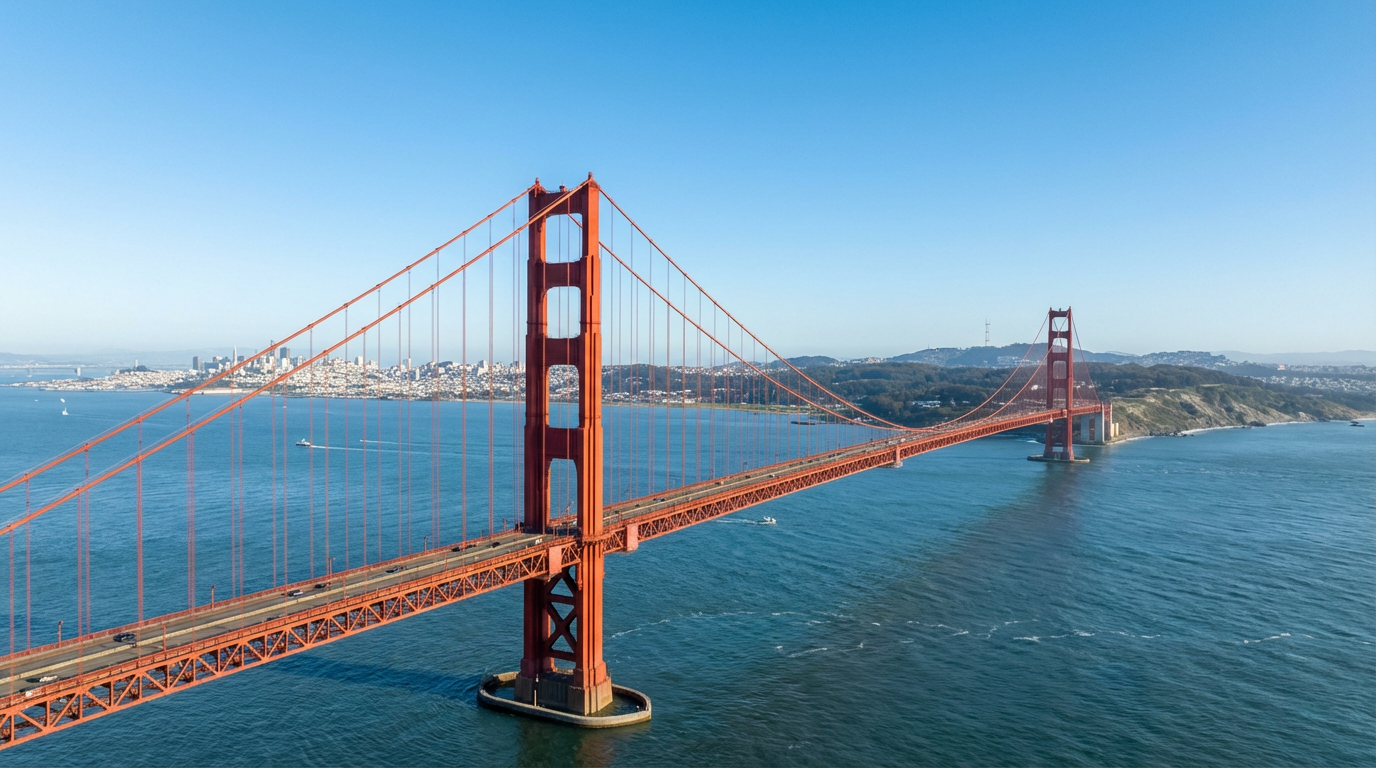
Prompt: Aerial view of the Golden Gate Bridge during bright daytime. Clear blue sky, soft sunlight, calm ocean waves, red-orange structure fully visible. Natural daylight colors, high clarity.
Step 2: The end-frame visual is created, or an existing visual is uploaded.
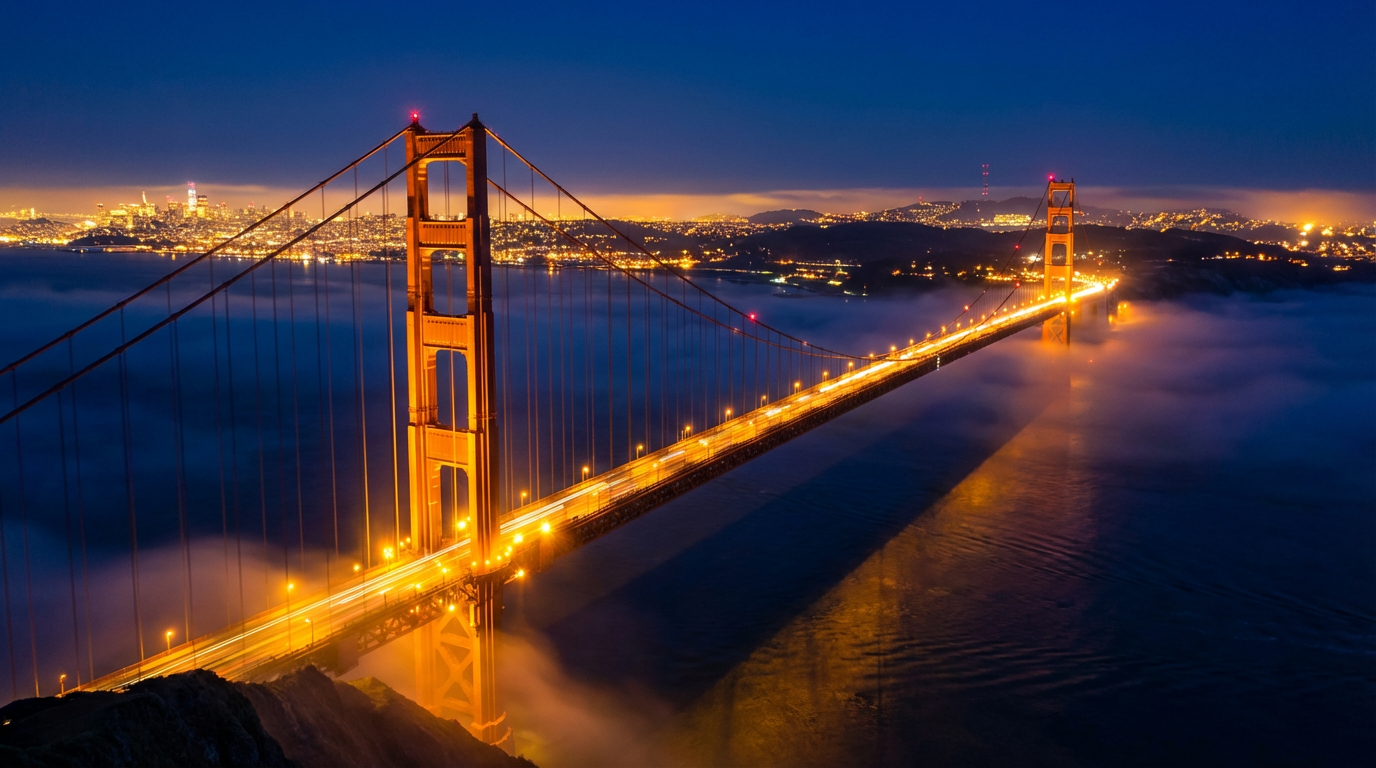
Prompt: Night-time aerial shot of the Golden Gate Bridge from a high bird’s-eye view.
Step 3: The start frame and end frame are placed in the appropriate sections, and the prompt for the video is written.
Video Prompt: “Begin with a bright daytime aerial shot of the red suspension bridge over a calm blue bay. The camera glides forward as the sky gradually shifts from light blue to golden sunset. Lights slowly appear on the bridge and in the city. Transition smoothly into dusk: the sky deepens, fog rolls in, and the bridge’s illumination glows stronger. End in full night with the city sparkling and the bridge shining over dark water.”
3. Kling O1 — Video to Video Edit
This mode allows you to take an existing video and edit it using only a prompt. It can automatically apply VFX-level changes such as costume replacement, environment transformation, style painting, and adding or removing objects.
Popular Use Cases: • Changing the overall style of a video in a single step • Updating or transforming the characters within the video • Replacing the background with a completely different environment • Applying color grading and cinematic toning • Performing VFX-like manipulations • Updating visuals in fashion or product videos
What to Expect The model can reprocess the entire scene without disrupting the movement or timing of the original footage. This provides significant time savings, especially in post-production workflows.
🔗 Try Kling O1 Video to Video Edit on Eachlabs
🔗 Try Nano Banana Pro on Eachlabs
Step 1: The generated video or an existing video is uploaded to the designated section.
Video Prompt with Kling V2.6: Create a scene of a man and a woman running side by side on a forest path. Keep their running motions natural, synchronized, and energetic. Camera follows them with a smooth forward-tracking movement and slight lateral drift for cinematic depth. Sunlight filtering through the trees, gentle shadows, realistic motion blur on legs and background. Maintain full identity consistency and accurate facial details.
Step 2: Character and environment changes are added to the appropriate sections.
You can modify the environment by using the first frame of the video as a reference and editing it with Nano Banana Pro, or by uploading an existing environment image. Make sure the uploaded environment does not contain any extra people; if it does, you can easily remove them using Nano Banana Pro.
If you want to replace the characters in the video, you can also create new characters with Nano Banana Pro and use these visuals as references in the model.
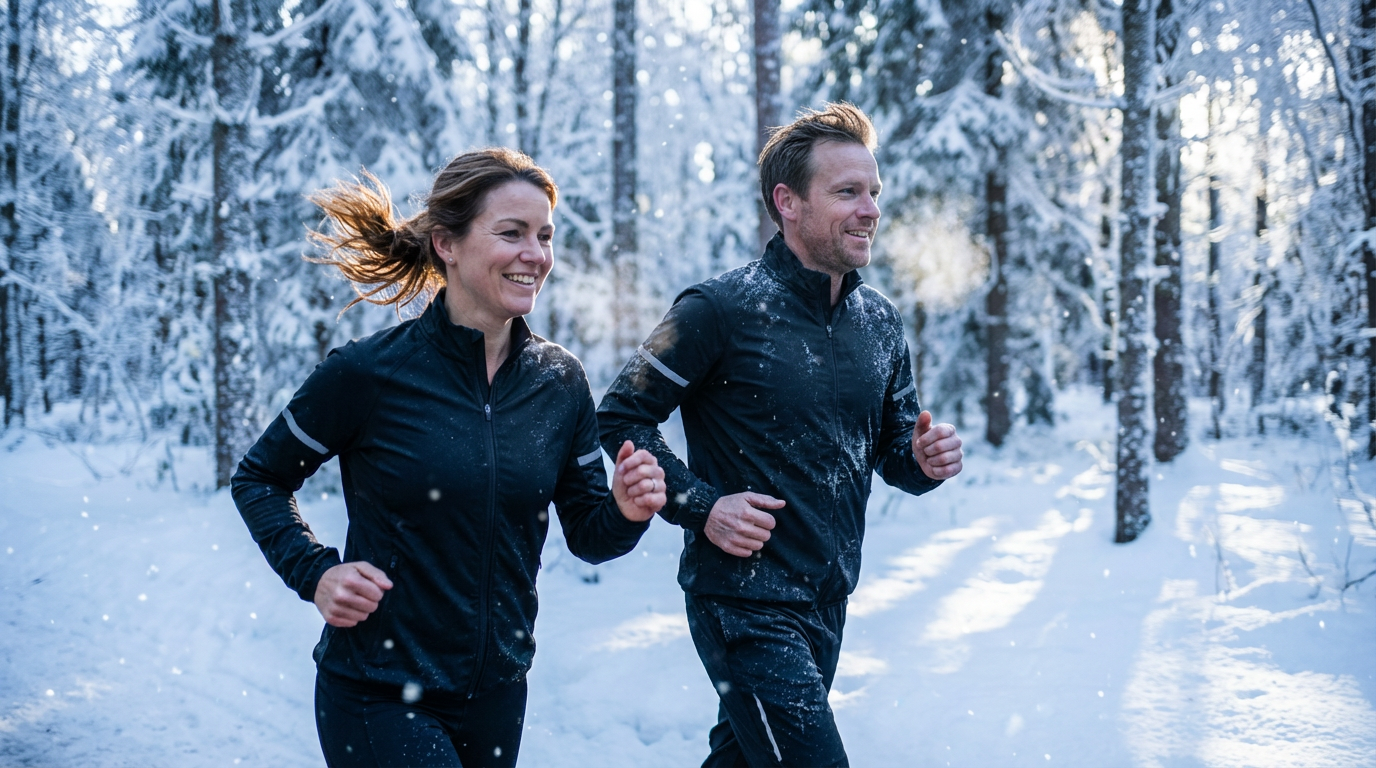
Prompt: Transform the uploaded running scene into a snowy forest environment. Replace the forest background with snow-covered trees, white ground, falling snow particles, and cold blue ambient lighting.Change the tracksuits to winter-appropriate athletic outfits but keep the characters' faces, identities, and expressions perfectly intact. Preserve their running motion, pacing, and camera movement exactly. Add subtle breath vapor, soft snow impacts on the ground, and realistic winter reflections on clothing. Do not alter the faces in any way; maintain full facial clarity and identity consistency throughout the sequence.
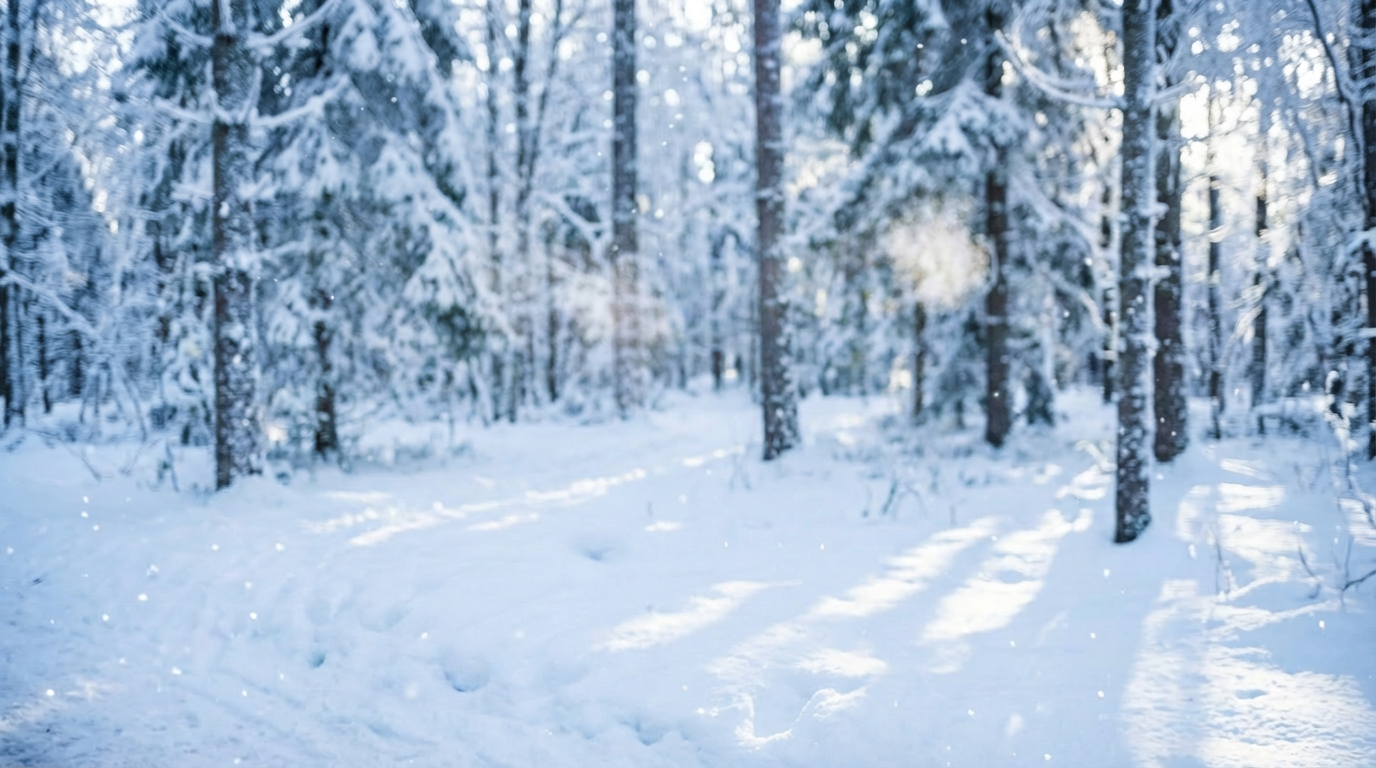
Prompt: Remove the people.
Step 3: The background is uploaded to the Image section, and the characters along with their different angles are uploaded to the Element section. The prompt is then written.
Prompt: Replace the character in the video with @Element1, maintaining the same movements and camera angles. replece the environmet @image1
🎯 4. Kling O1 — Video to Video Reference
This mode allows you to generate a completely new video by using the camera movement, composition, and rhythm of an existing video as a reference. It is typically used in situations where you want to keep the camera motion but change the scene entirely.
Use Cases: • Pre-production scene planning • Replicating complex camera movements • Extending an existing scene • Creating alternative scene variations • Pre-visualization for short films and commercial shoots
What to Expect The model captures the camera language from the reference video, including tracking, panning, tilting, movement speed, and overall rhythm. It then applies this camera behavior to a new scene, resulting in a video that feels like a second take shot by the same director.
🔗 Try Kling O1 Video to Video Reference on Eachlabs
Step 1: Only the video and the prompt are uploaded.
This model works primarily with the video and the prompt. You can upload images or reference visuals just like in the other modes, but even without them, it performs remarkably well at predicting and extending the video.
Prompt: Based on @Video1, generate the next shot. keep the style of the video
Why These Models Matter
Unlike traditional AI systems, Kling O1 does much more than simply “generate a video.” It can also edit, transform, transfer motion from references, and rebuild entire scenes based on the visual inputs you provide.
This makes it a powerful and practical tool for: • Advertising agencies • Fashion and e-commerce • Film and video production teams • Solo creators • Next-generation content producers
Conclusion
Each of the four Kling O1 modes addresses a different creative need:
• Reference → Video: Consistent character and product videos • Image → Video: Transformation and smooth transition videos • Video → Edit: Fast and efficient post-production workflows • Video → Reference: Camera-motion replication
When combined, these four modes function almost like a compact production studio, giving you a complete toolkit for high-quality visual creation.